
オンセットやDisplay-referredのView LUT運用は一般的ですが、
ACESのscene-referred環境を維持したままLUTを適用する方法について問い合わせがありました。
Batch環境では比較的簡単に確認できるフローですが、
これをView LUT的な運用に置き換えるにはどうすればよいか検証してみました。
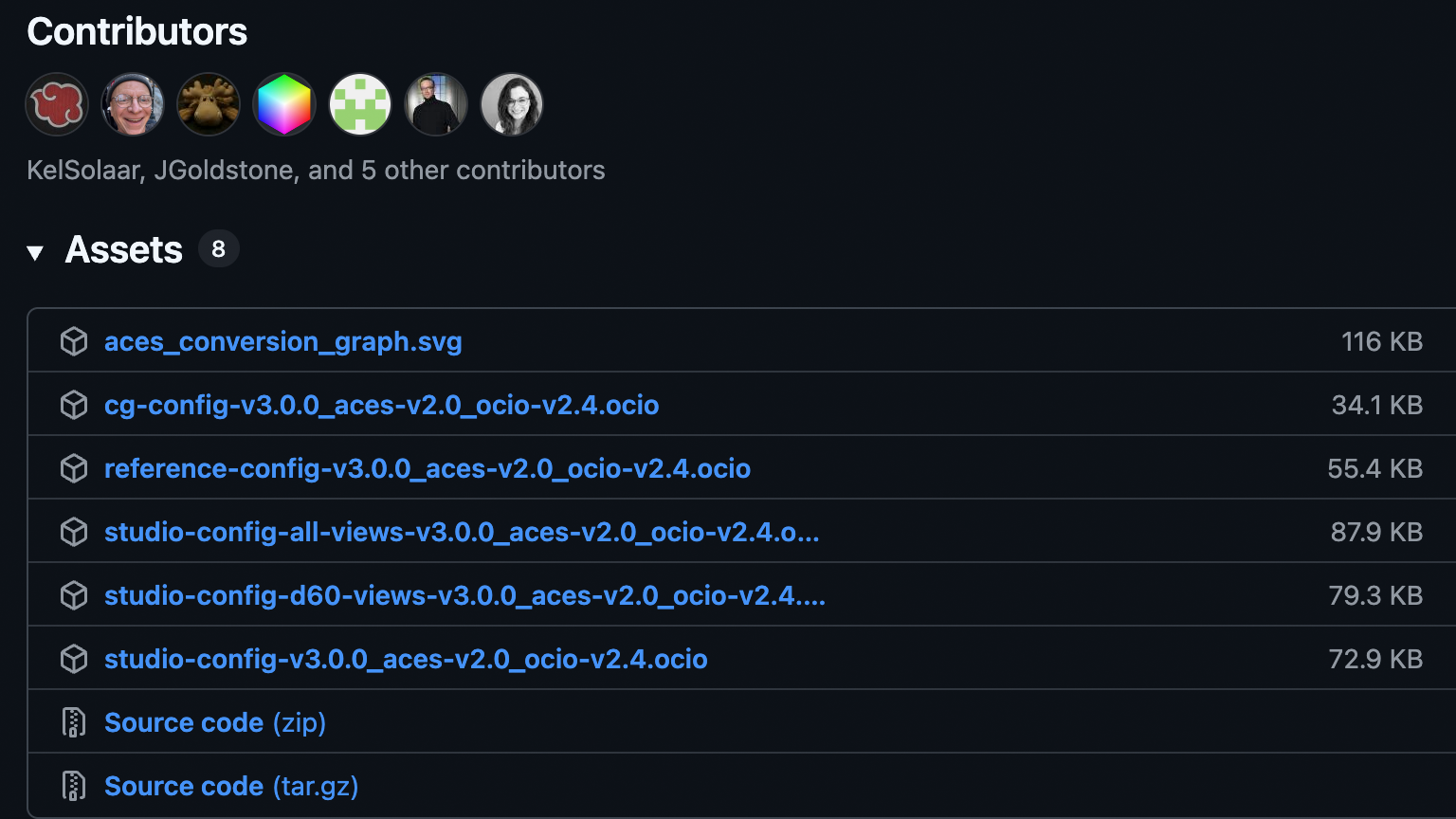
検証準備 config.ocioダウンロード
studio-config-v3.0.0_aces-v2.0_ocio-v2.4.ocioをダウンロード
今回の検証では、config.ocioを編集する可能性があるので、Flameデフォルトのconfig.ocioは使いません。
LUT作成
DaVinci Resolve Color設定
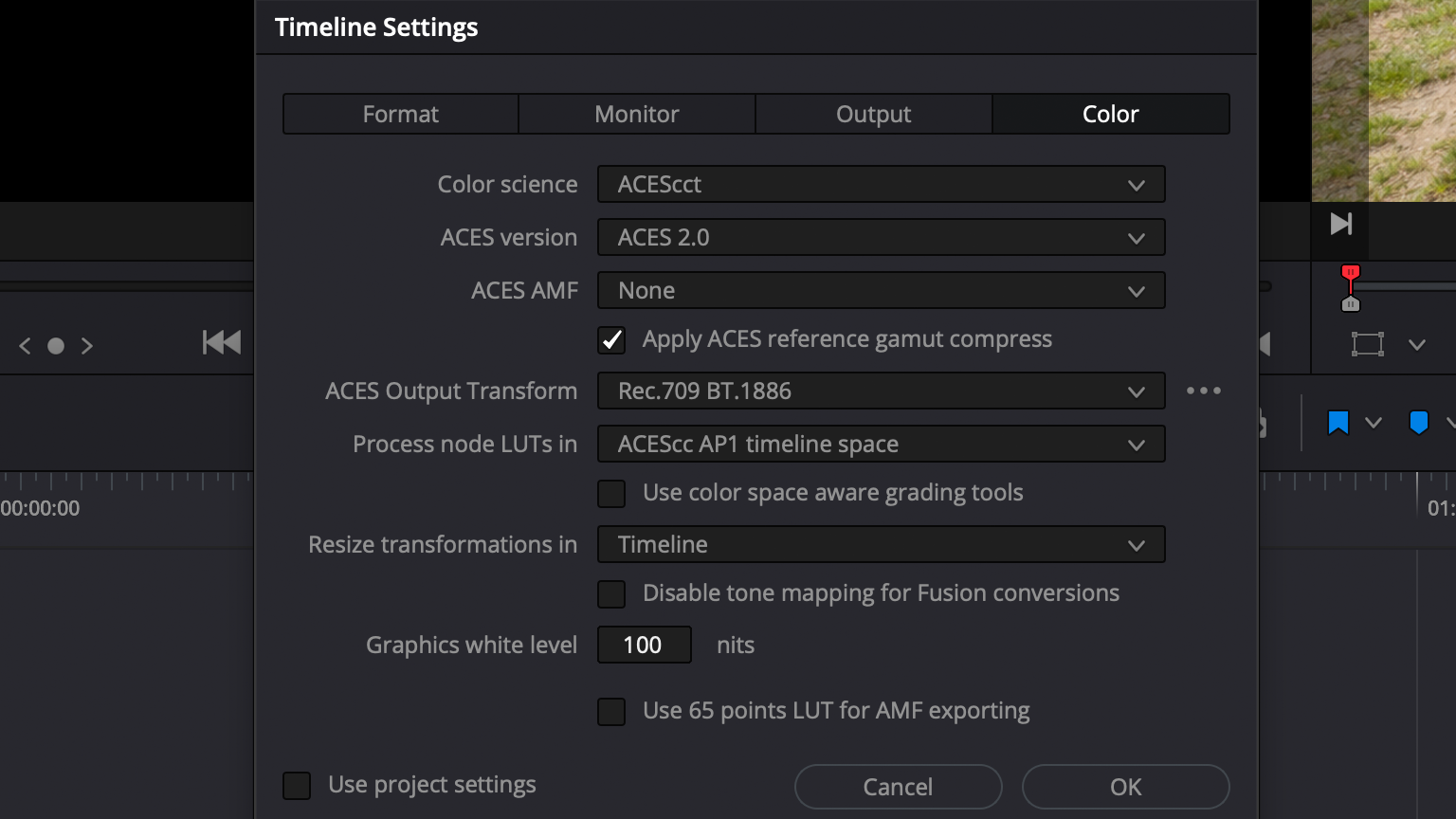
Color Science > ACEScct
ACES Version > ACES2.0
ACES Output Tranform > Rec.709 BT.1886
ACES 2065-1インポート
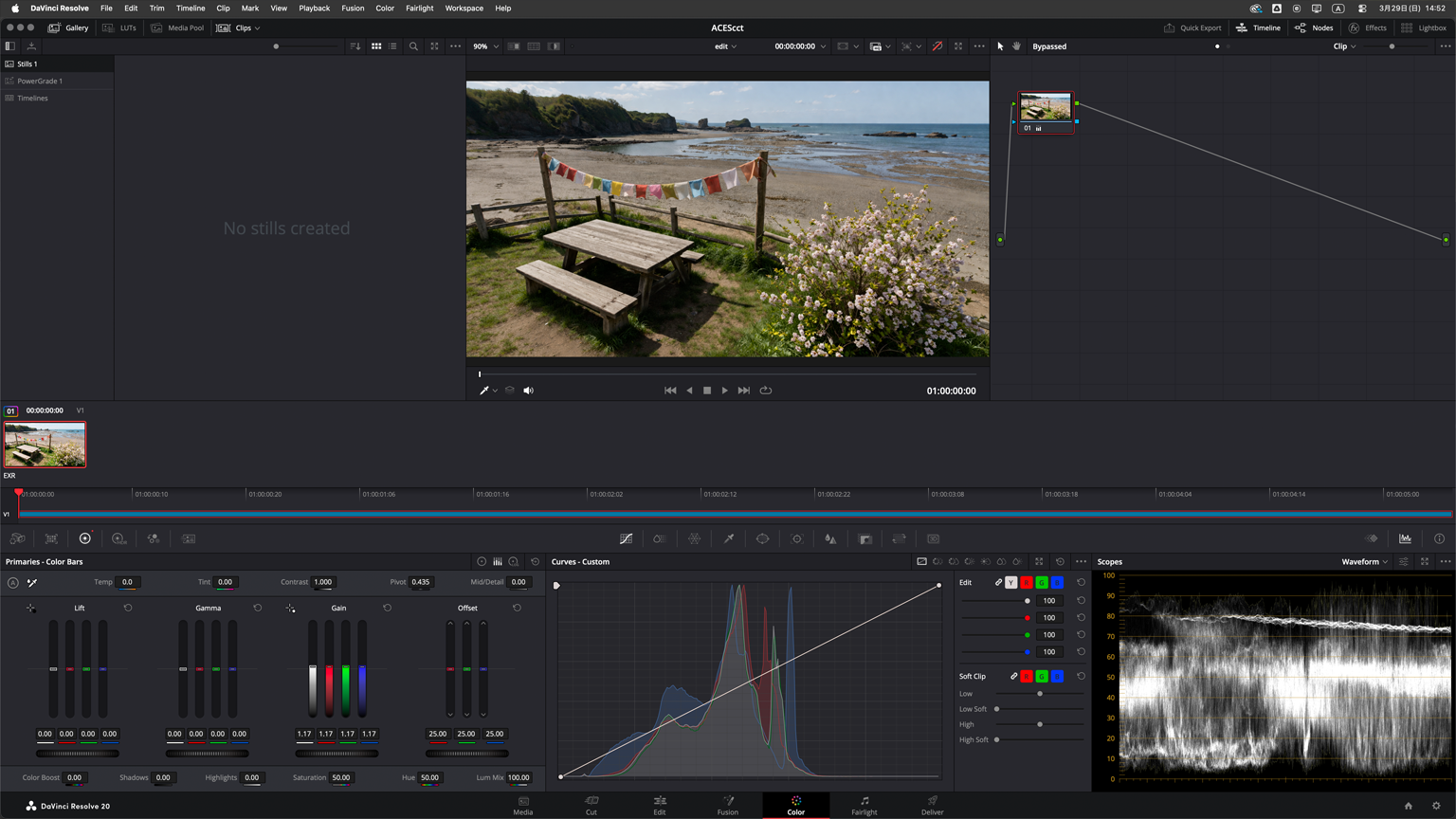
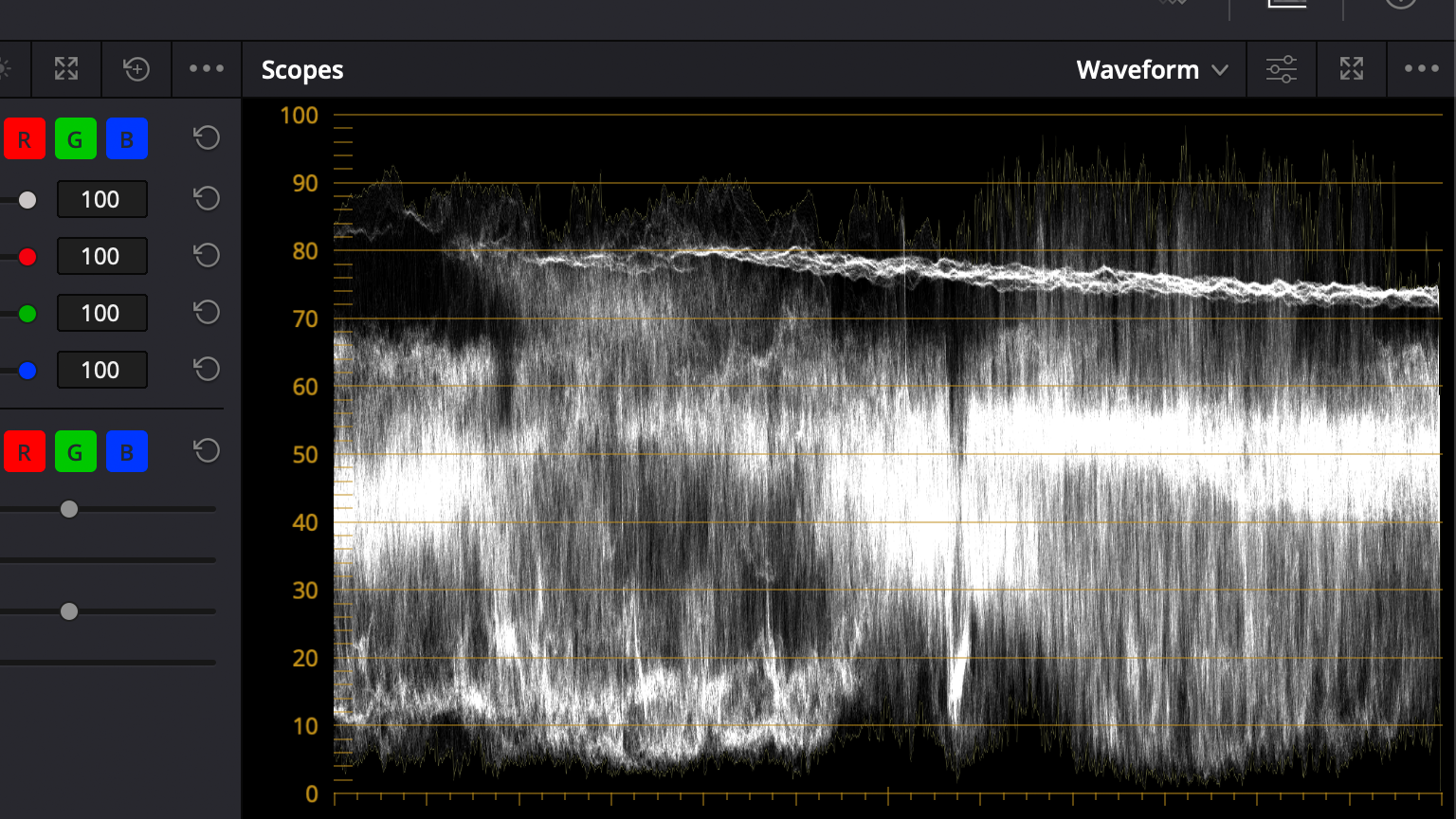

Colorページ Gainを変更
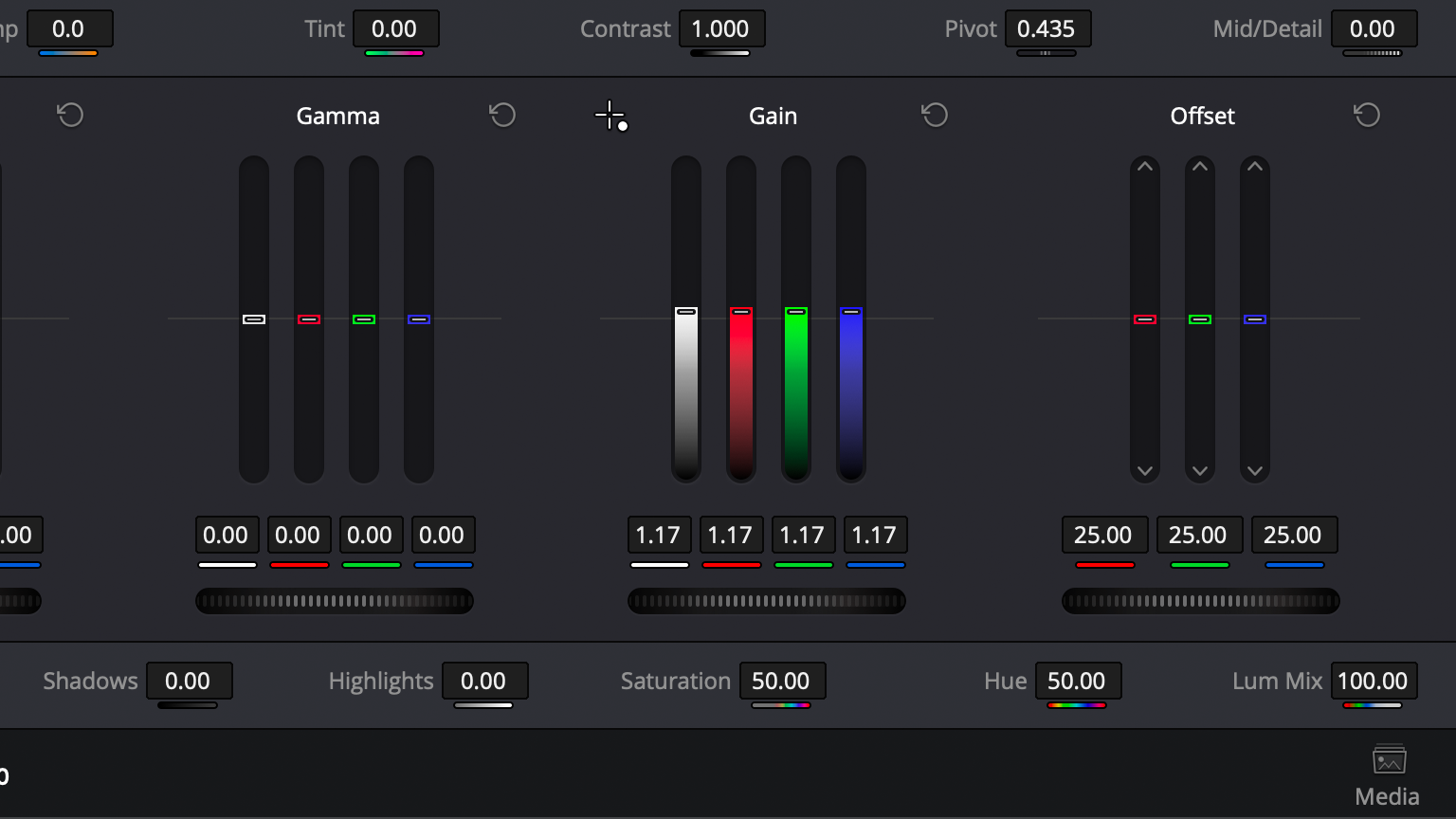
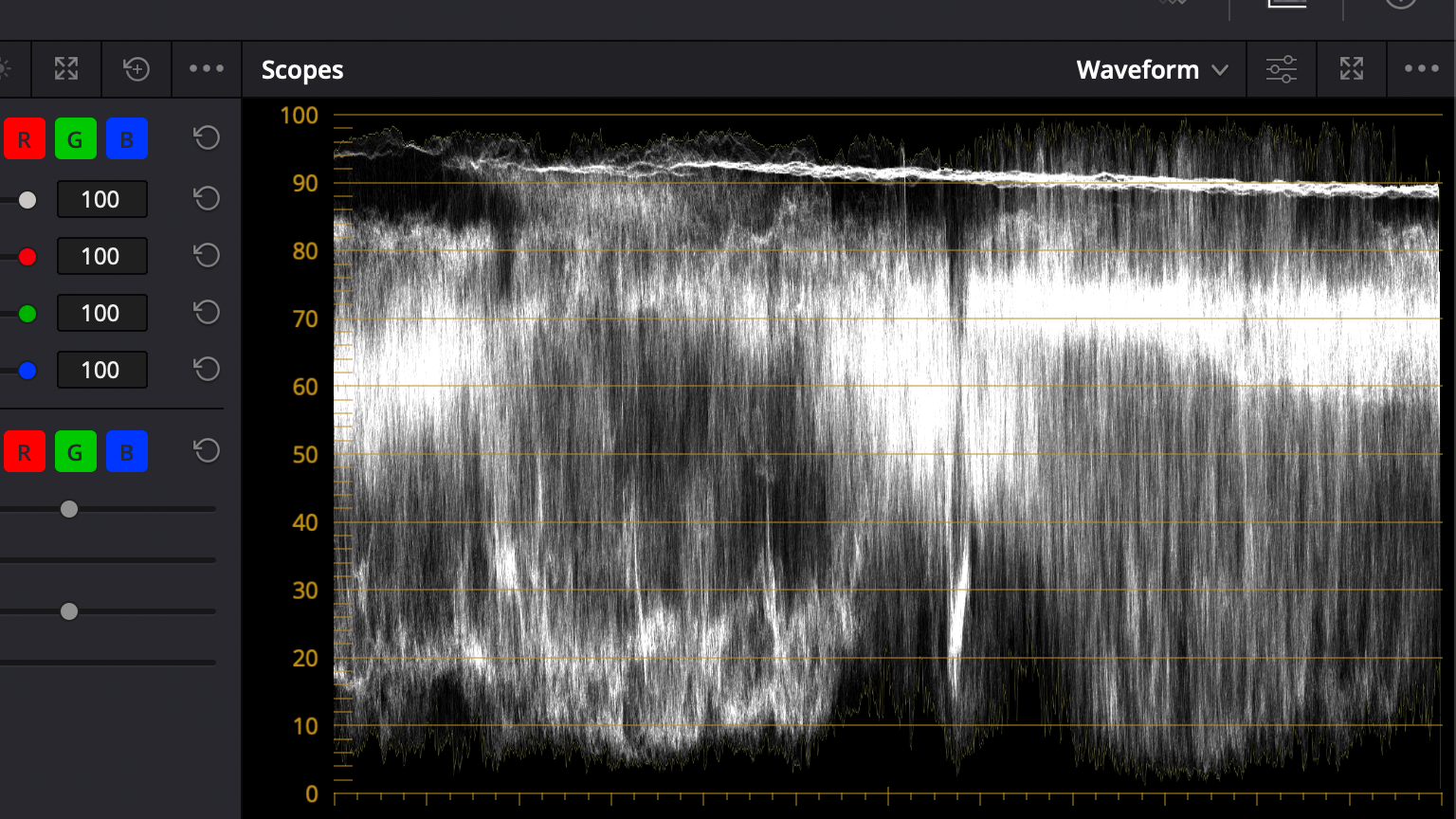

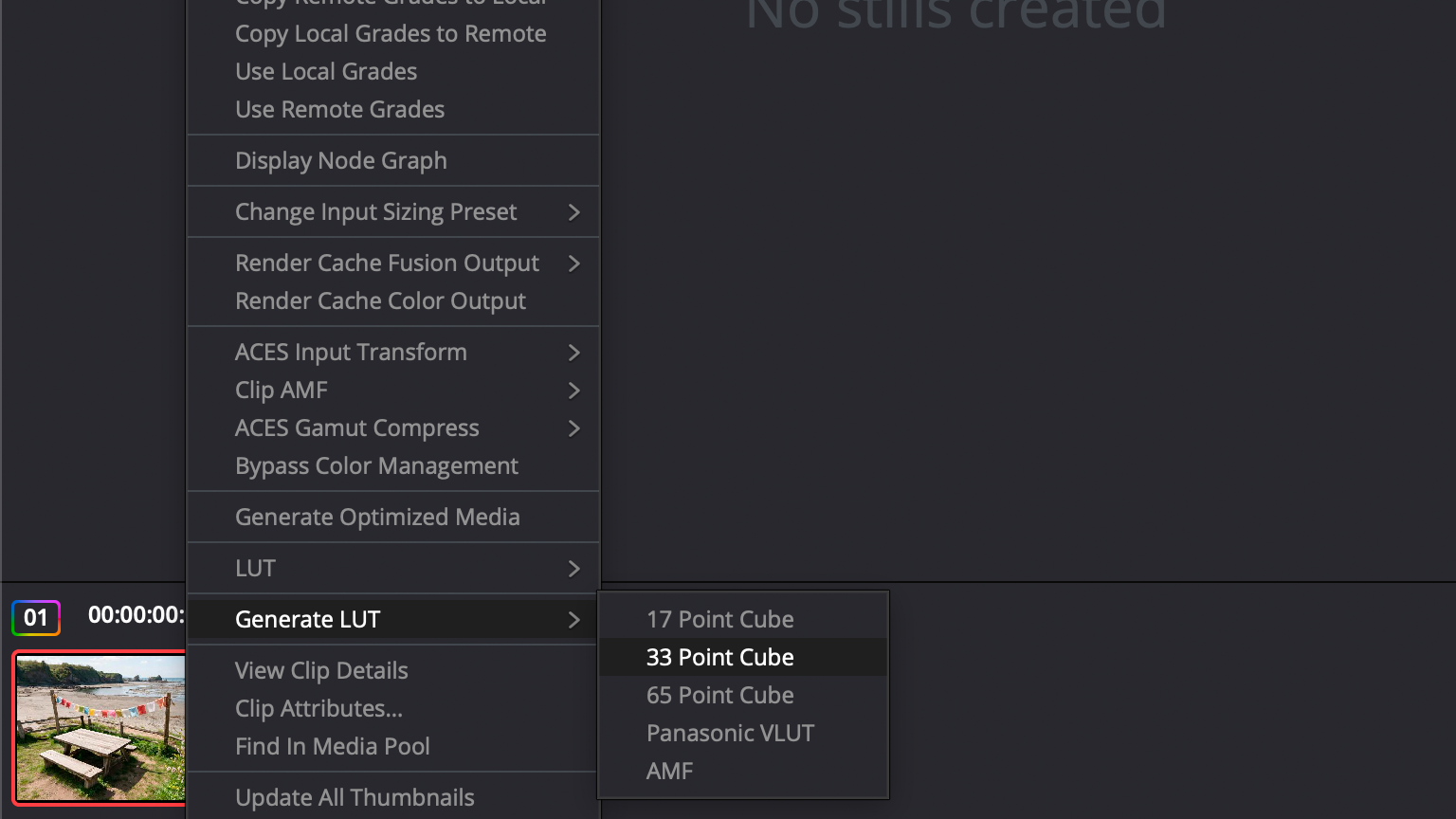
LUT書き出し > ACEScct_LUT.cube
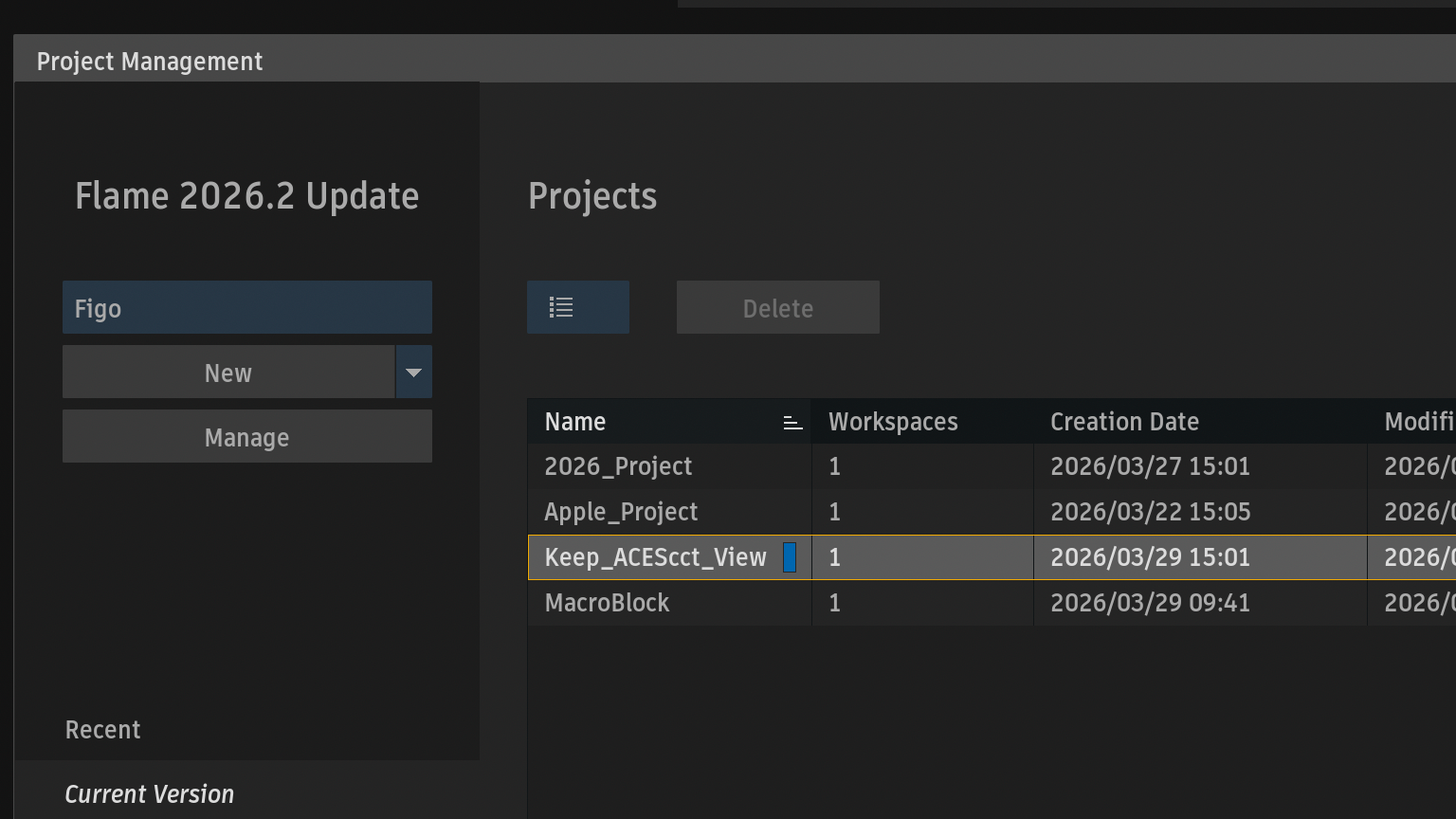
Flameプロジェクト
ダウンロードしたconfig.ocioやLUTを配置するディレクトリーをセットアップに作成したいので、
プロジェクトを先に作成しました。
ダウンロードしたconfig.ocioと、DaVinci Resolveから書き出したLUTを配置するディレクトリを作成
Figo:~ admin$ mkdir -p /Volumes/StorageMedia/Apple_Project/Keep_ACEScct_View/setups/colour_mgmt/Custom/luts
Figo:~ admin$
config.ocioをプロジェクトにコピー
Figo:~ admin$ cp -rpv Downloads/studio-config-v3.0.0_aces-v2.0_ocio-v2.4.ocio /Volumes/StorageMedia/Apple_Project/Keep_ACEScct_View/setups/colour_mgmt/Custom/
Downloads/studio-config-v3.0.0_aces-v2.0_ocio-v2.4.ocio -> /Volumes/StorageMedia/Apple_Project/Keep_ACEScct_View/setups/colour_mgmt/Custom/studio-config-v3.0.0_aces-v2.0_ocio-v2.4.ocio
Figo:~ admin$
LUTをプロジェクトにコピー
Figo:~ admin$ cp -rpv ACEScct_LUT.cube /Volumes/StorageMedia/Apple_Project/Keep_ACEScct_View/setups/colour_mgmt/Custom/luts/
ACEScct_LUT.cube -> /Volumes/StorageMedia/Apple_Project/Keep_ACEScct_View/setups/colour_mgmt/Custom/luts/ACEScct_LUT.cube
Figo:~ admin$
treeコマンドから確認
Figo:~ admin$ tree /Volumes/StorageMedia/Apple_Project/Keep_ACEScct_View/setups/colour_mgmt/Custom/
/Volumes/StorageMedia/Apple_Project/Keep_ACEScct_View/setups/colour_mgmt/Custom/
├── luts
│   └── ACEScct_LUT.cube
└── studio-config-v3.0.0_aces-v2.0_ocio-v2.4.ocio

2 directories, 2 files
Figo:~ admin$
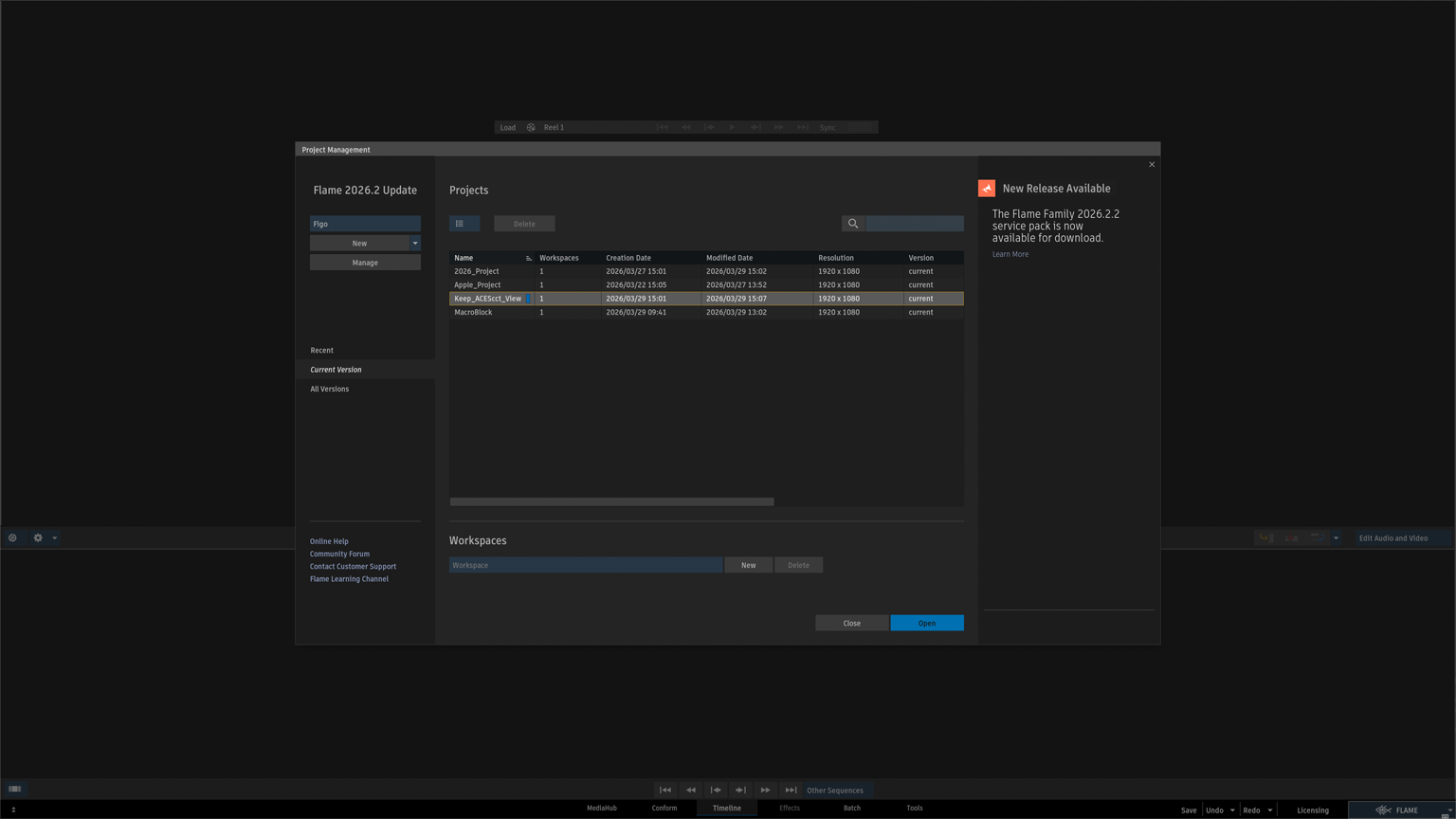
Manageボタン > OCIO ConfigからFrom Fileに切り替え
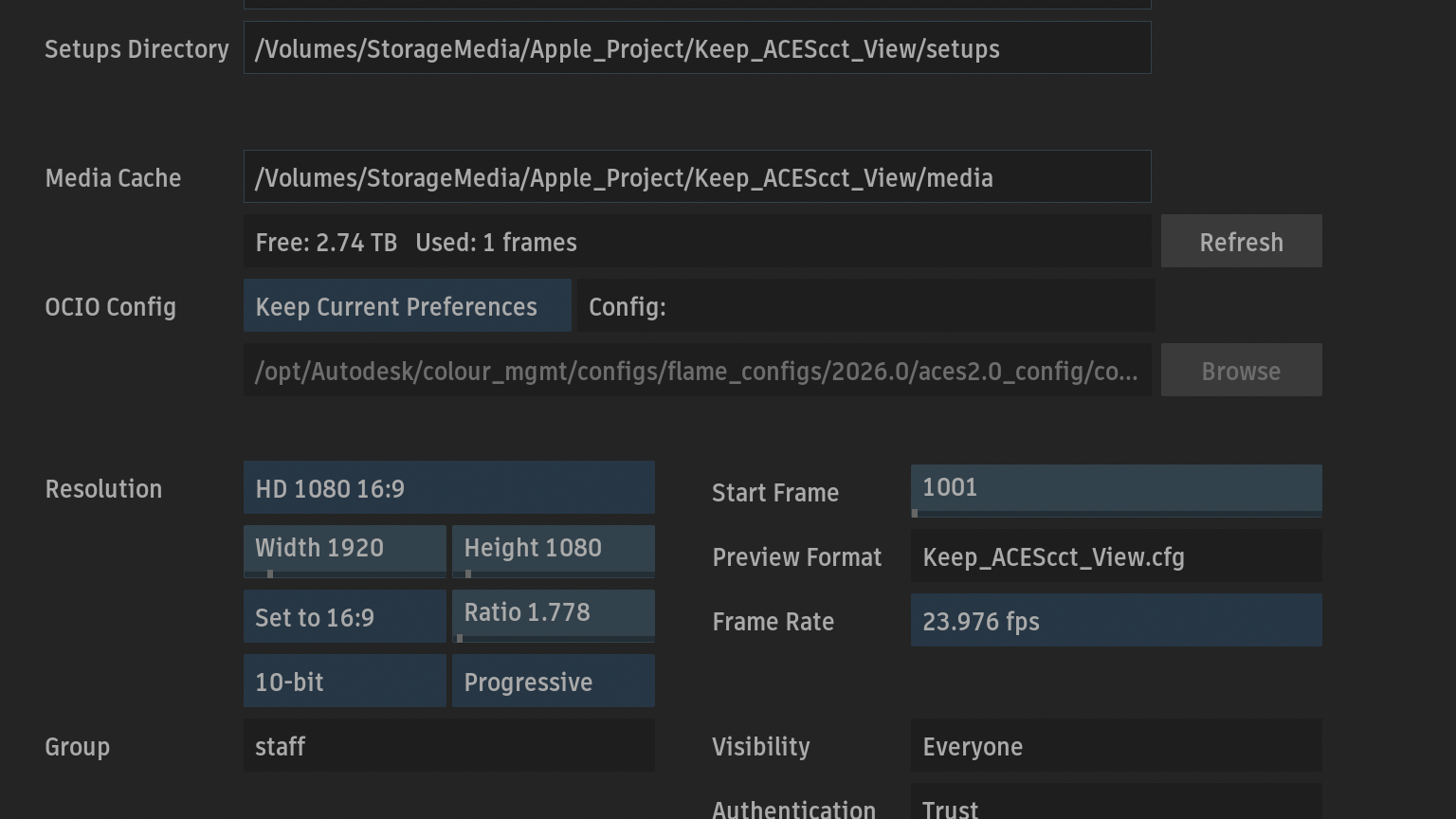
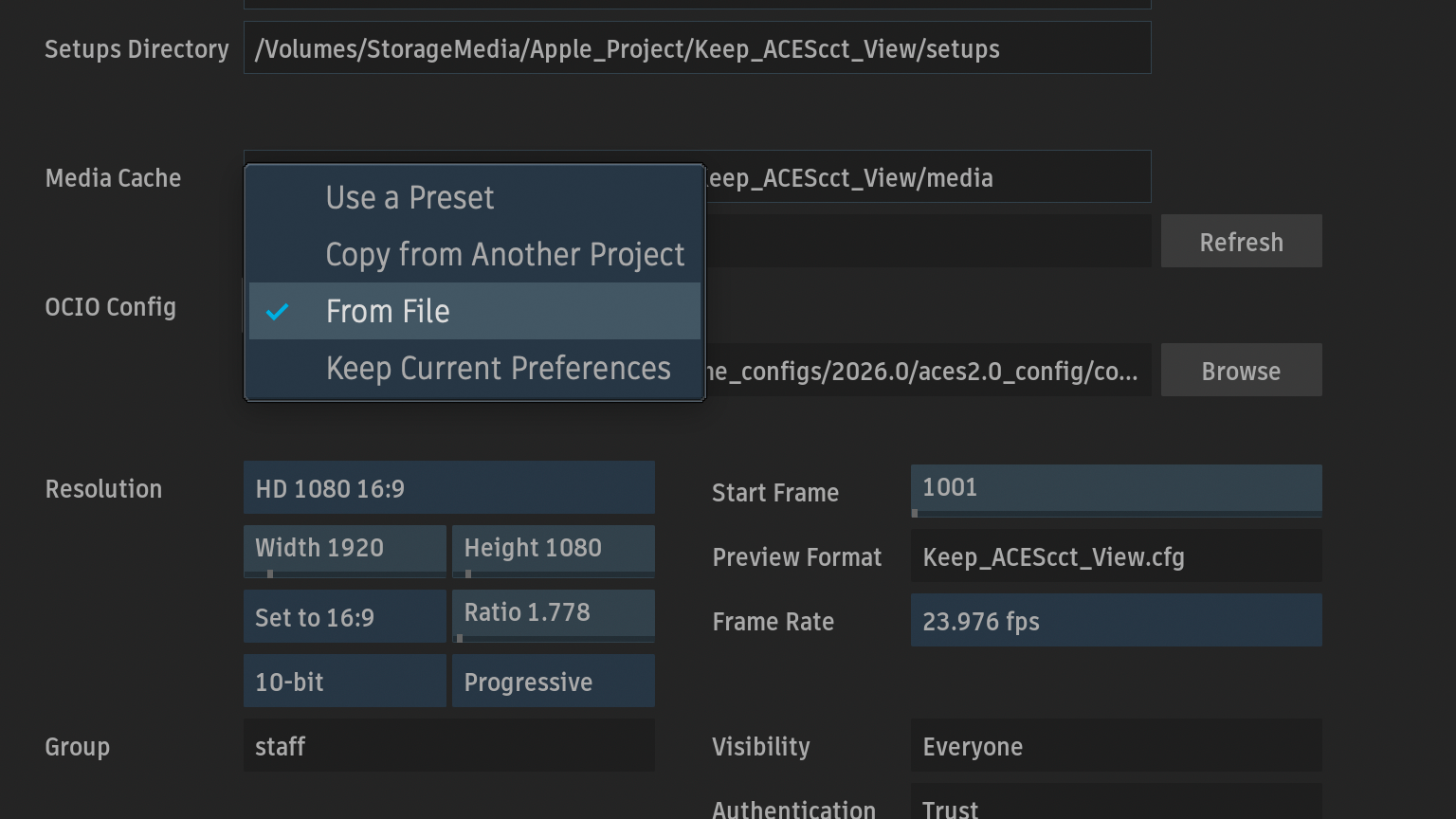
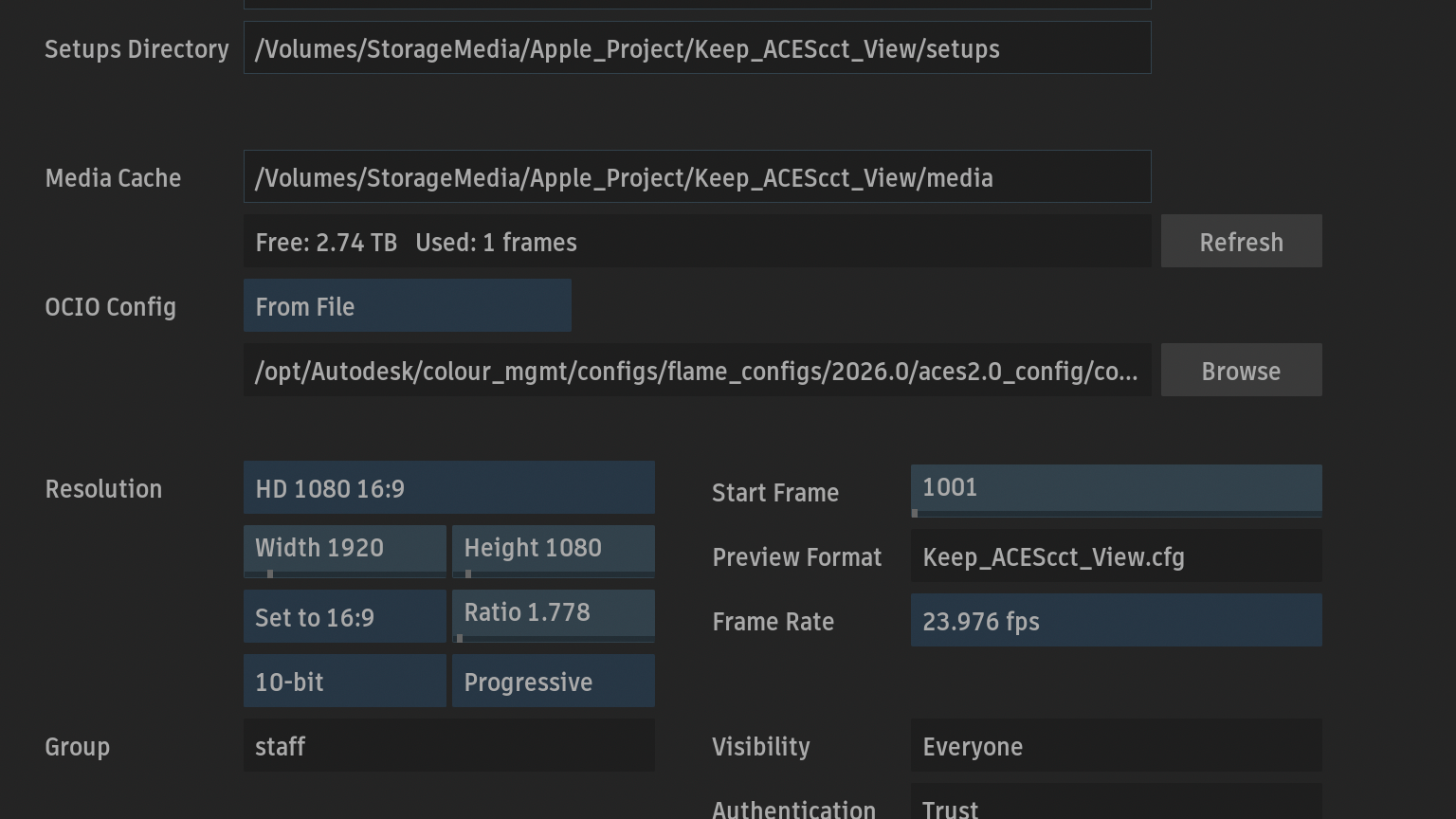
Browsボタンから、ダウンロードしたstudio config .ocioを選択
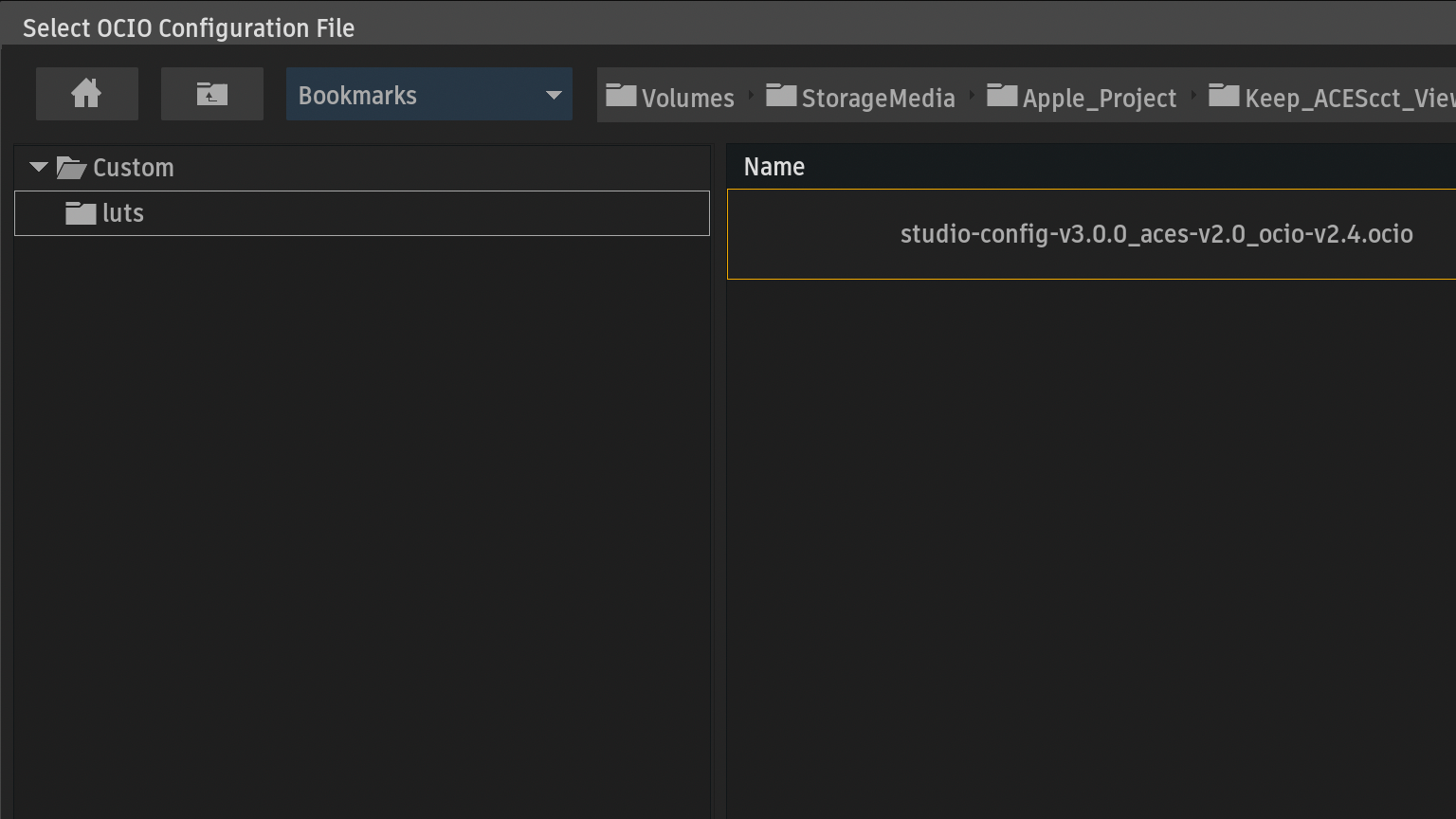
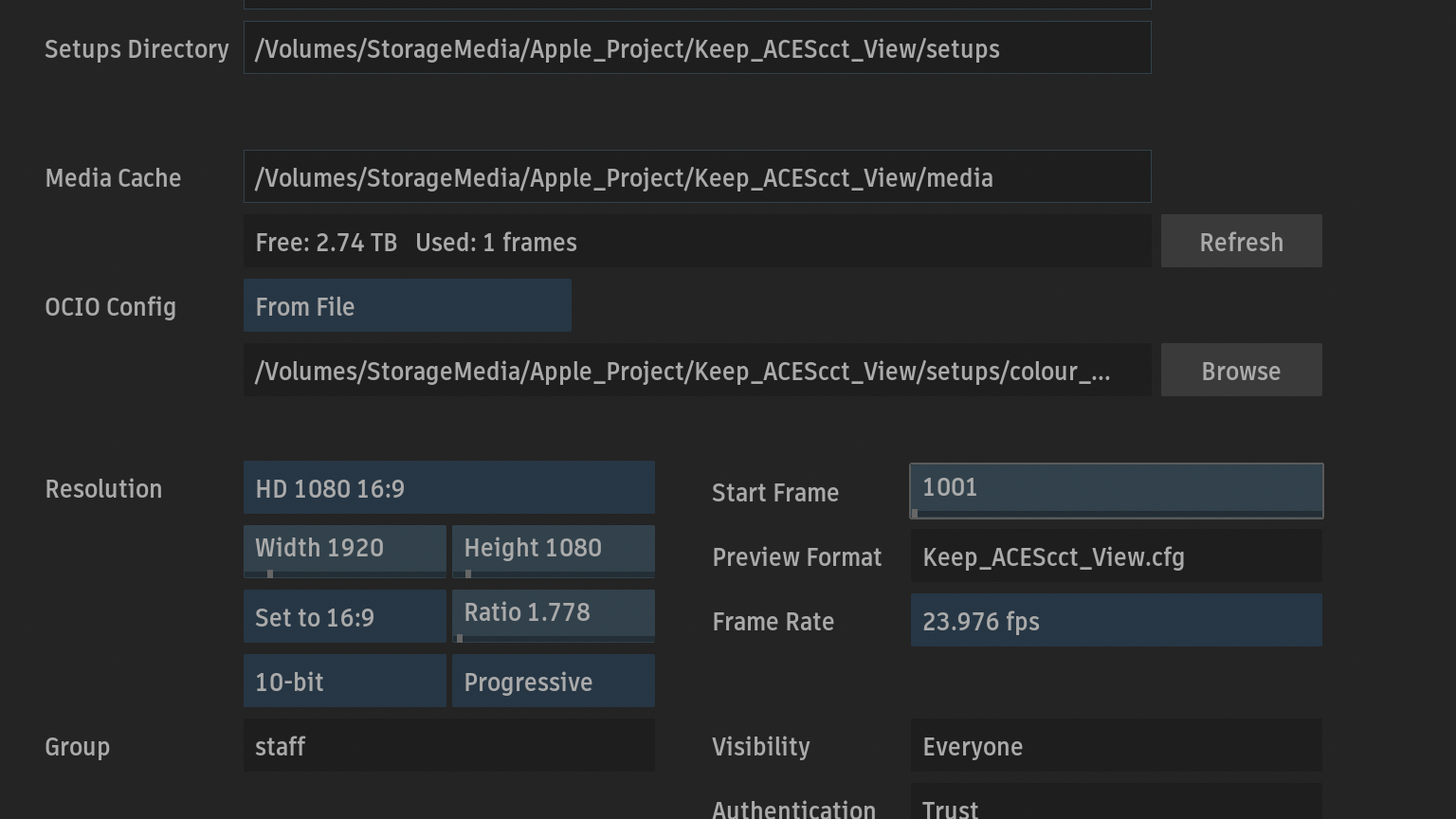
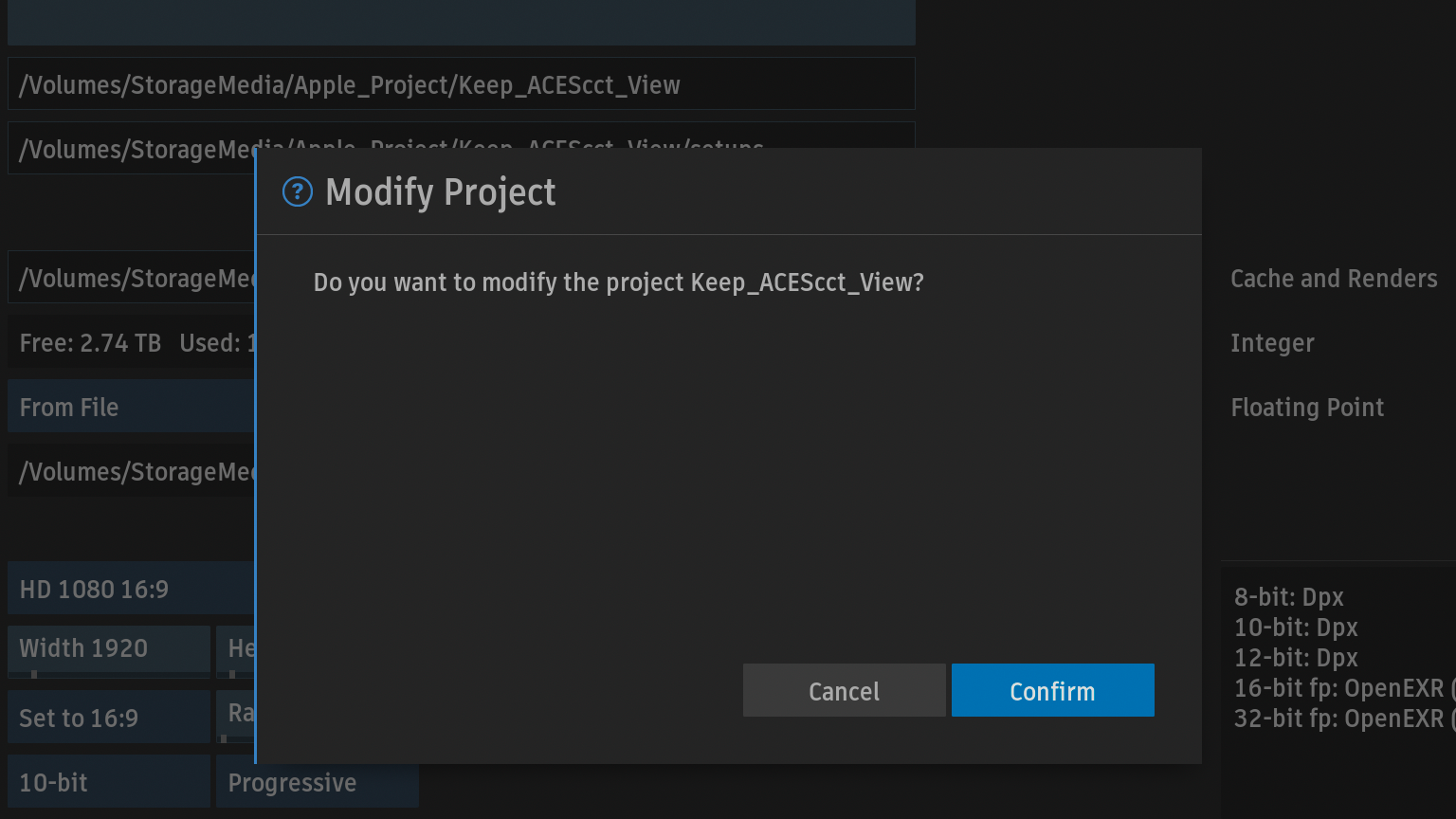
Modifyボタン > Confirm
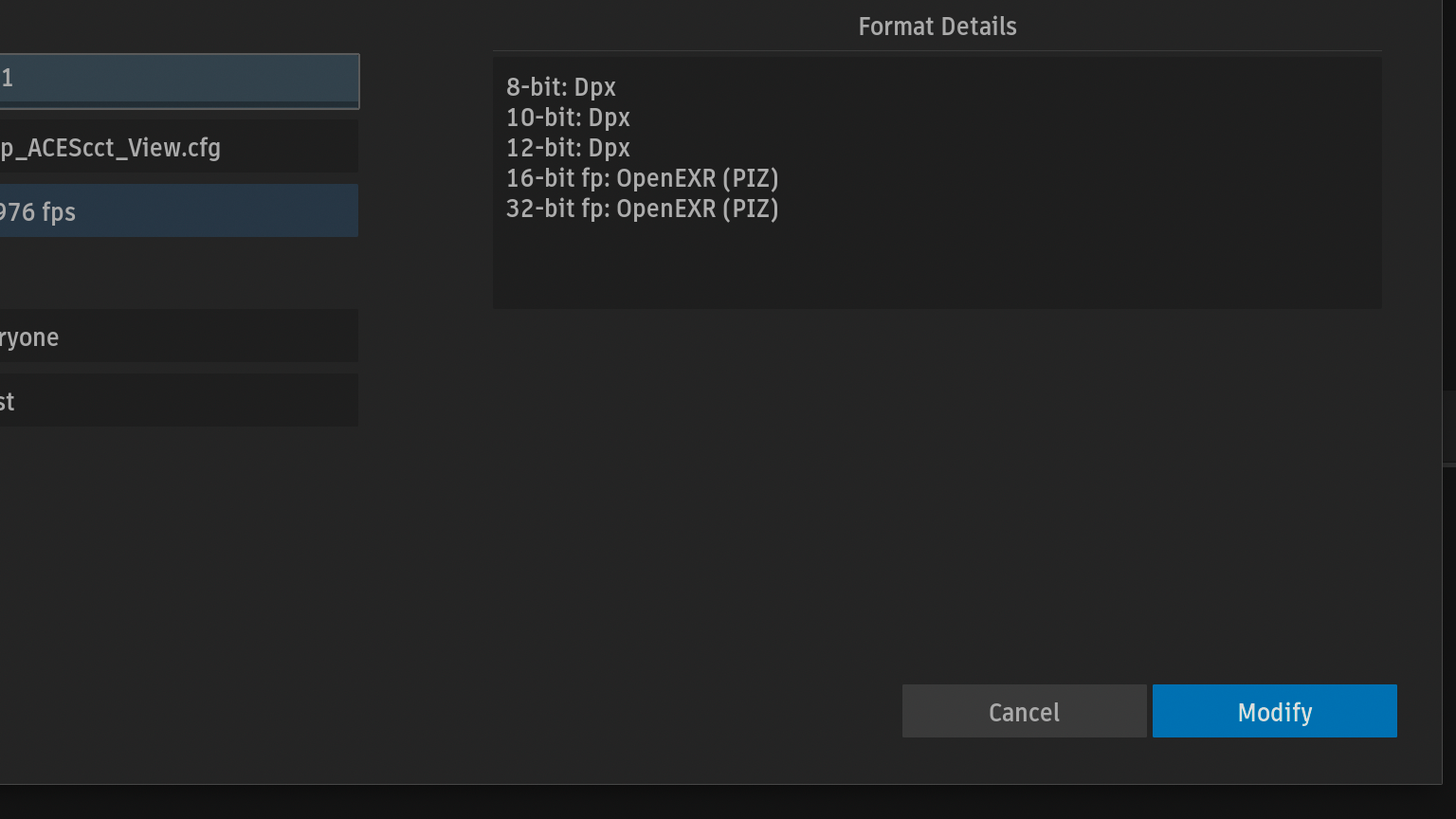
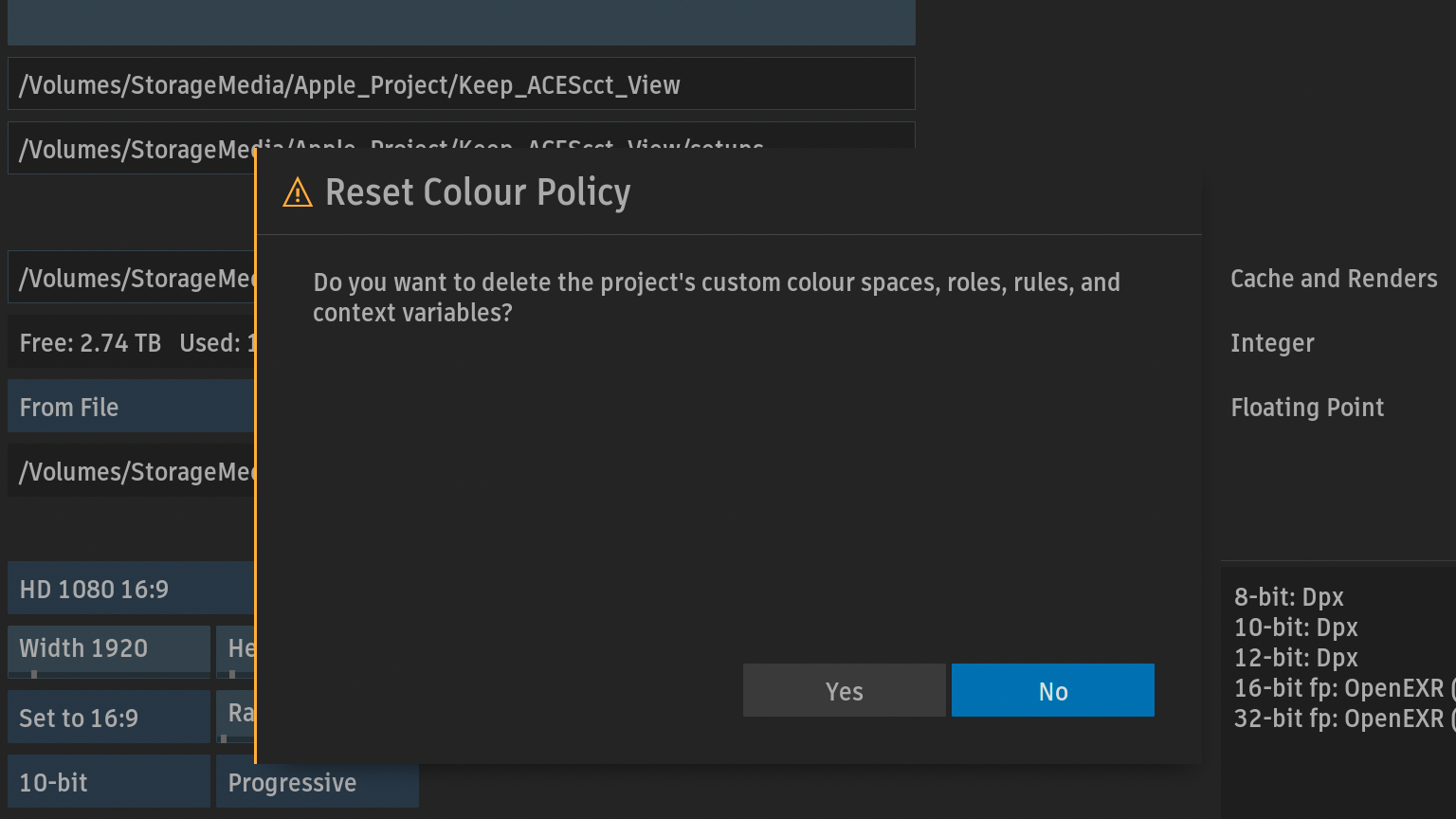
Reset Colour PolicyからYesボタンをクリックしてカラースペースを更新
CloseボンタンからManage Projectを終了
Batch セットアップ
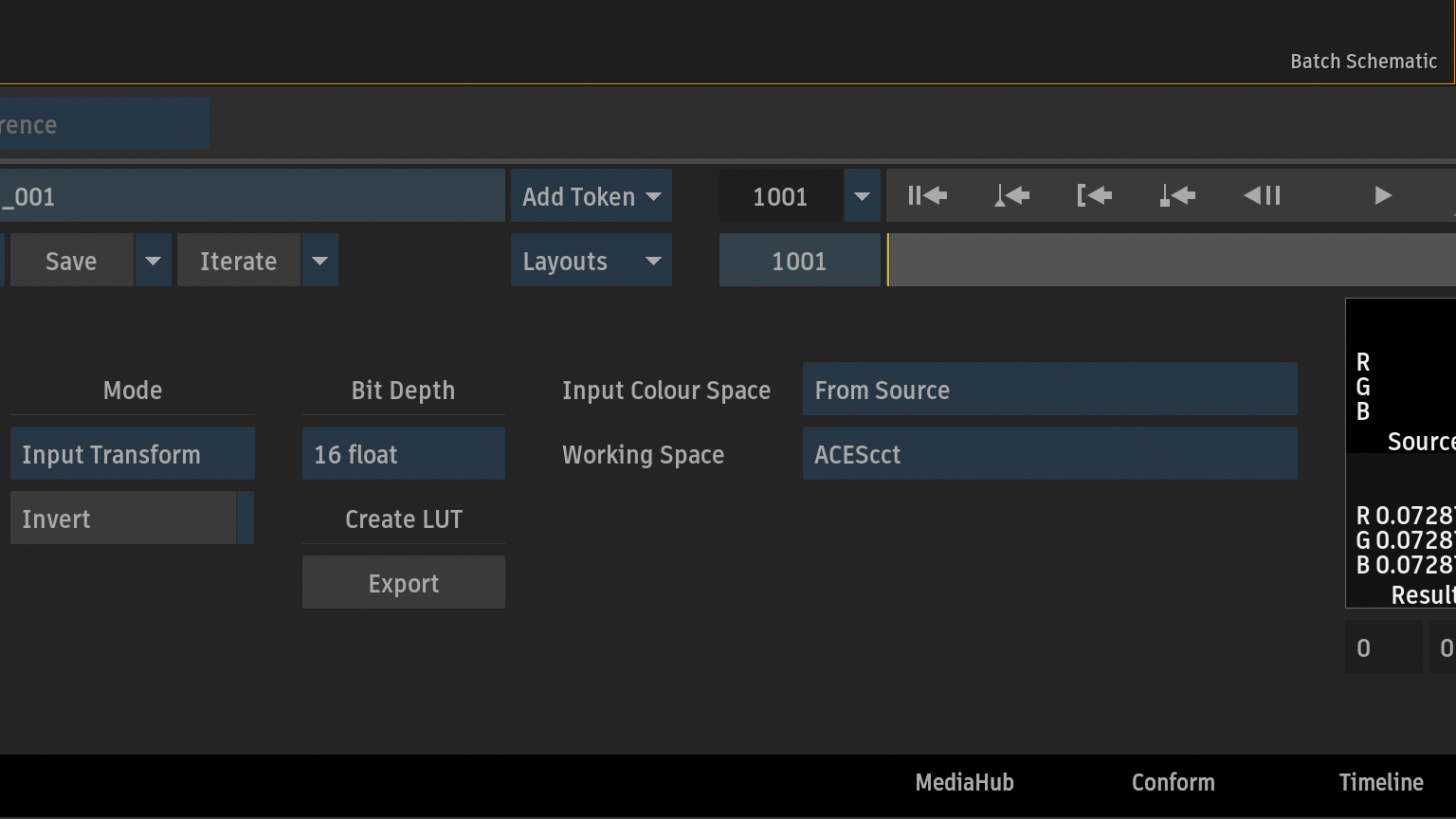
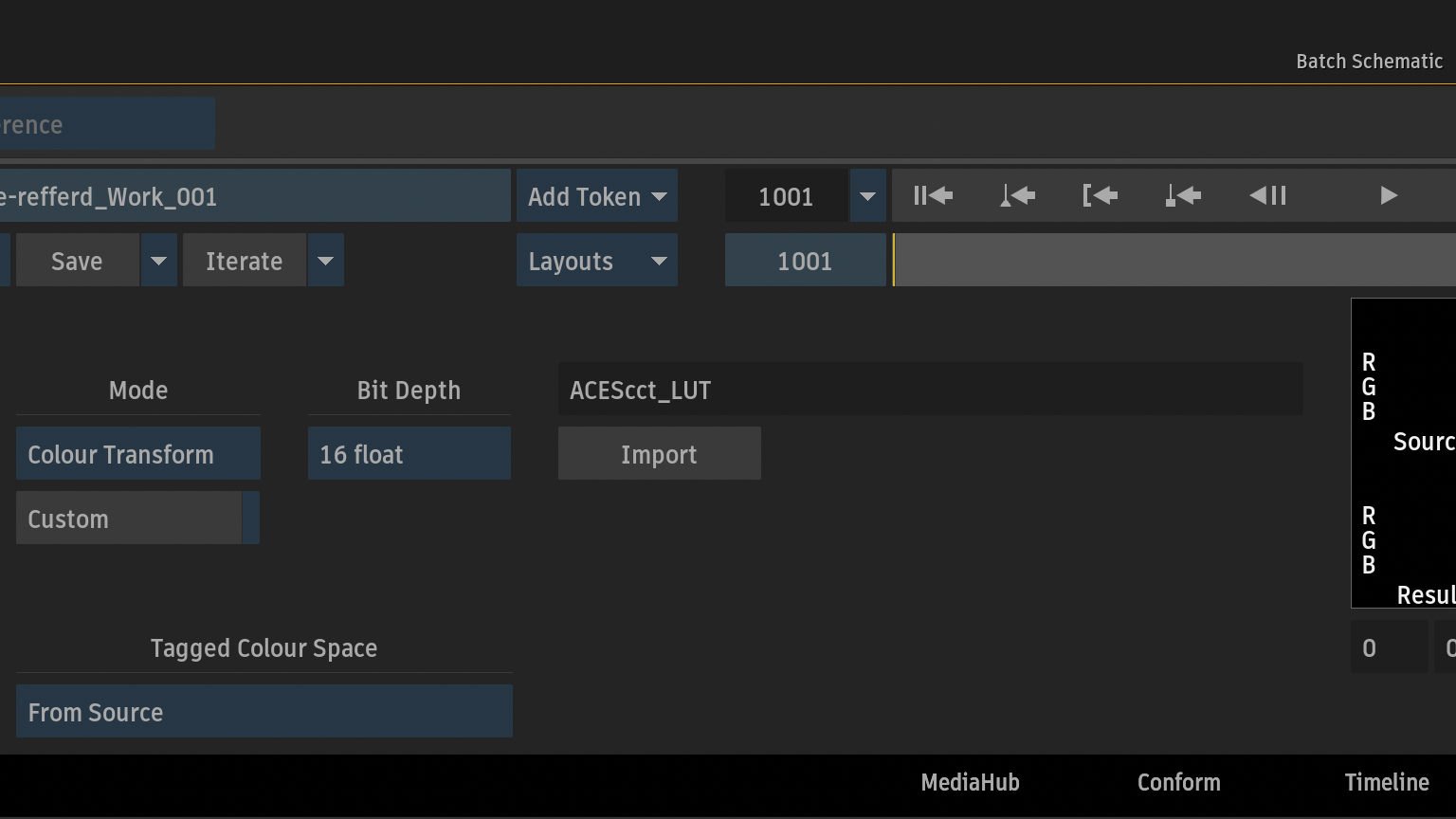
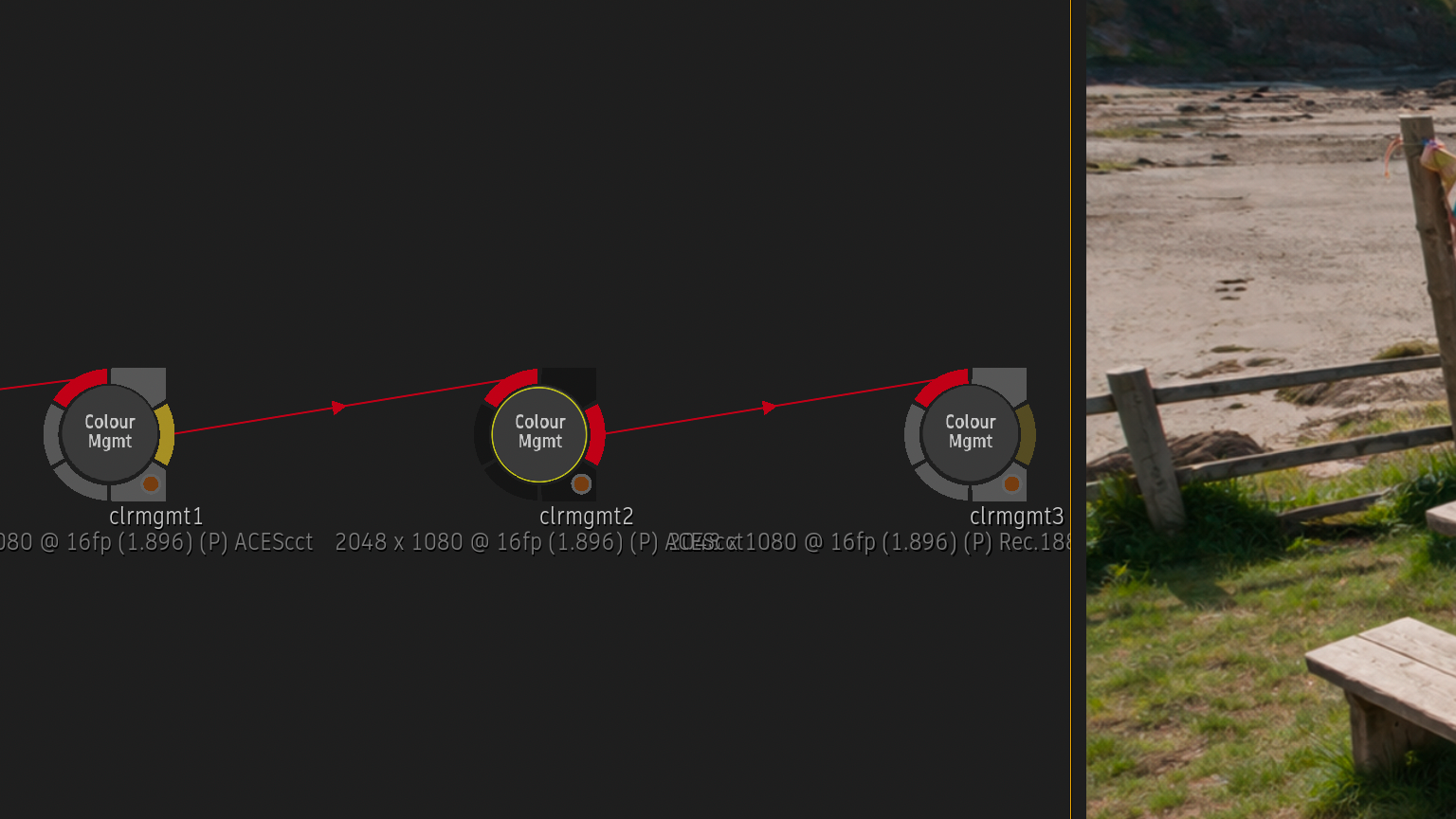
Batchでは、ACEScctにトランスフォーム(変換)してLUTを適用することで、scene-referred環境を維持したままの運用が可能です。
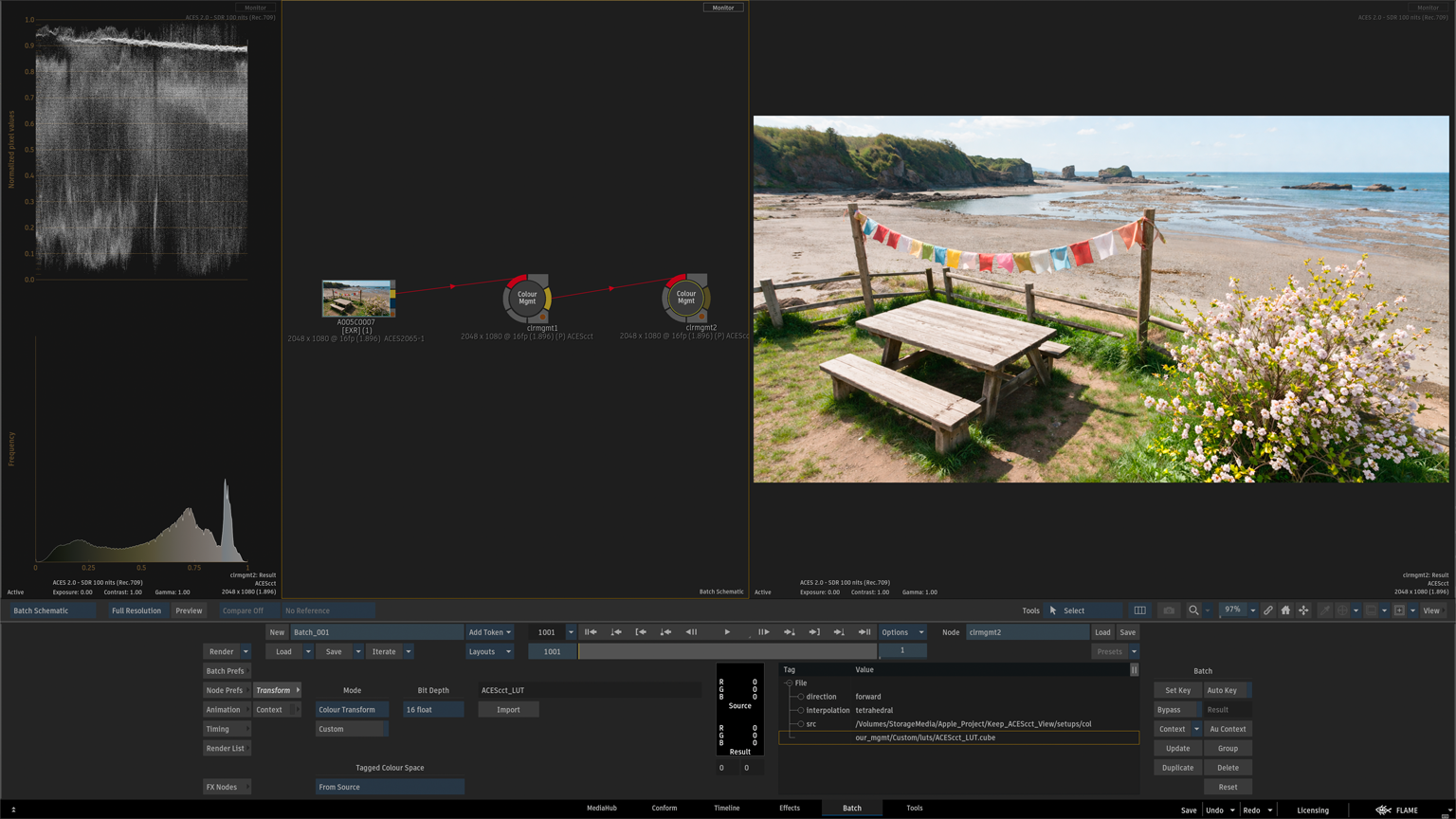
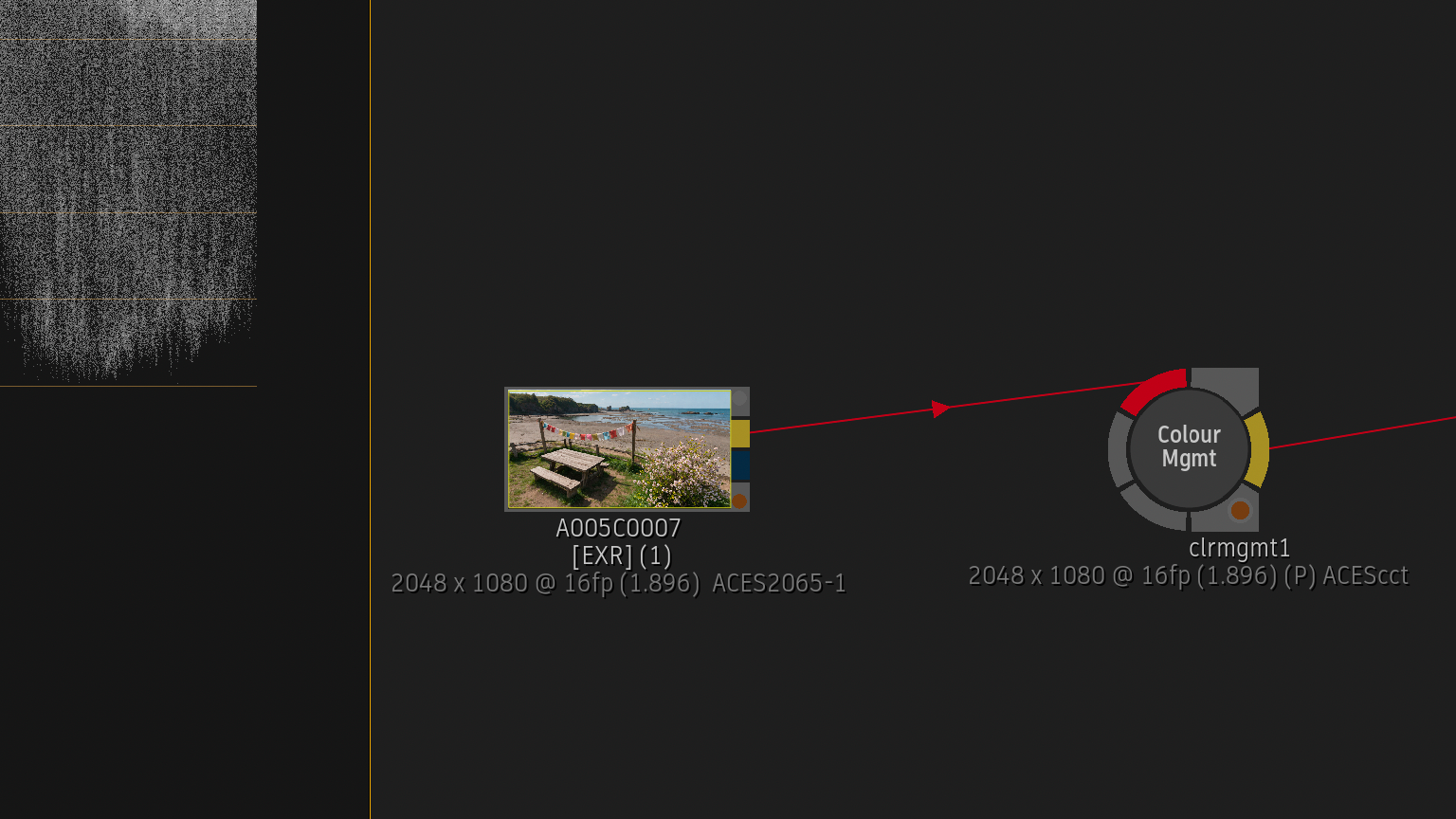
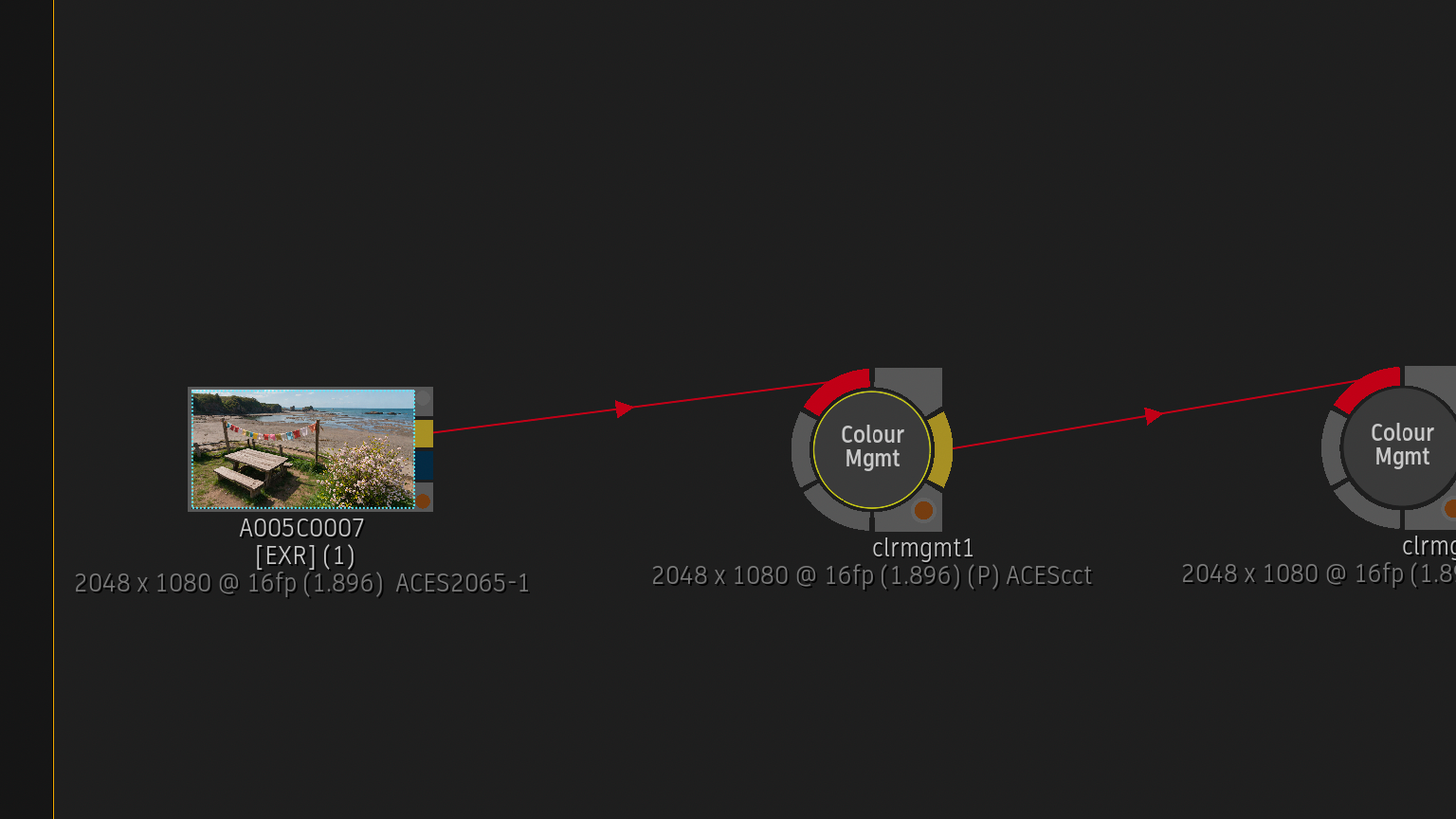
Colour Management > Input Transform > ACEScctにトランスフォーム
ACES2065-1からACEScctへの変換はトーンマッピングではなく、
scene-referredのまま線形値をログエンコードへ変換するトランスフォームです。
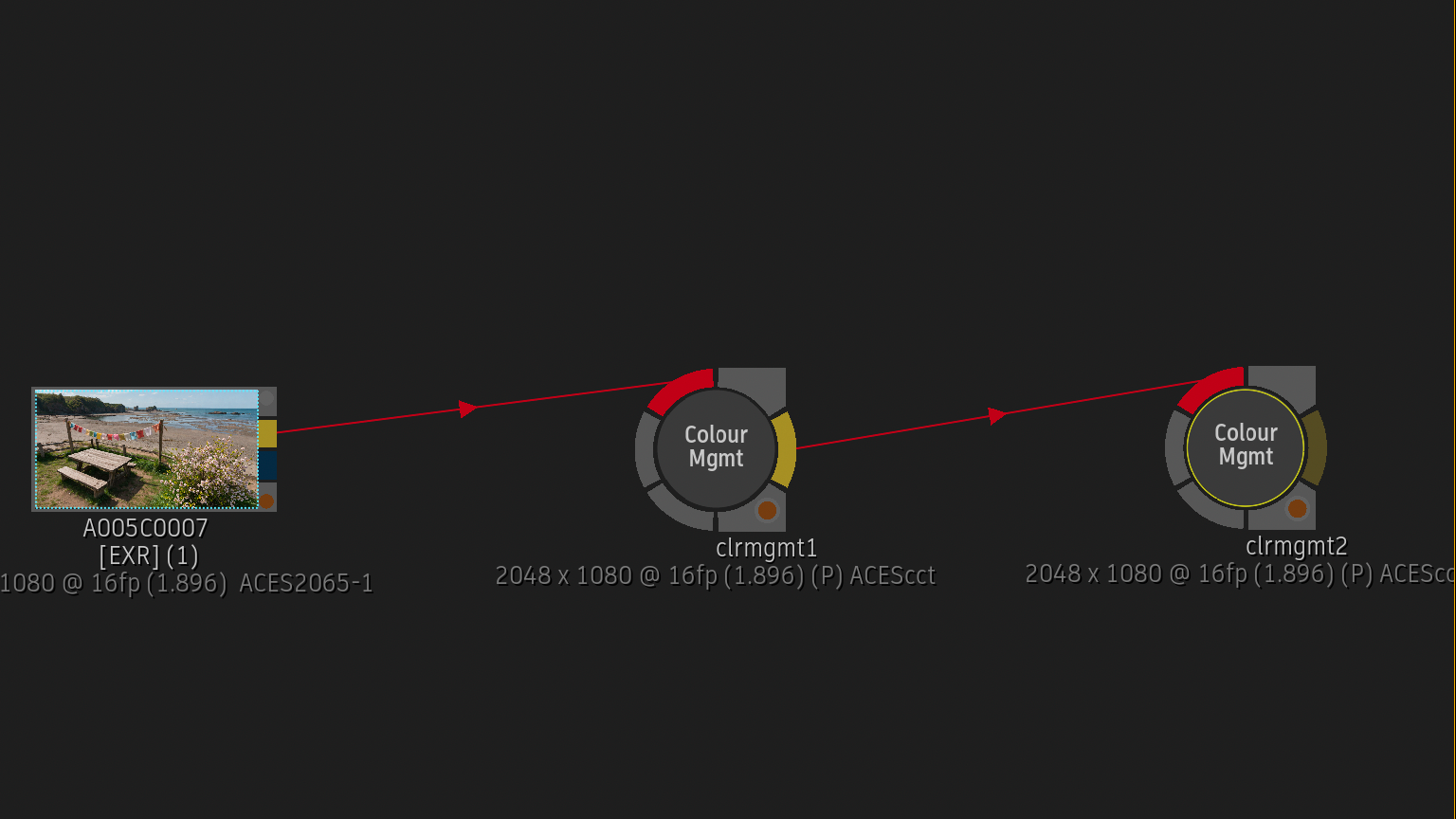
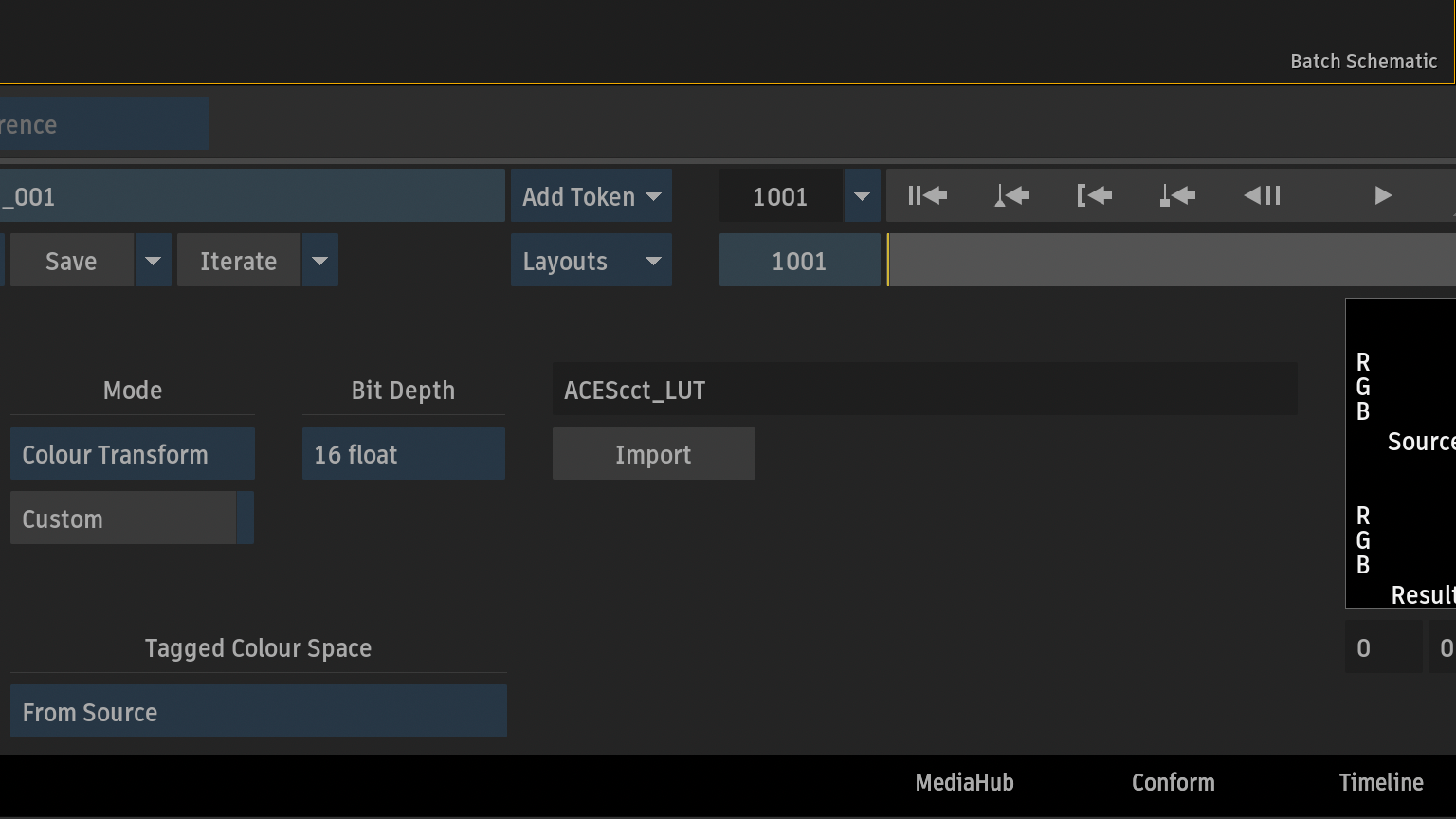
LUT(ACEScct)を追加
ACEScctでのLUTは、トーンマッピングではなく、トーンの微調整として扱います。
Waveformから確認
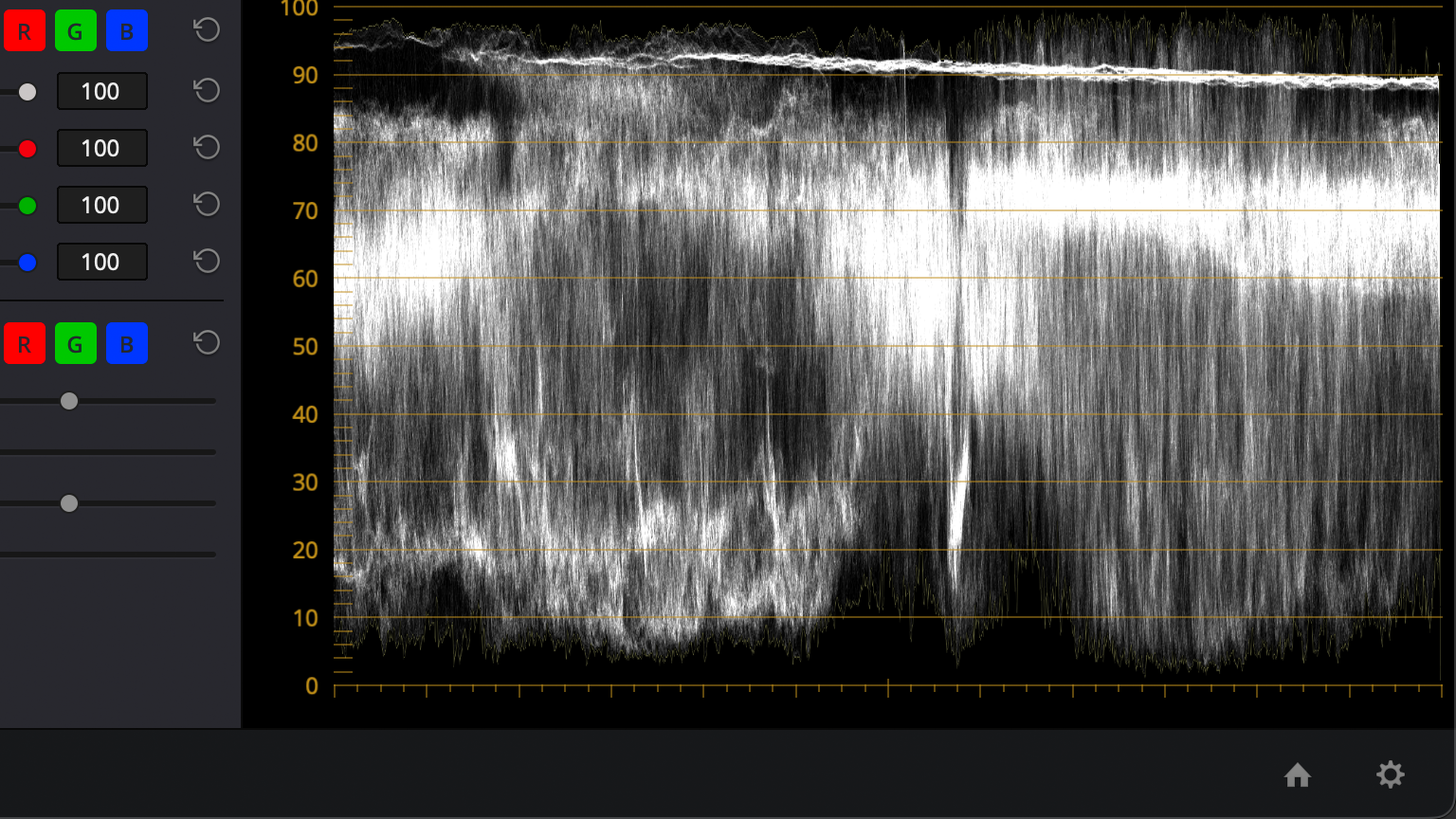
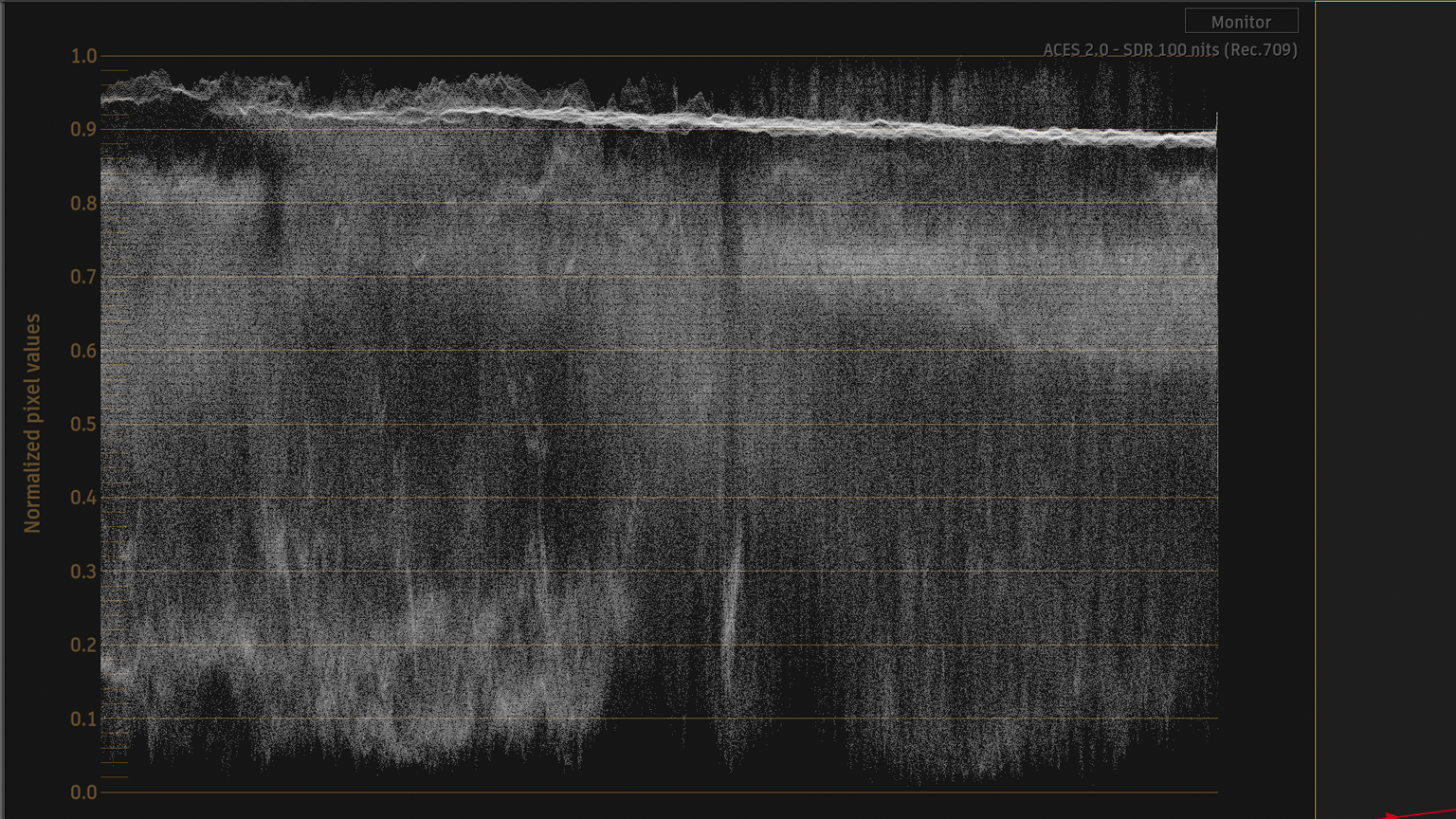
ACEScct変換後のLUT適用もView Transform(display-referred)ではなくscene-referred内での処理となるため、
表示環境に依存しないVFXパイプラインとして成立します。
表示確認用 View Transform (BT.1886 Rec.709 – Display)
Flameデフォルトのconfig.ocioにはカスタム設定が追加されていますが、
外部config.ocioを使う時の注意点と対処を説明します。
scene-referredパイプラインに、Colour Managementノードを追加
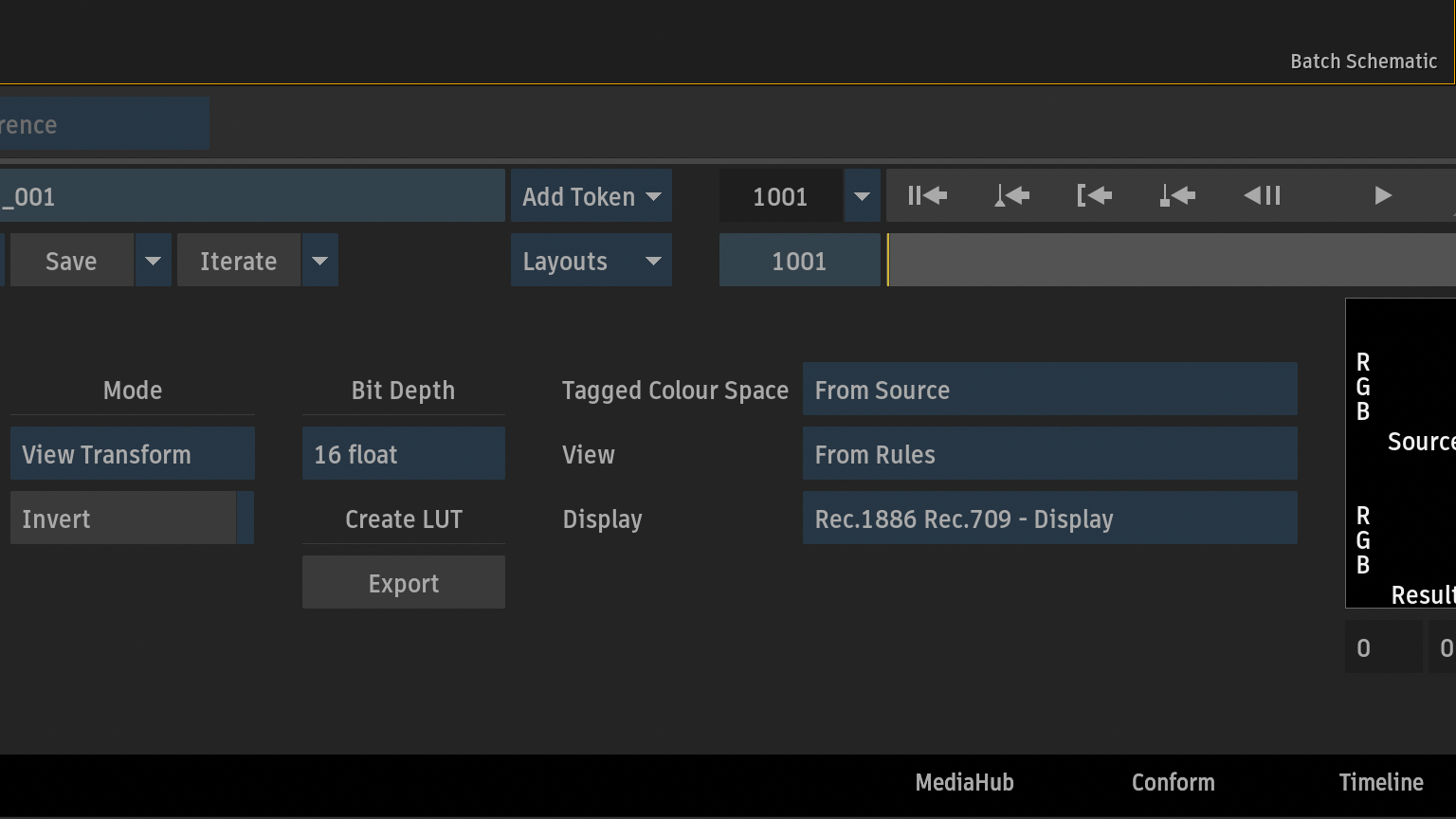
View Transform
- Tagged Colour Space > From Source (ACEScct + LUT)
- View > From Rules (Viewport ACES 2.0 – SDR 100nits (Rec.709))
- Display > BT.1886 Rec.709 – Display
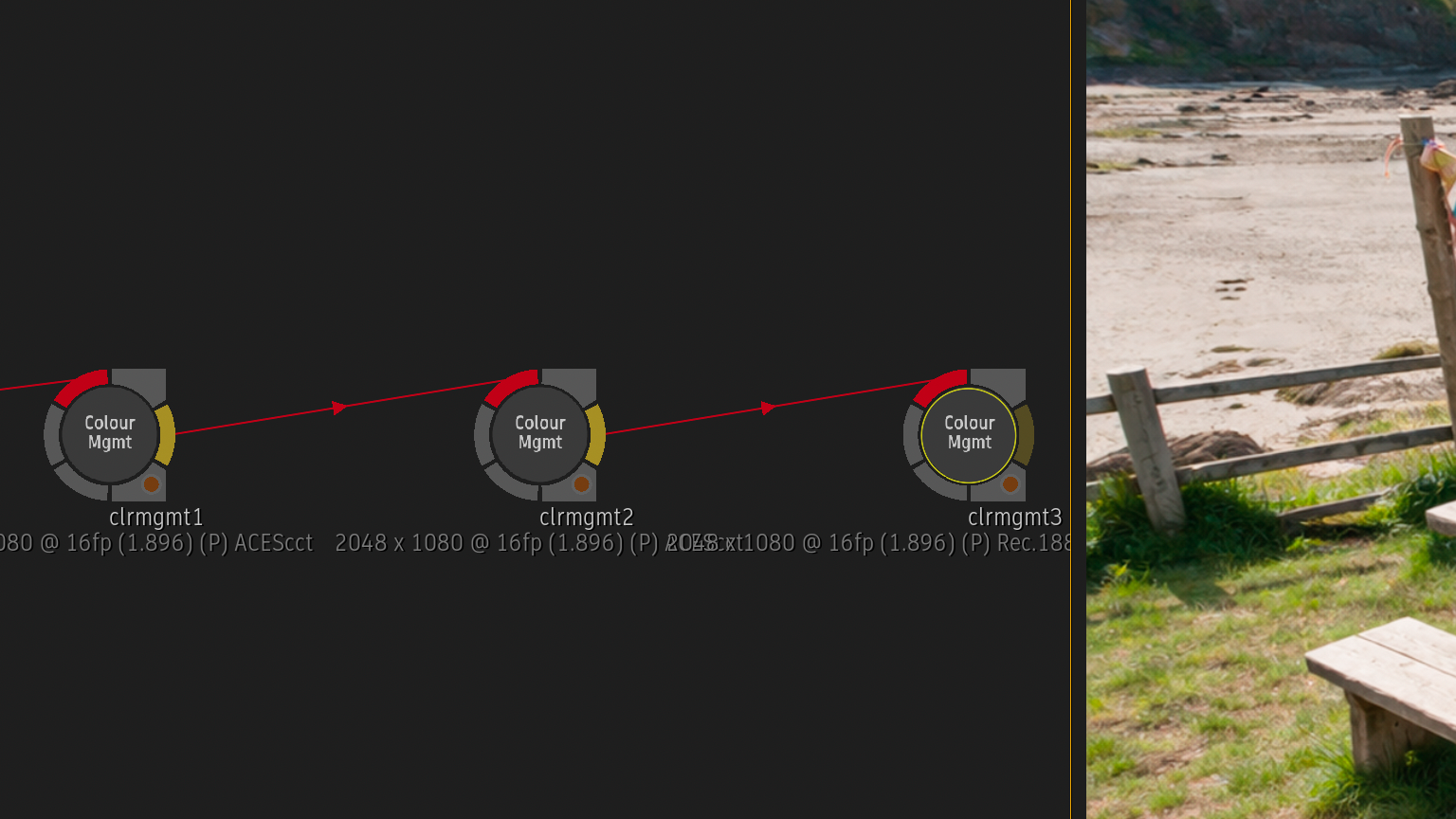
通常、FlameビューポートはVideo(colorimetric)になりますが、外部config.ocioの場合、
ACES > BT.1886 Rec.709に再度、トーンマップしています。当然、見た目も変わります。
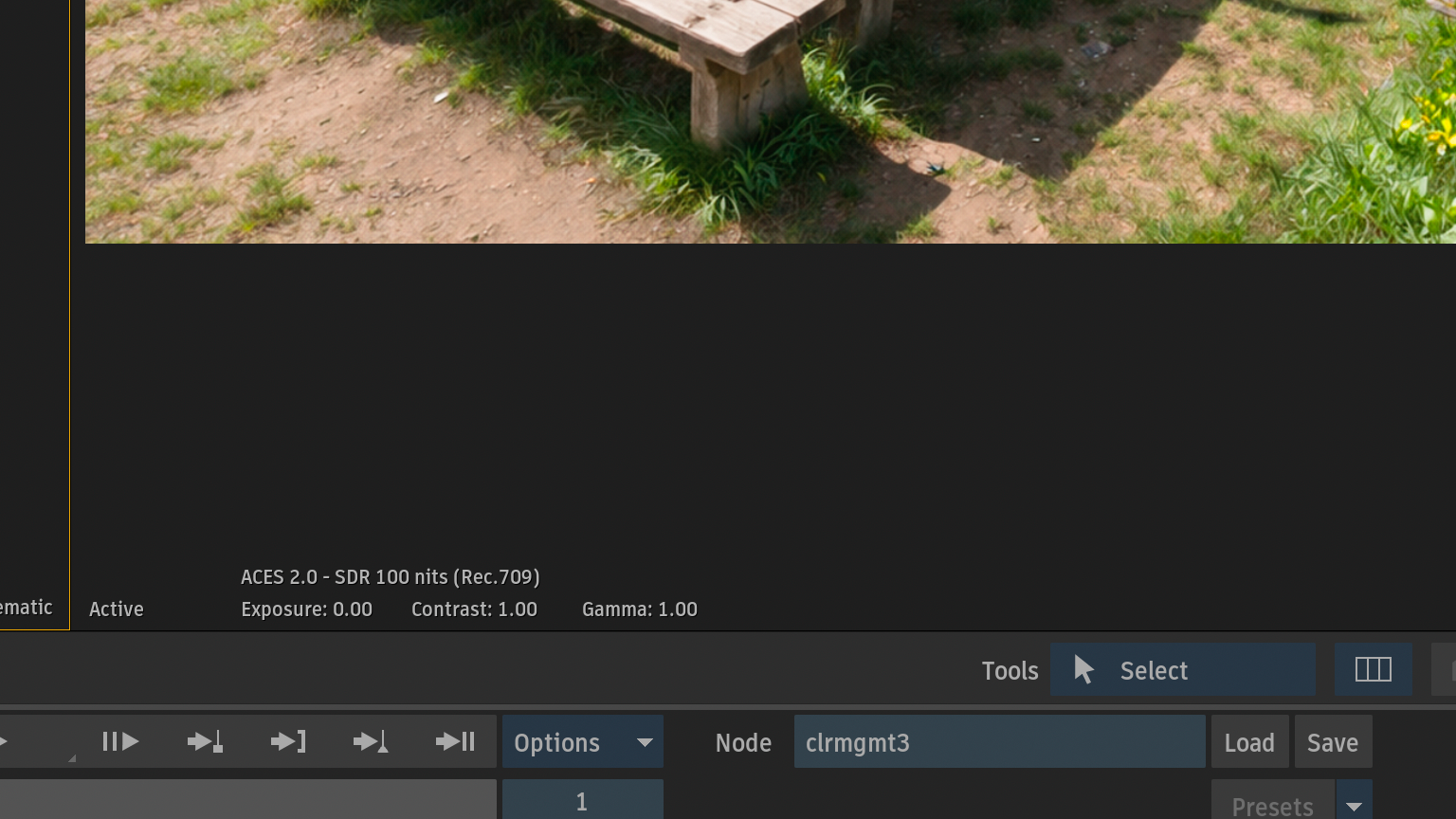
このままでは外部config.ocio使用時にViewingルールが統一されないため、Flame用のViewingルールを追加します。
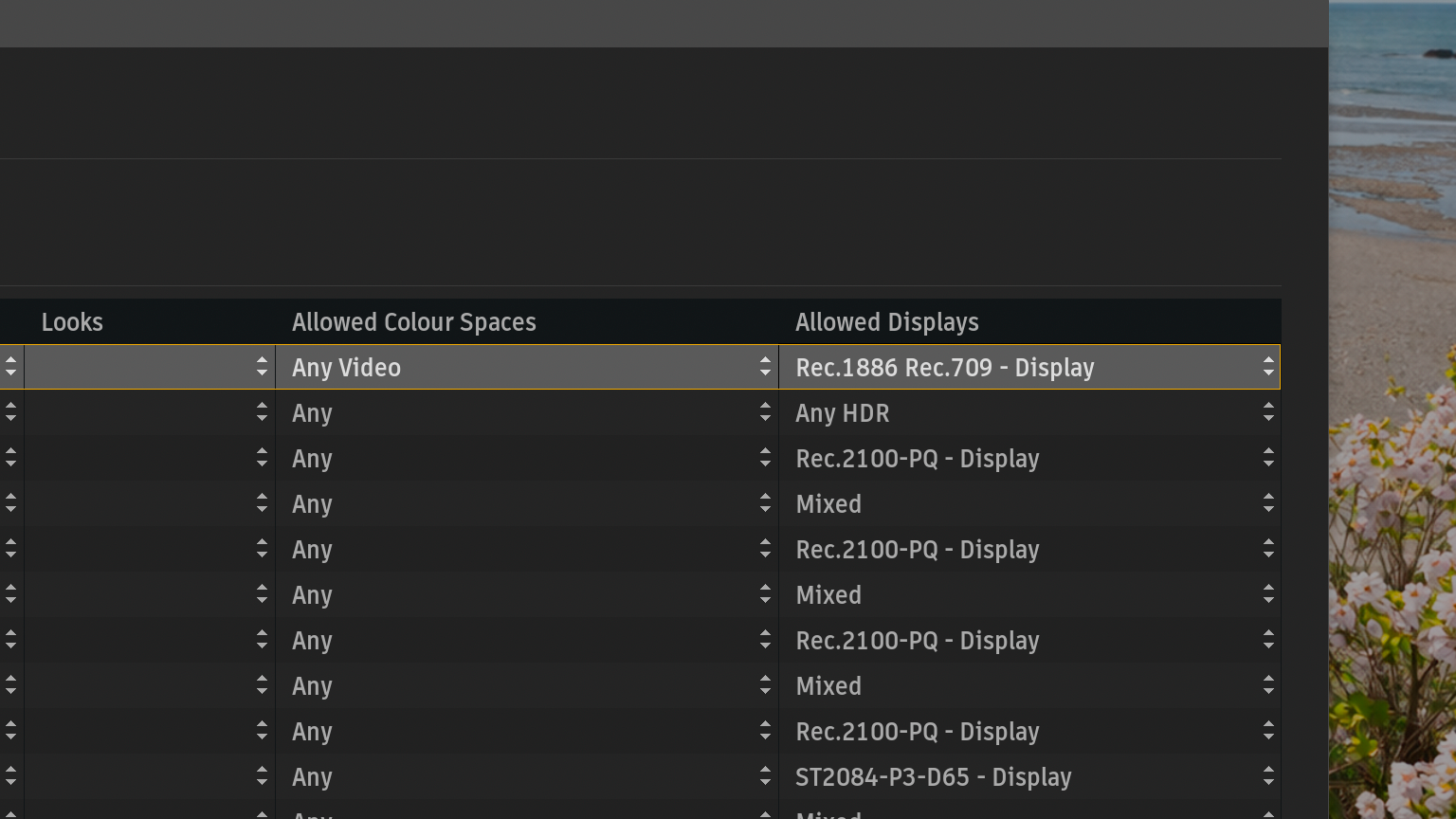
Viewを追加
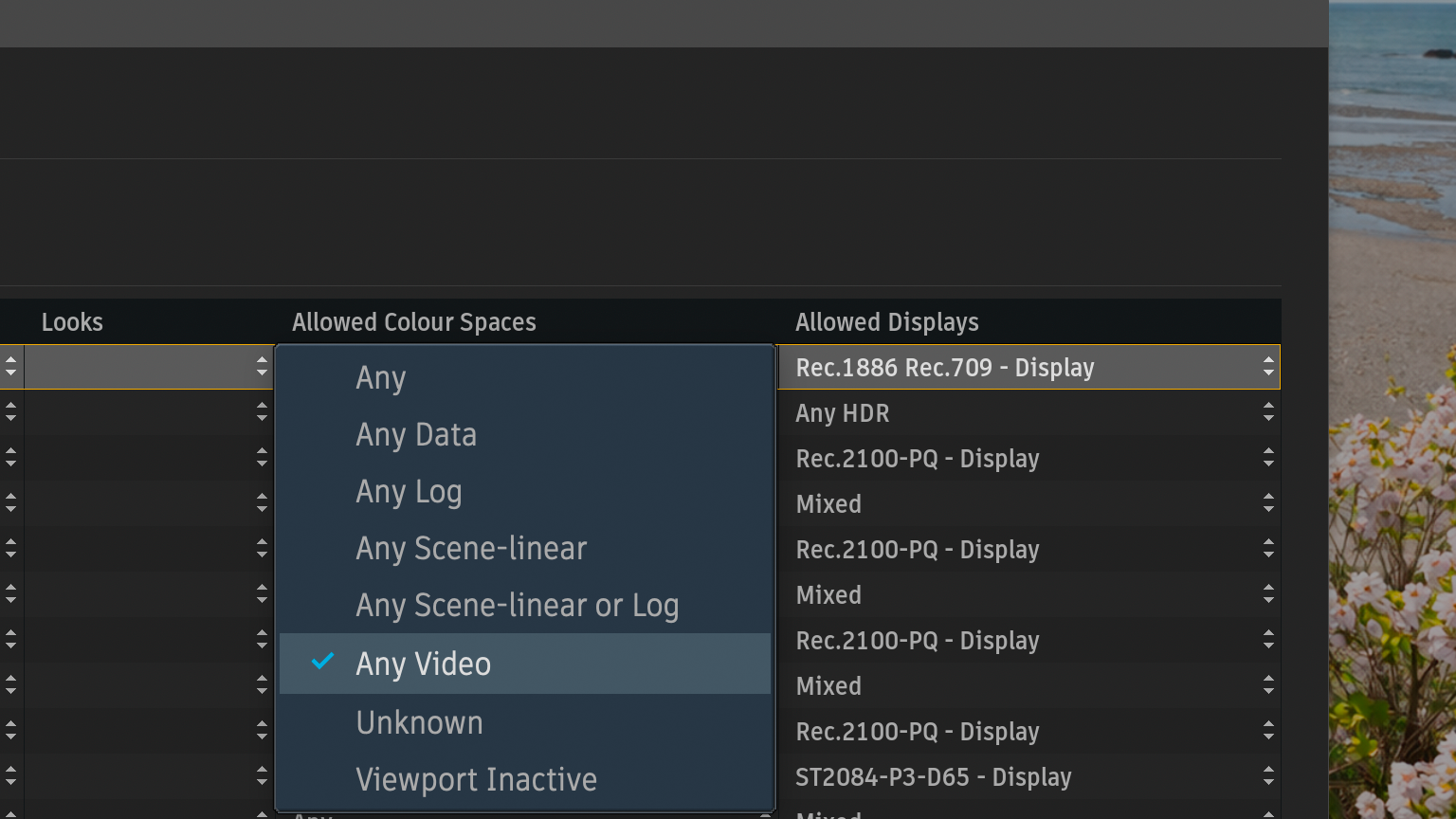
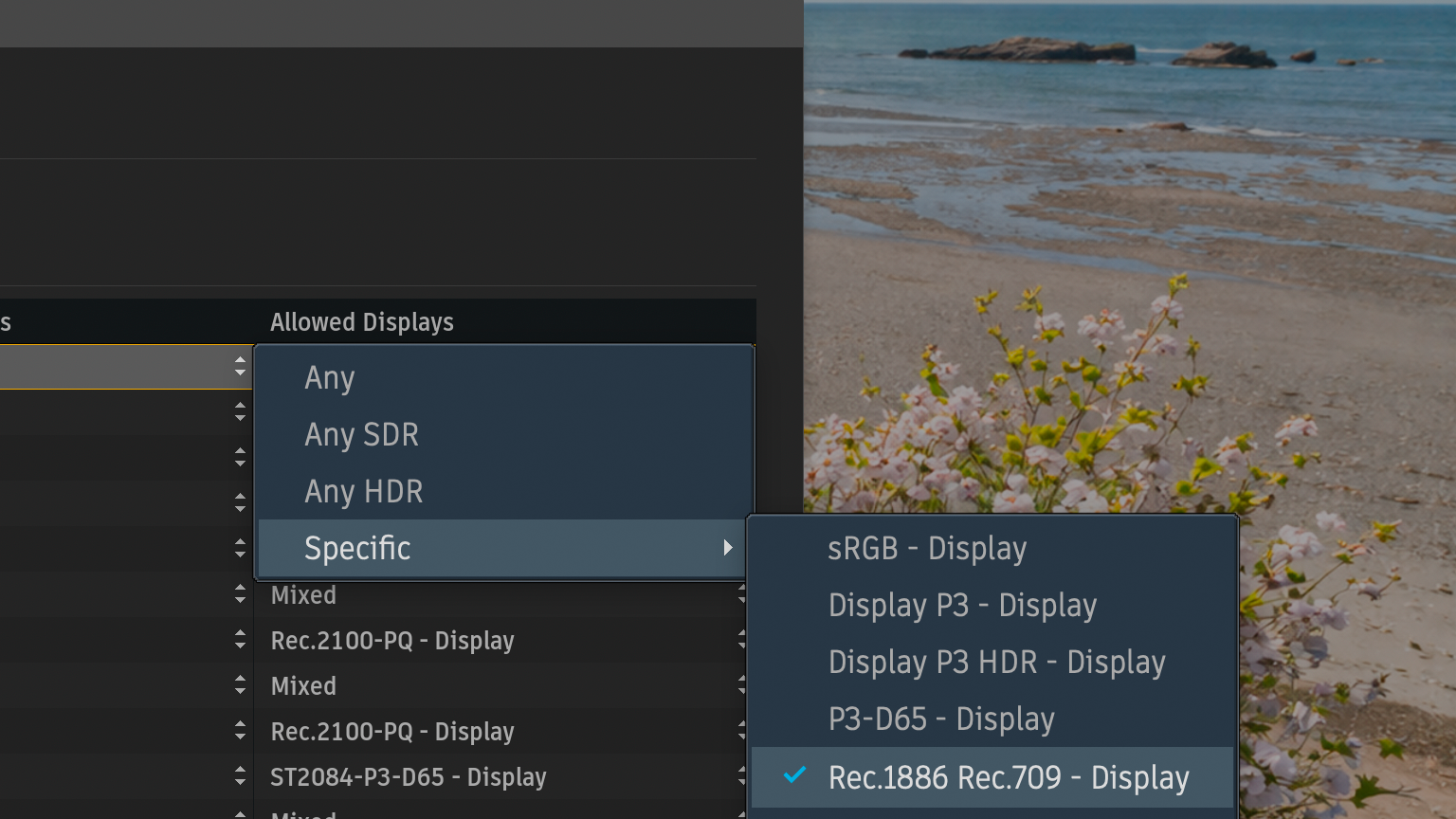
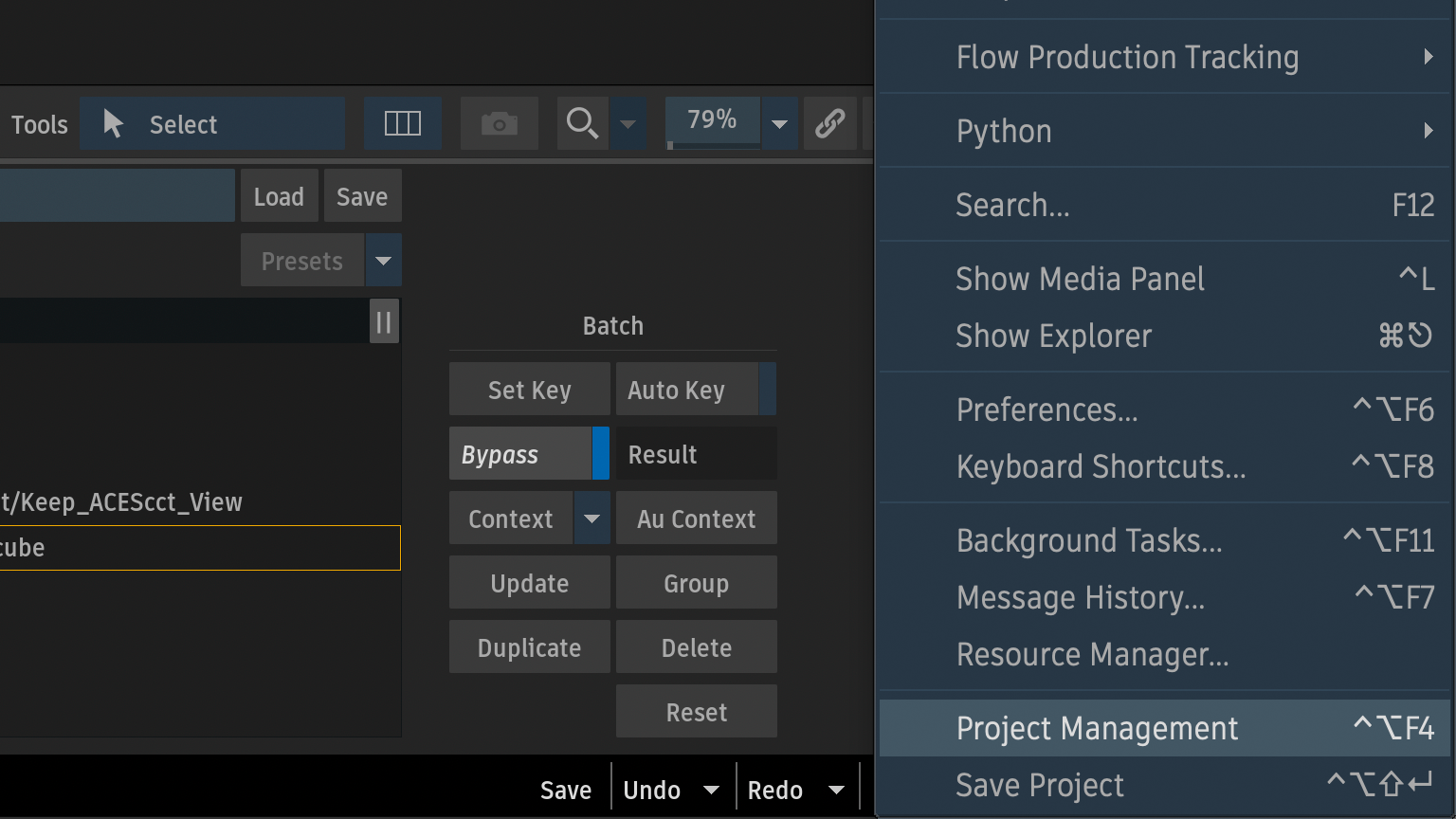
Preferences > Project > Colour Management > Create Viewボタンから追加
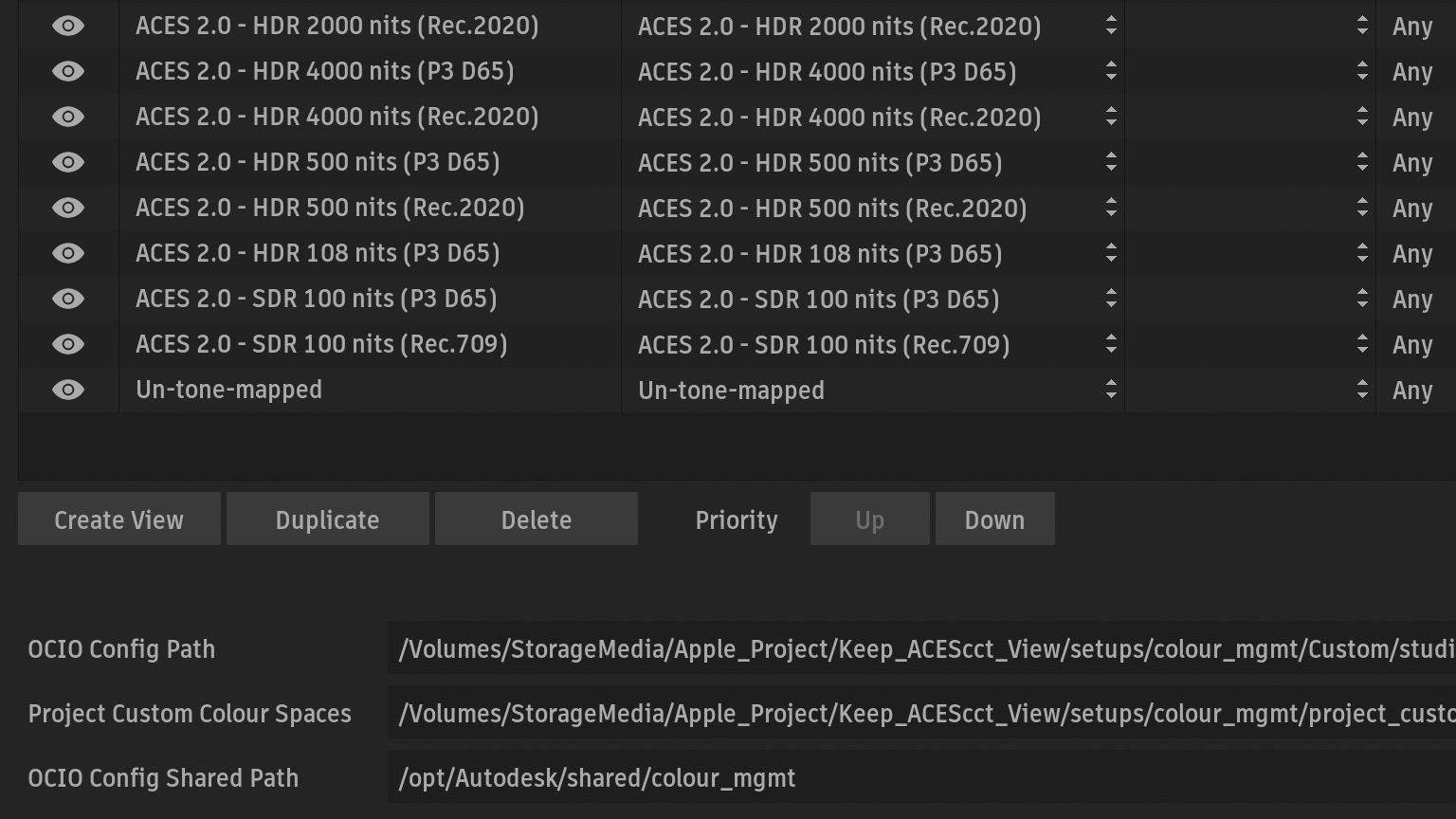
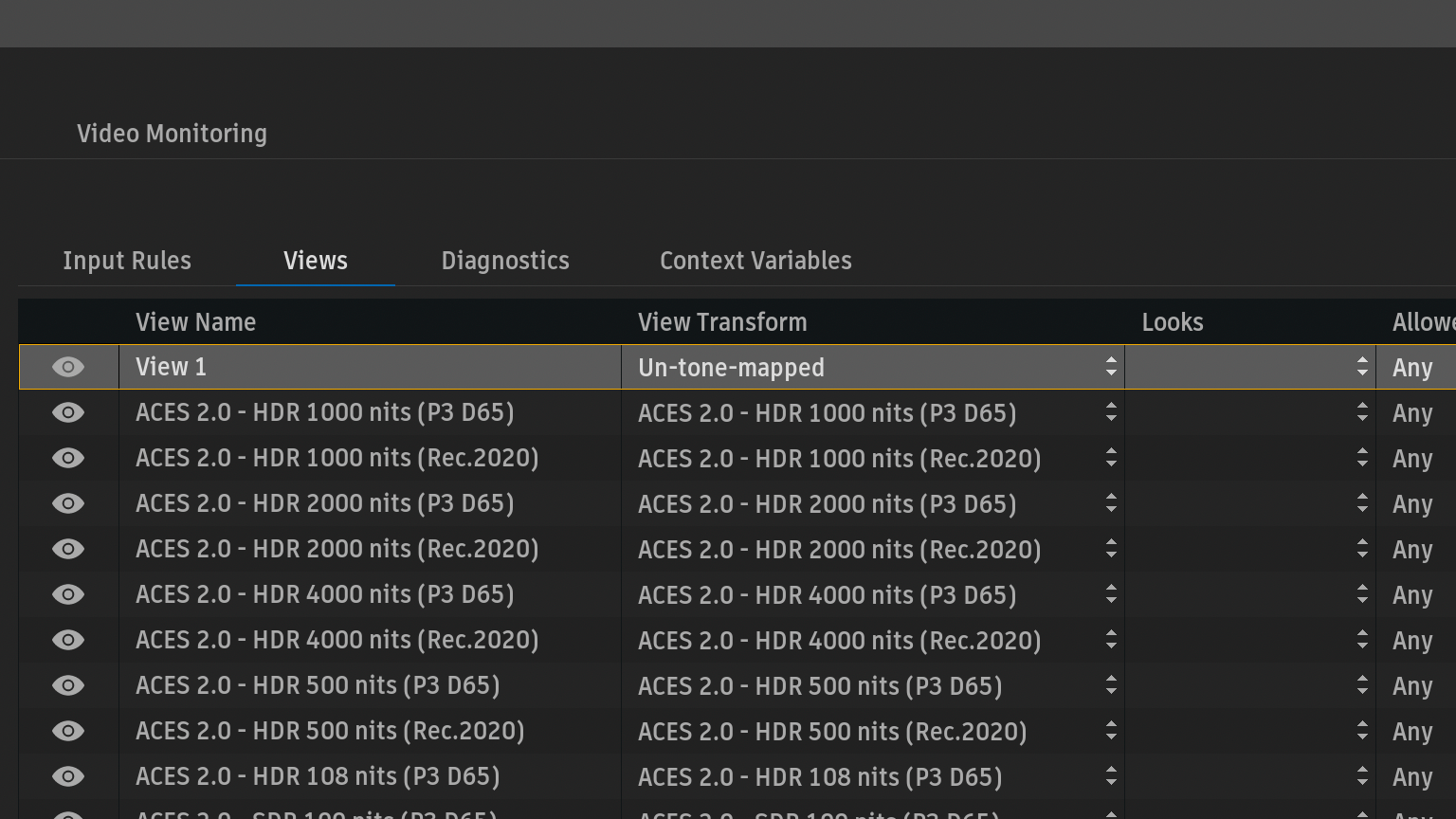
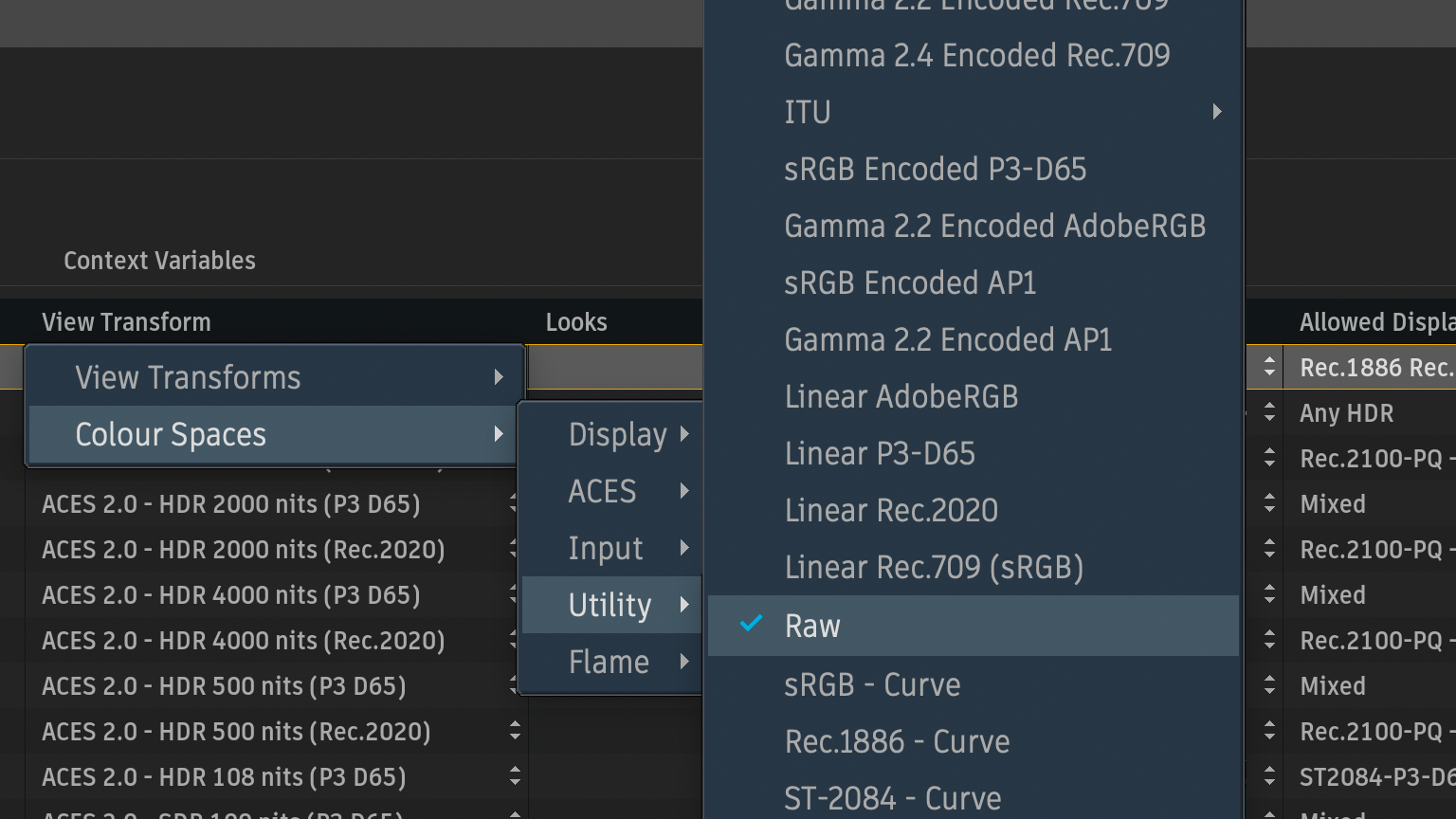
- View Name > ビューポートに表示する名前
- View Transform > Raw (トーンマップ無視)
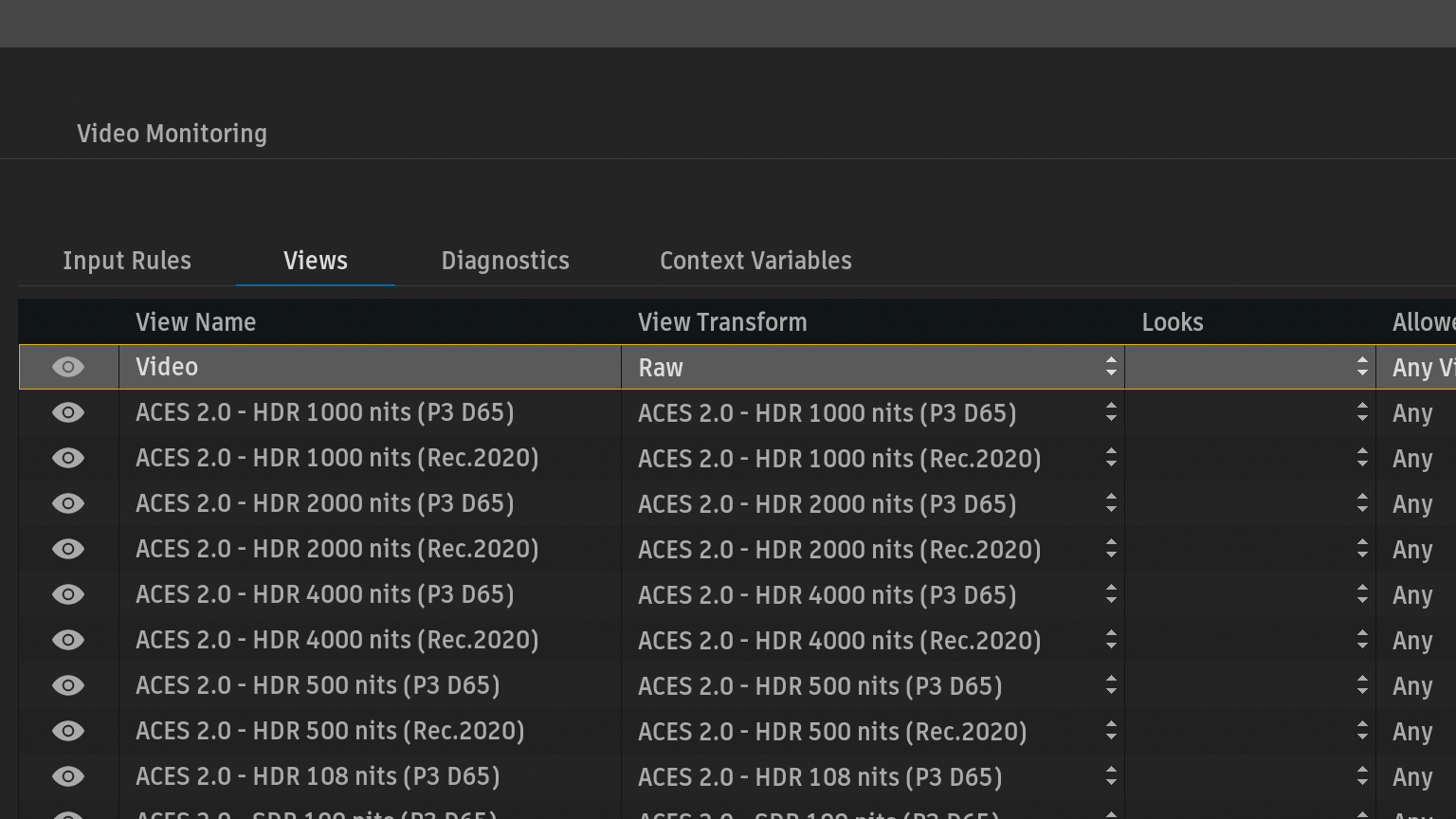
- Allowed Colour Space > Any Video (Tagged Colour Space > Video)
- Allowed Display > BT.1886 Rec.709 – Display
Viewport > Videoに切り替え
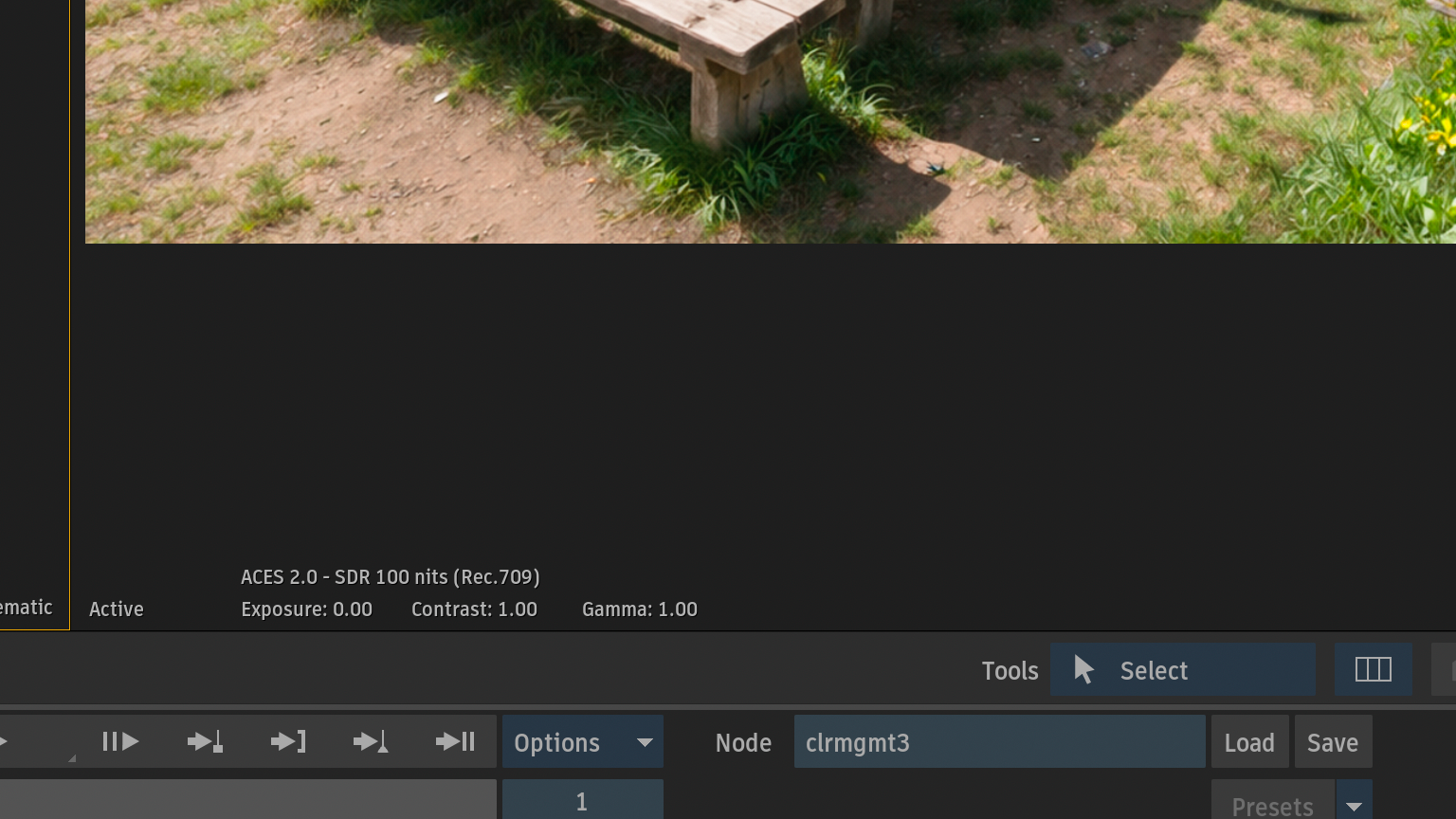
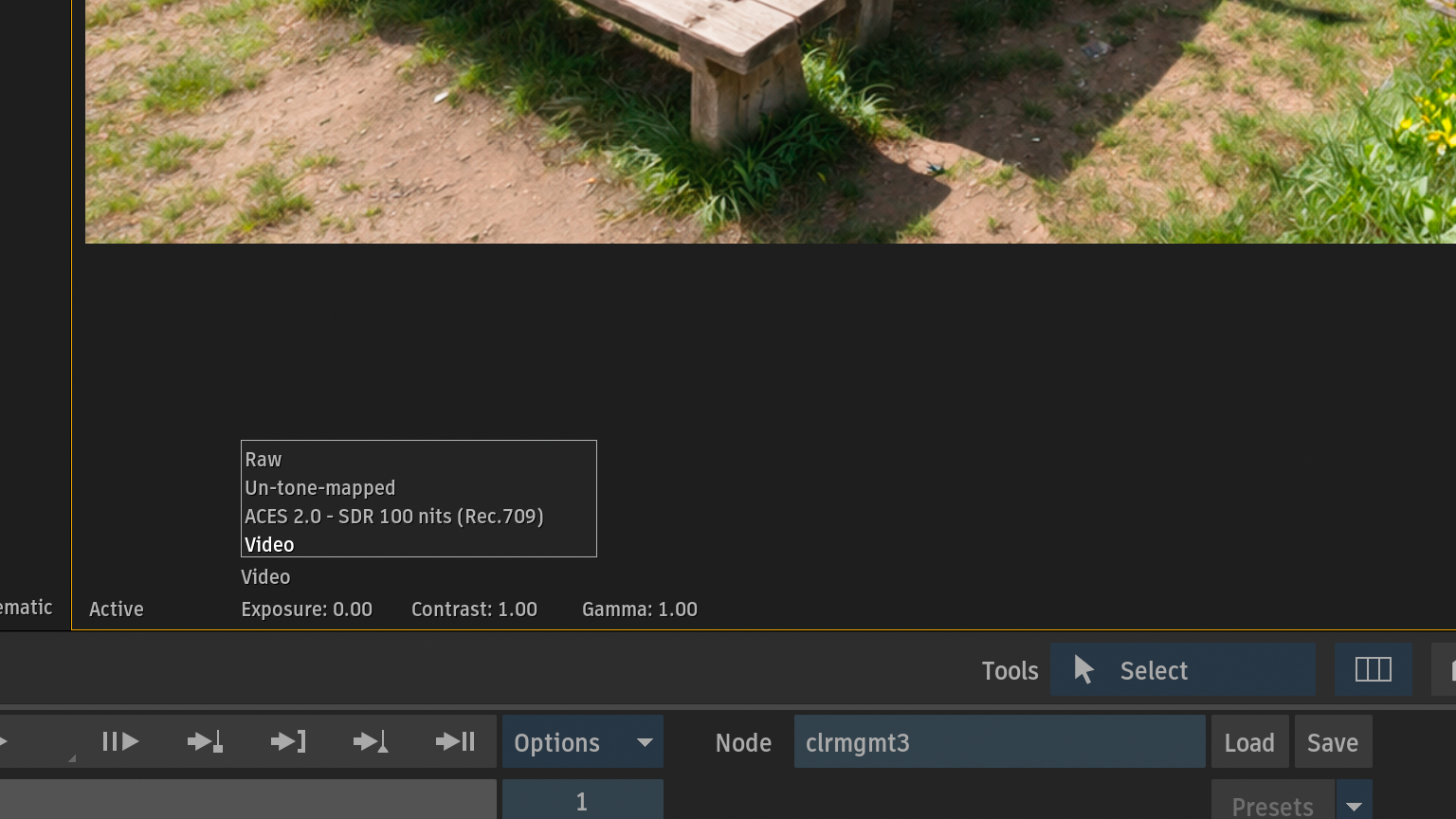
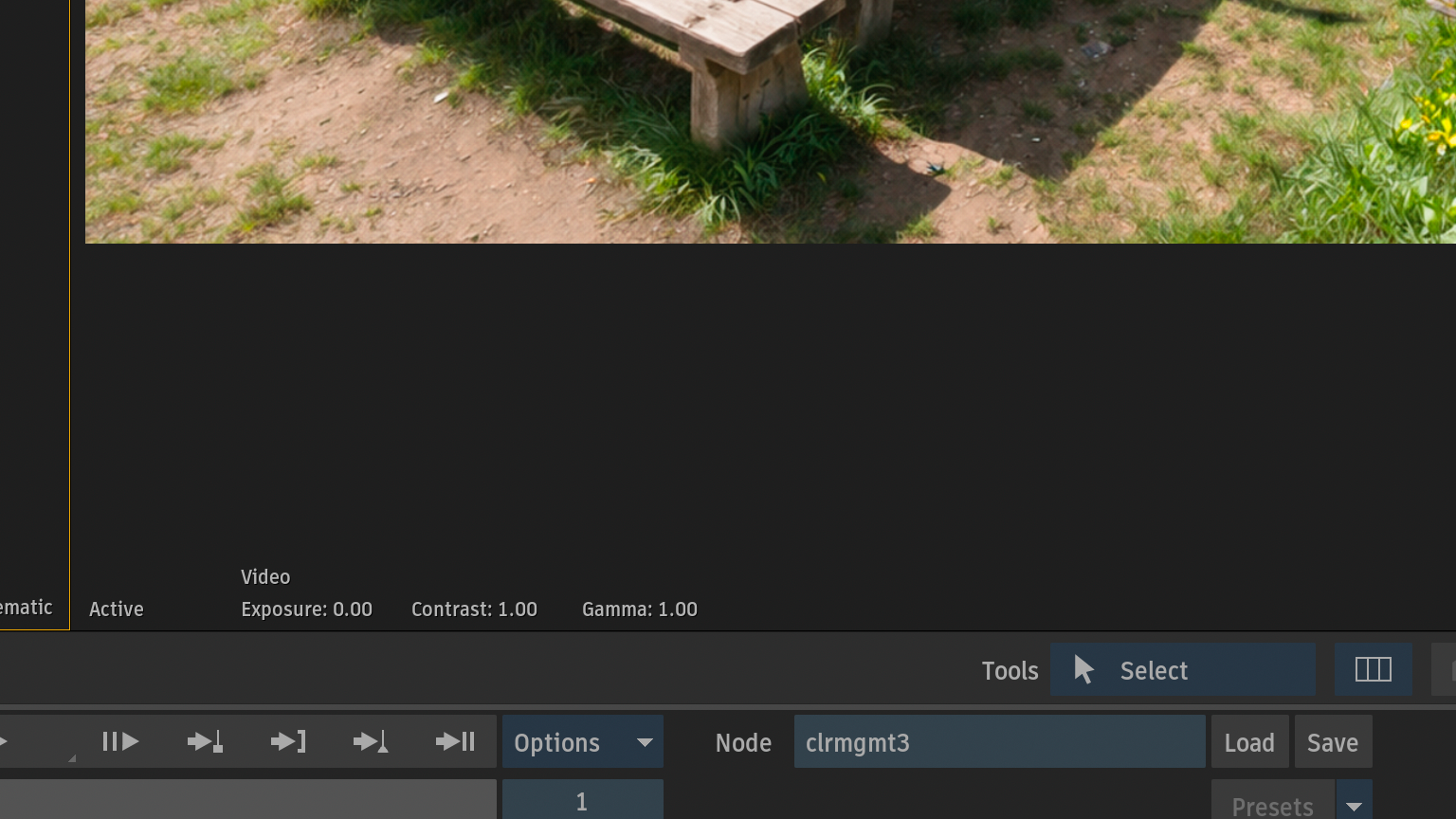
scene-referredパイプラインからdisplay-referredまで完成
ただ、このフローでは各ノードにカラースペース変換を設定しているので、運用上のミスが起きる可能性があります。
次に、このフローをView LUT的に変更するために、config.ocioを編集していきます。
config.ocioの編集
View LUTの設定は、以前のFlameバージョンではViewingルールから設定していました。
しかし、config.ocioを編集することで、ACEScctを保持したままのView LUTフローを構築できることに気づきました。
ここでは、config.ocioを編集してView LUTを追加する方法を説明します。
Batchパイプライン
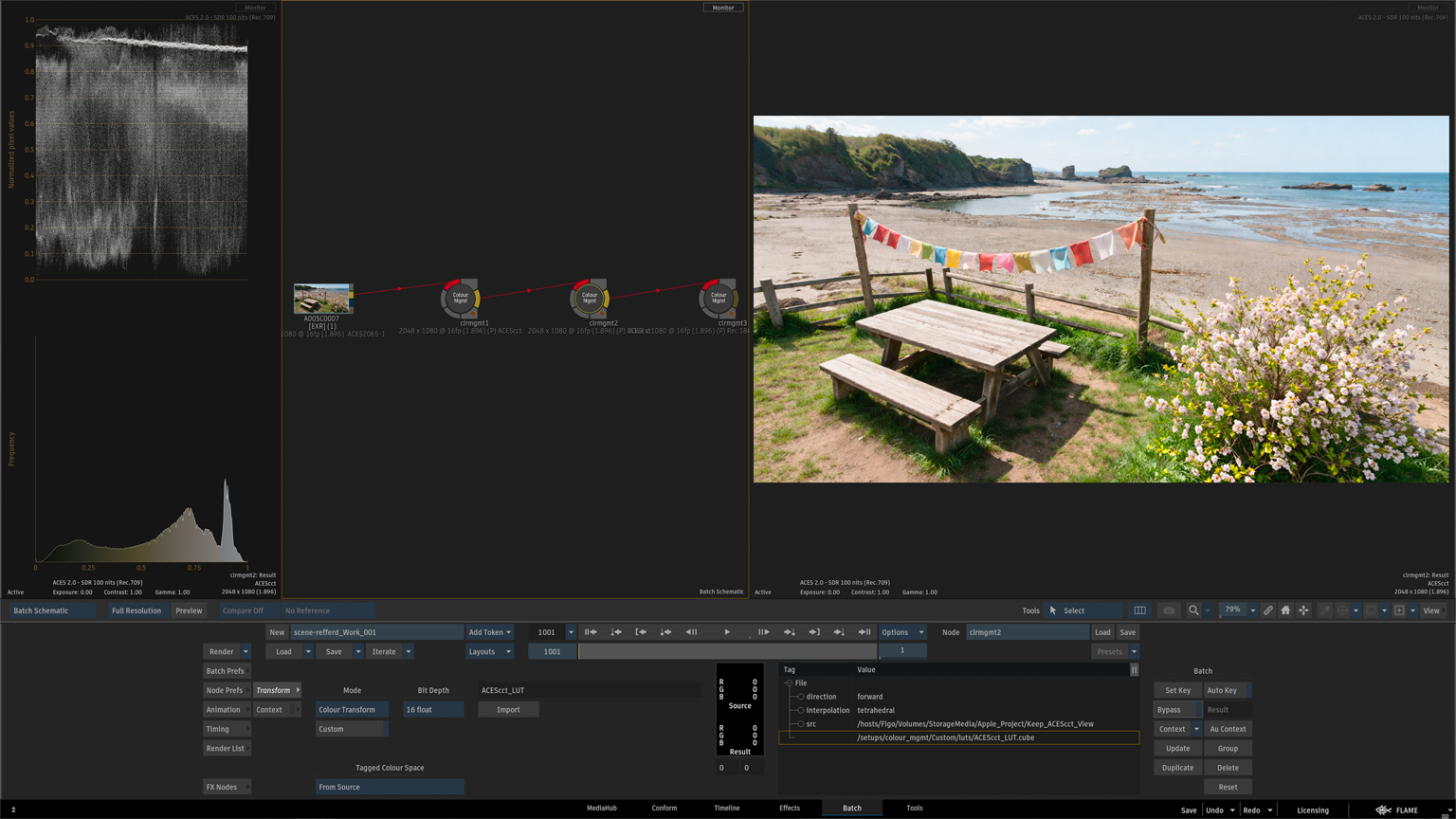
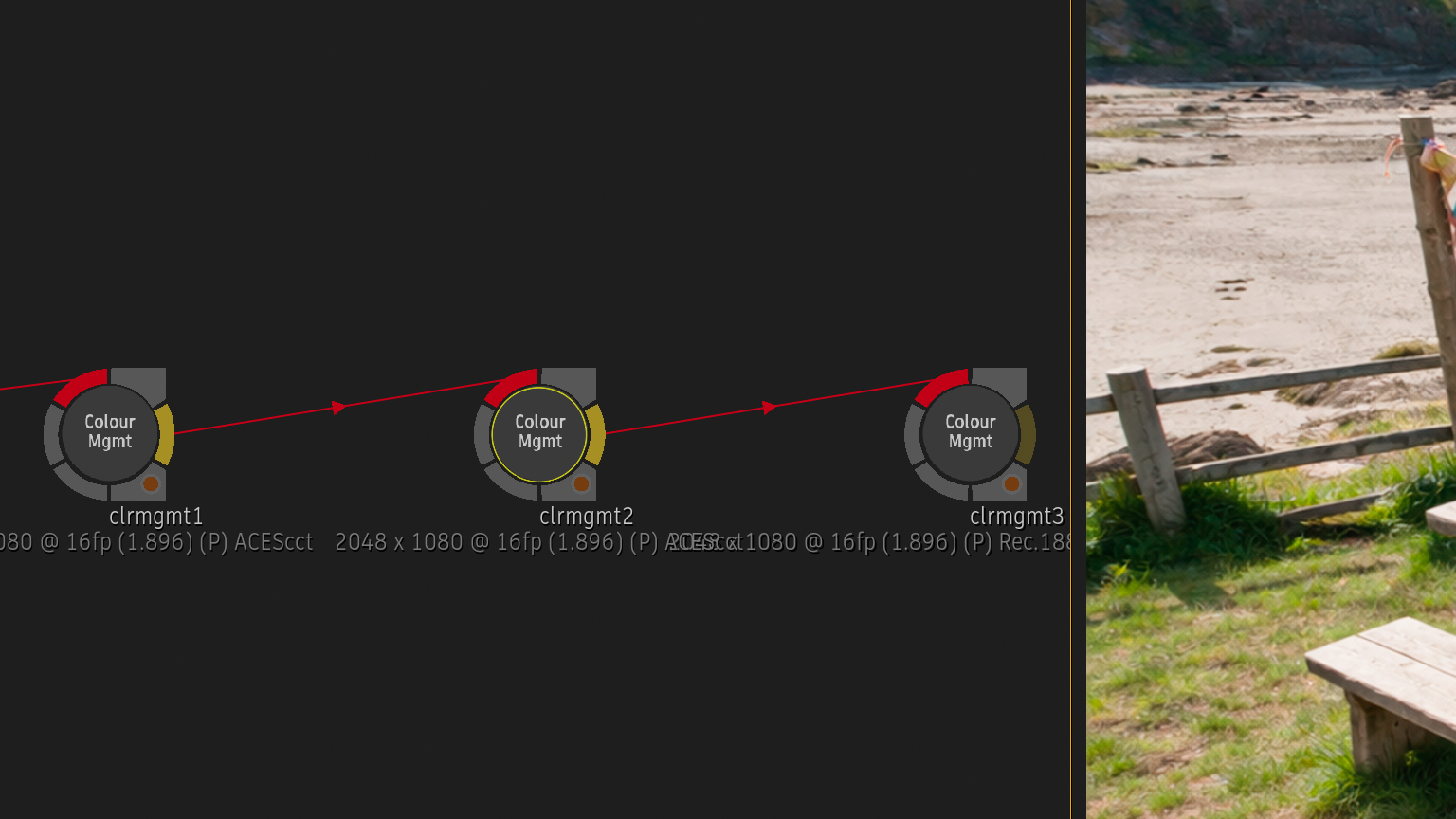
LUTをViewingルールに追加できれば、Batchパイプラインをバイパスにできる
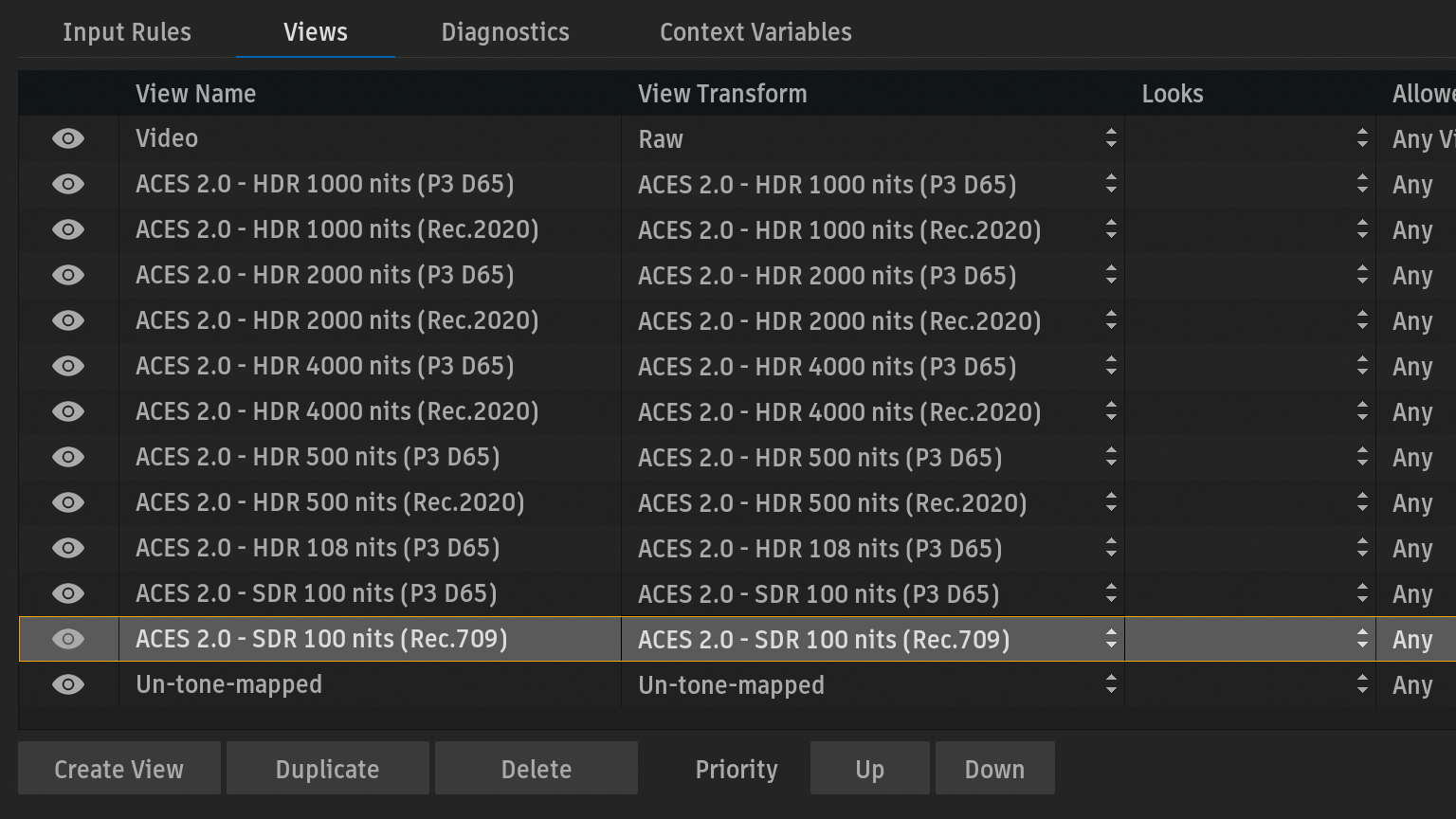
Preferences > Project > Colour Management > Views
Flameの出力はBT.1886 Rec.709 -Displayなので、ViewportはACES 2.0 SDR 100mits (Rec.709)
Looksからは、ACES1.3 Reference Gamut Compressionが選択できる
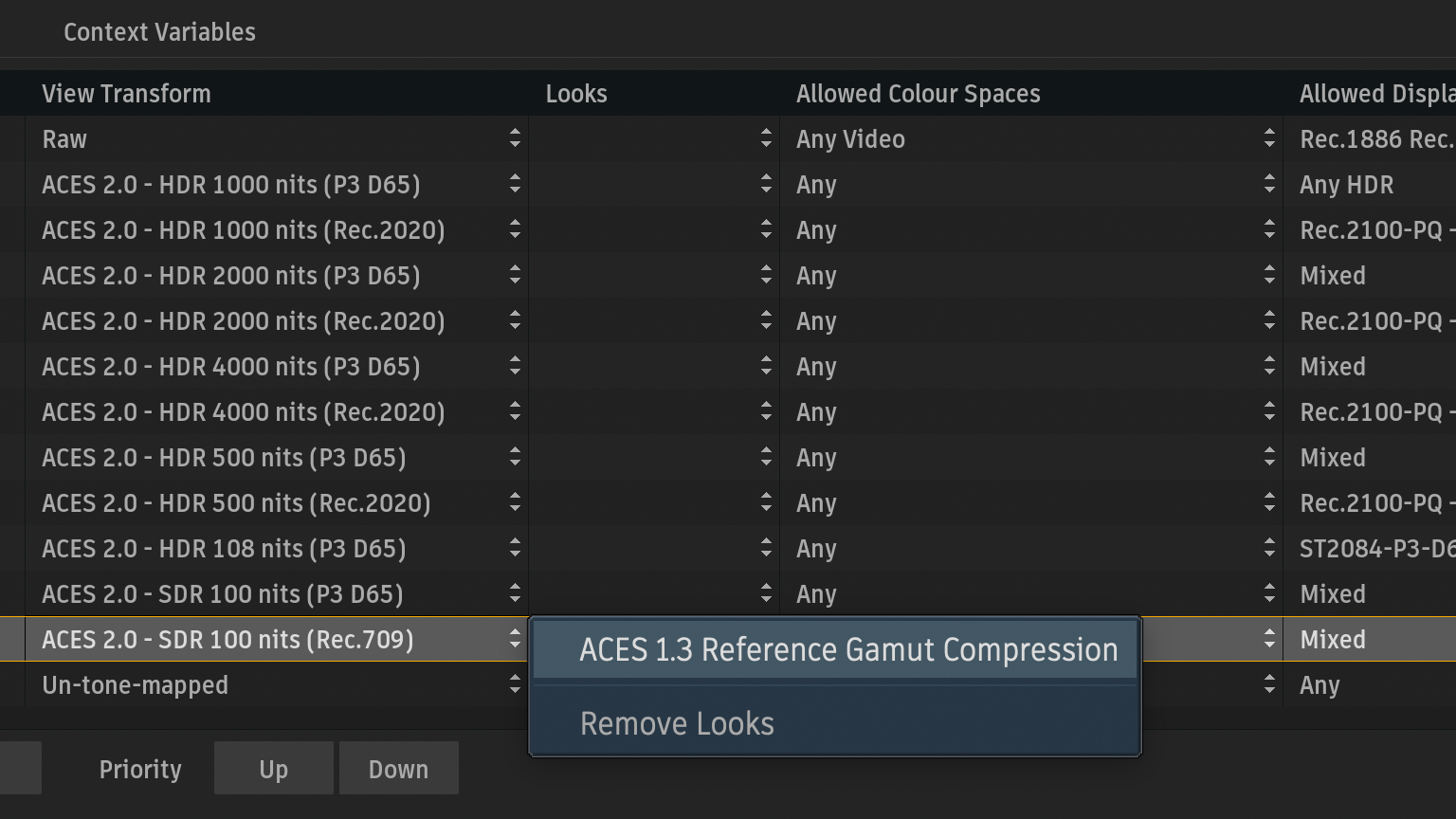
AP0からAP1変換時に発生するハイライトの色破綻(緑やシアン化)を抑えるための色域圧縮処理です。
config.ocioを確認
config.ocioの場所に移動
Figo:~ admin$ cd /Volumes/StorageMedia/Apple_Project/Keep_ACEScct_View/setups/colour_mgmt/Custom/
Figo:Custom admin$ tree .
.
├── luts
│   └── ACEScct_LUT.cube
└── studio-config-v3.0.0_aces-v2.0_ocio-v2.4.ocio

2 directories, 2 files
Figo:Custom admin$
config.ocioから「ACES 1.3」を検索
Figo:Custom admin$ grep ACES\ 1.3 studio-config-v3.0.0_aces-v2.0_ocio-v2.4.ocio
    name: ACES 1.3 Reference Gamut Compression
    transform: ! {style: ACES-LMT - ACES 1.3 Reference Gamut Compression}
Figo:Custom admin$
nlコマンドから75行目にACES 1.3があるので、この下にLUTの情報を追記すればいけるかも
Figo:Custom admin$ nl -ba studio-config-v3.0.0_aces-v2.0_ocio-v2.4.ocio | less
     1  ocio_profile_version: 2.4
     2
     3  environment:
     4    {}
     5  search_path: ""
     6  strictparsing: true
     7  luma: [0.2126, 0.7152, 0.0722]
     8  name: studio-config-v3.0.0_aces-v2.0_ocio-v2.4
     9  description: |
    10    Academy Color Encoding System - Studio Config [COLORSPACES v3.0.0] [ACES v2.0] [OCIO v2.4]
    11    ------------------------------------------------------------------------------------------
    12
    13    This "OpenColorIO" config is geared toward studios requiring a config that includes a wide variety of camera colorspaces, displays and looks.
    14
    15  roles:
    16    aces_interchange: ACES2065-1
    17    cie_xyz_d65_interchange: CIE XYZ-D65 - Display-referred
    18    color_picking: sRGB Encoded Rec.709 (sRGB)
    19    color_timing: ACEScct
    20    compositing_log: ACEScct
    21    data: Raw
    22    matte_paint: ACEScct
    23    scene_linear: ACEScg
              :
              :
              :
    72
    73  looks:
    74    - !
    75      name: ACES 1.3 Reference Gamut Compression
    76      process_space: ACES2065-1
    77      description: |
    78        LMT (applied in ACES2065-1) to compress scene-referred values from common cameras into the AP1 gamut
    79
    80        ACEStransformID: urn:ampas:aces:transformId:v2.0:Look.Academy.ReferenceGamutCompress.a2.v1
    81
    82        AMF Components
    83        --------------
    84        ACEStransformID: urn:ampas:aces:transformId:v2.0:InvLook.Academy.ReferenceGamutCompress.a2.v1
    85      transform: ! {style: ACES-LMT - ACES 1.3 Reference Gamut Compression}
    86
              :
              :
              :
調べた結果、下記を追記する必要あり
- !name: My_Grading # (Preferences > Colour Management > View > Looksに表示する名前 process_space: ACEScct # (LUTを適用する前に自動でこの空間に変換してくれる) transform: ! {src: luts/file, interpolation: linear} # LUTファイルのパス(search_pathからの相対パス)
Looksに表示する名前と、LUTのファイルパスを編集
- !name: ACEScct_LUT process_space: ACEScct transform: ! {src: luts/ACEScct_LUT.cube, interpolation: linear}
87行目に追記して保存
Figo:Custom admin$ nl -ba studio-config-v3.0.0_aces-v2.0_ocio-v2.4.ocio | less
    72
    73  looks:
    74    - !
    75      name: ACES 1.3 Reference Gamut Compression
    76      process_space: ACES2065-1
    77      description: |
    78        LMT (applied in ACES2065-1) to compress scene-referred values from common cameras into the AP1 gamut
    79
    80        ACEStransformID: urn:ampas:aces:transformId:v2.0:Look.Academy.ReferenceGamutCompress.a2.v1
    81
    82        AMF Components
    83        --------------
    84        ACEStransformID: urn:ampas:aces:transformId:v2.0:InvLook.Academy.ReferenceGamutCompress.a2.v1
    85      transform: ! {style: ACES-LMT - ACES 1.3 Reference Gamut Compression}
    86
    87    - !
    88      name: ACEScct_LUT
    89      process_space: ACEScct
    90      transform: ! {src: luts/ACEScct_LUT.cube, interpolation: linear}
    91
    92  default_view_transform: Un-tone-mapped
config.ocio更新
Project Management > Manageボタン > OCIO Config
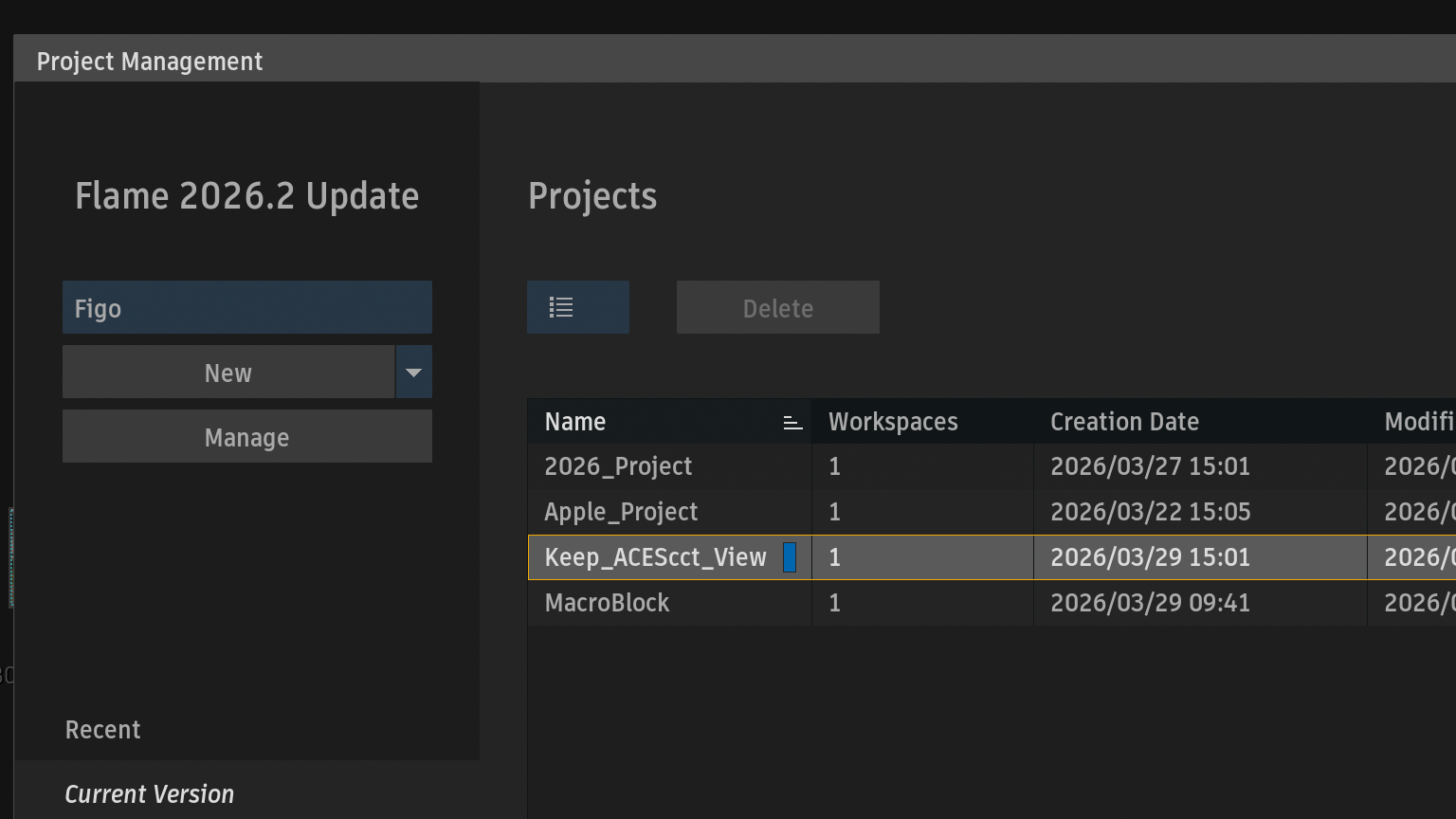
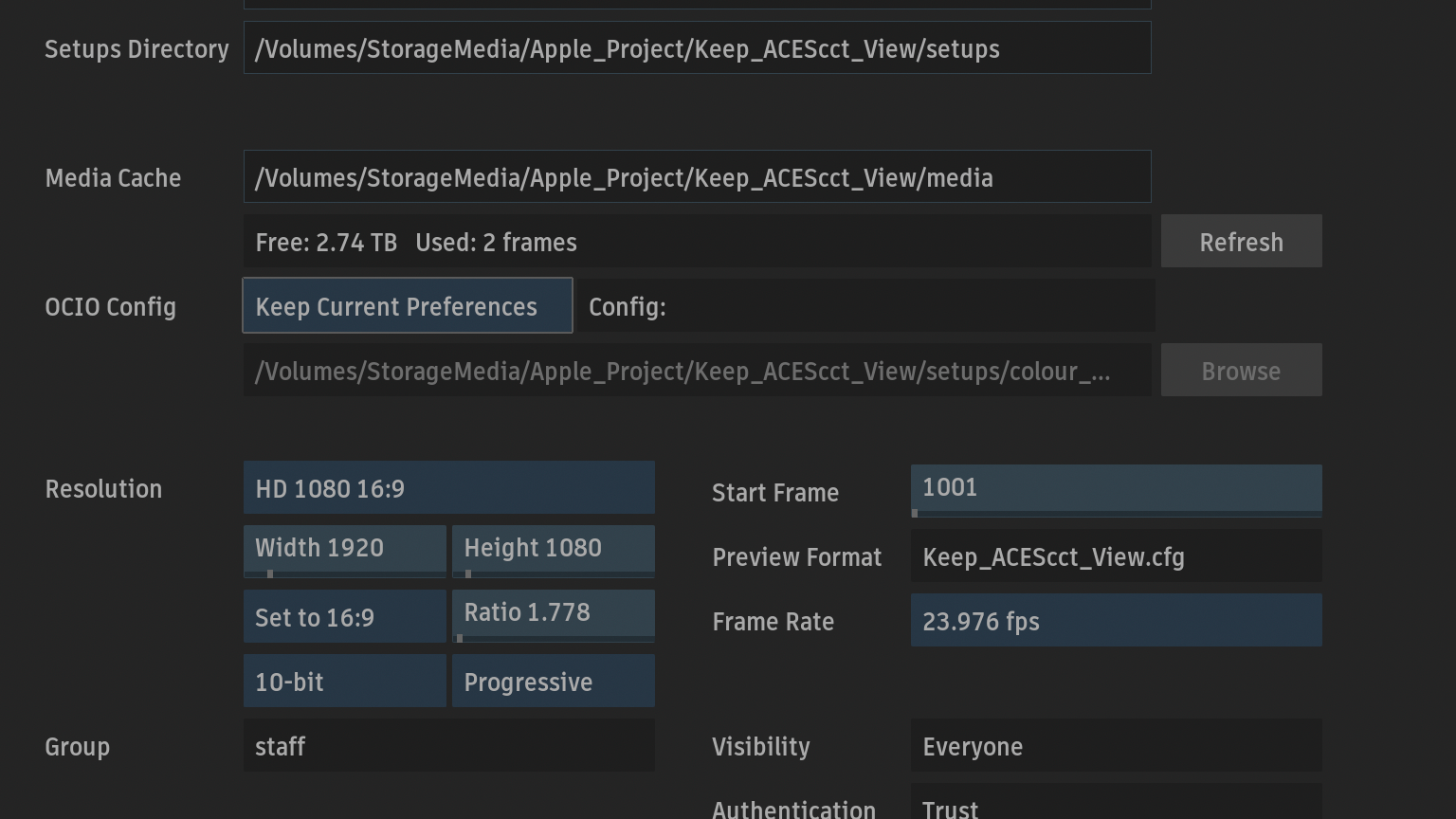
From File > Browsボタンから編集したconfig.ocioを選択
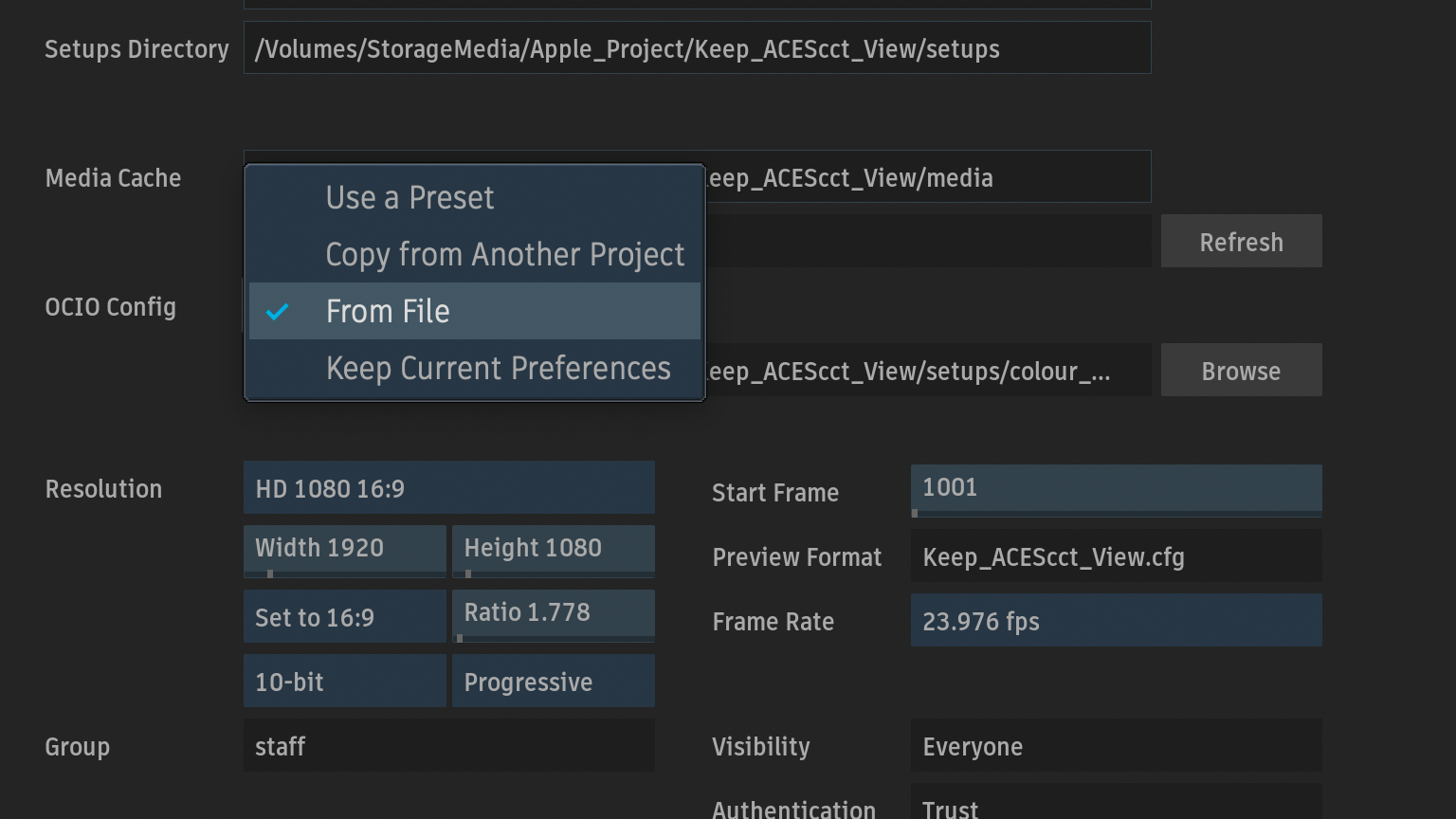
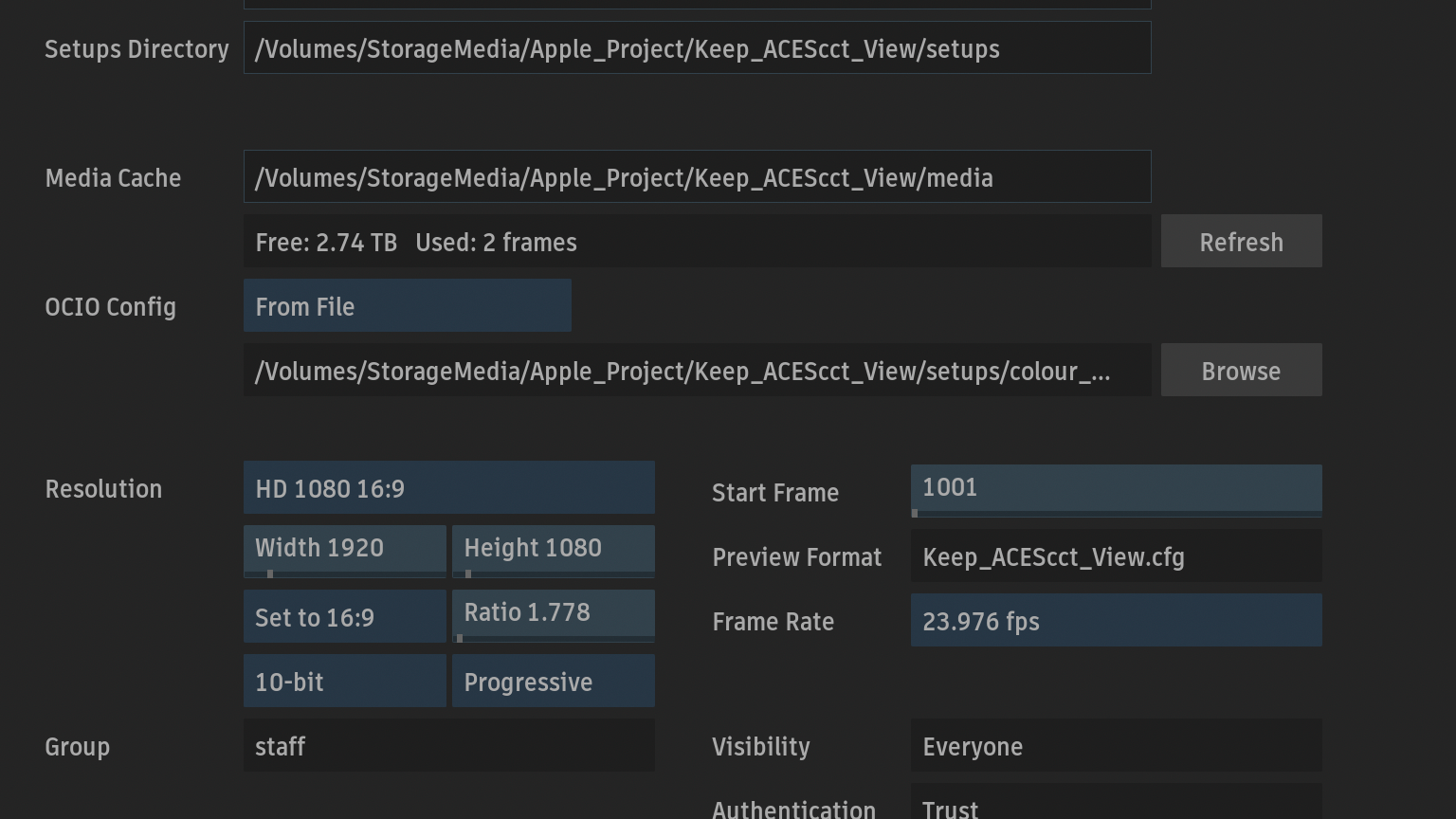
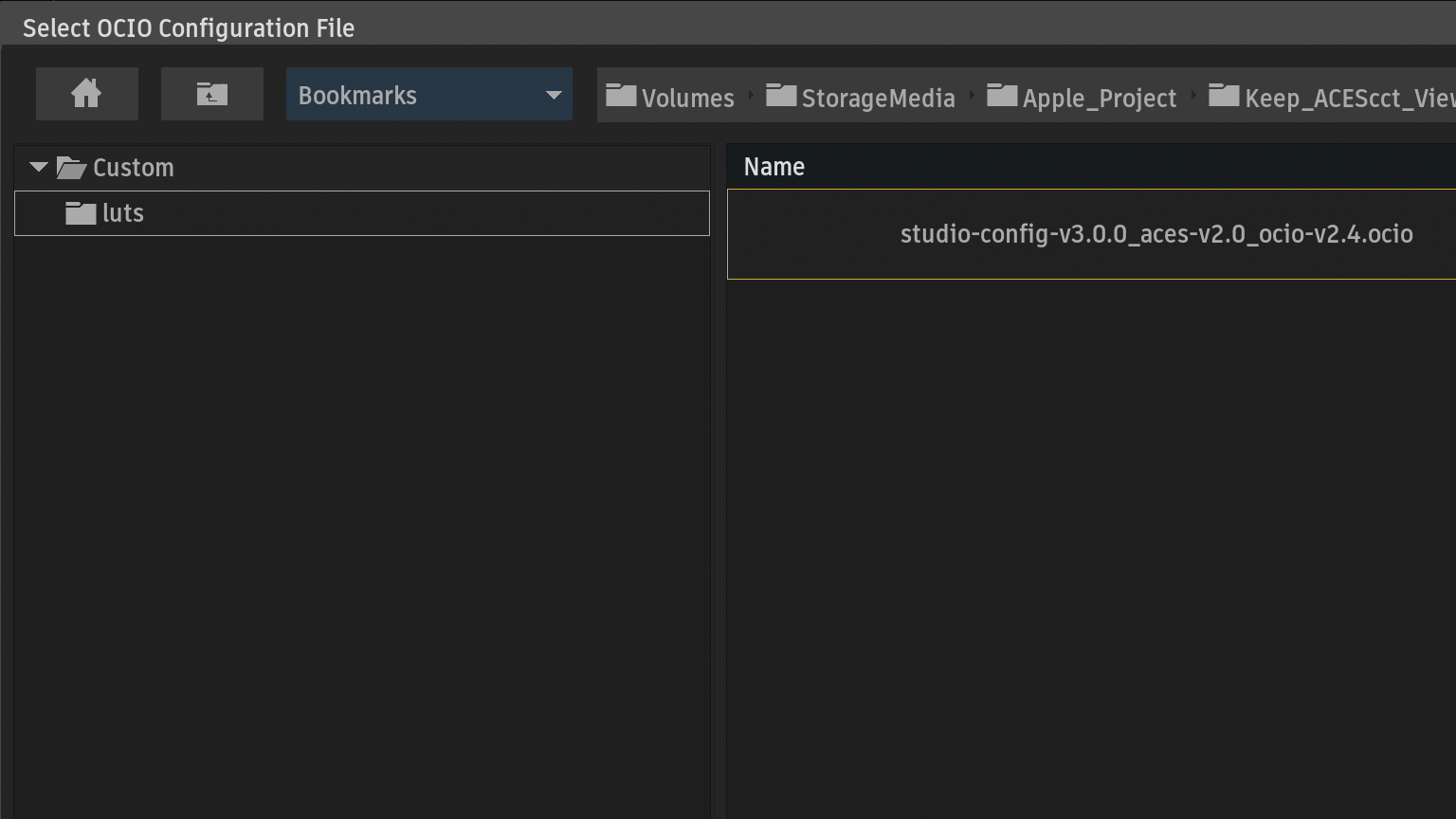
Invalid OCIO Config > LUTのファイルパスがミスマッチ
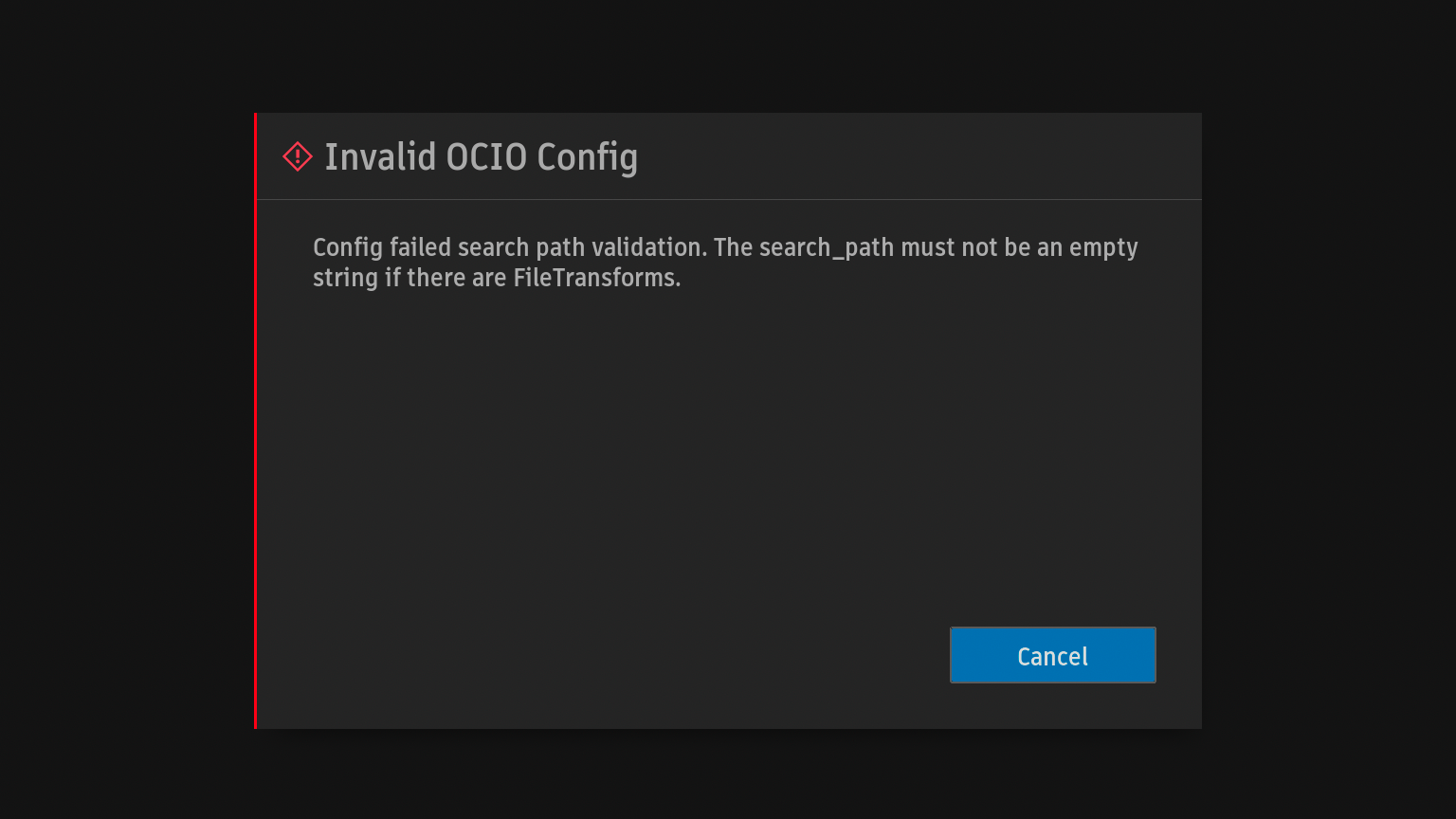
5行目 search_path: “”
     1  ocio_profile_version: 2.4
     2
     3  environment:
     4    {}
     5  search_path: ""
     6  strictparsing: true
     7  luma: [0.2126, 0.7152, 0.0722]
     8  name: studio-config-v3.0.0_aces-v2.0_ocio-v2.4
     9  description: |
    10    Academy Color Encoding System - Studio Config [COLORSPACES v3.0.0] [ACES v2.0] [OCIO v2.4]
    11    ------------------------------------------------------------------------------------------
> LUTがあるディレクトリ追記
     1  ocio_profile_version: 2.4
     2
     3  environment:
     4    {}
     5  search_path: "luts"
     6  strictparsing: true
     7  luma: [0.2126, 0.7152, 0.0722]
     8  name: studio-config-v3.0.0_aces-v2.0_ocio-v2.4
     9  description: |
    10    Academy Color Encoding System - Studio Config [COLORSPACES v3.0.0] [ACES v2.0] [OCIO v2.4]
    11    ------------------------------------------------------------------------------------------
Browsボタンから再度config.ocio更新
Modifyボタン > Confirm
Reset Colour PolicyからYesボタンをクリックしてカラースペースを更新
CloseボンタンからManage Projectを終了
LooksからLUTを選択
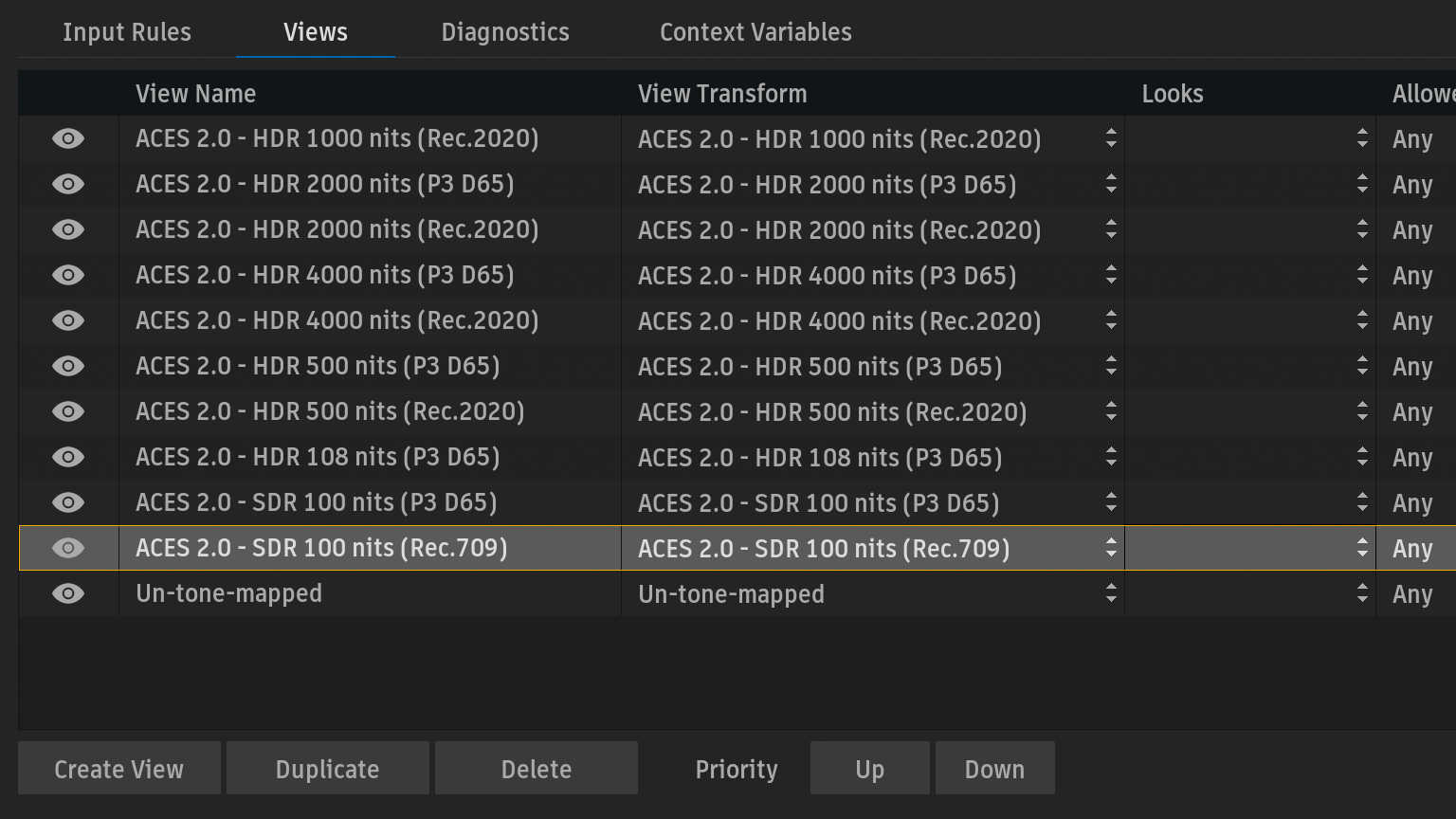
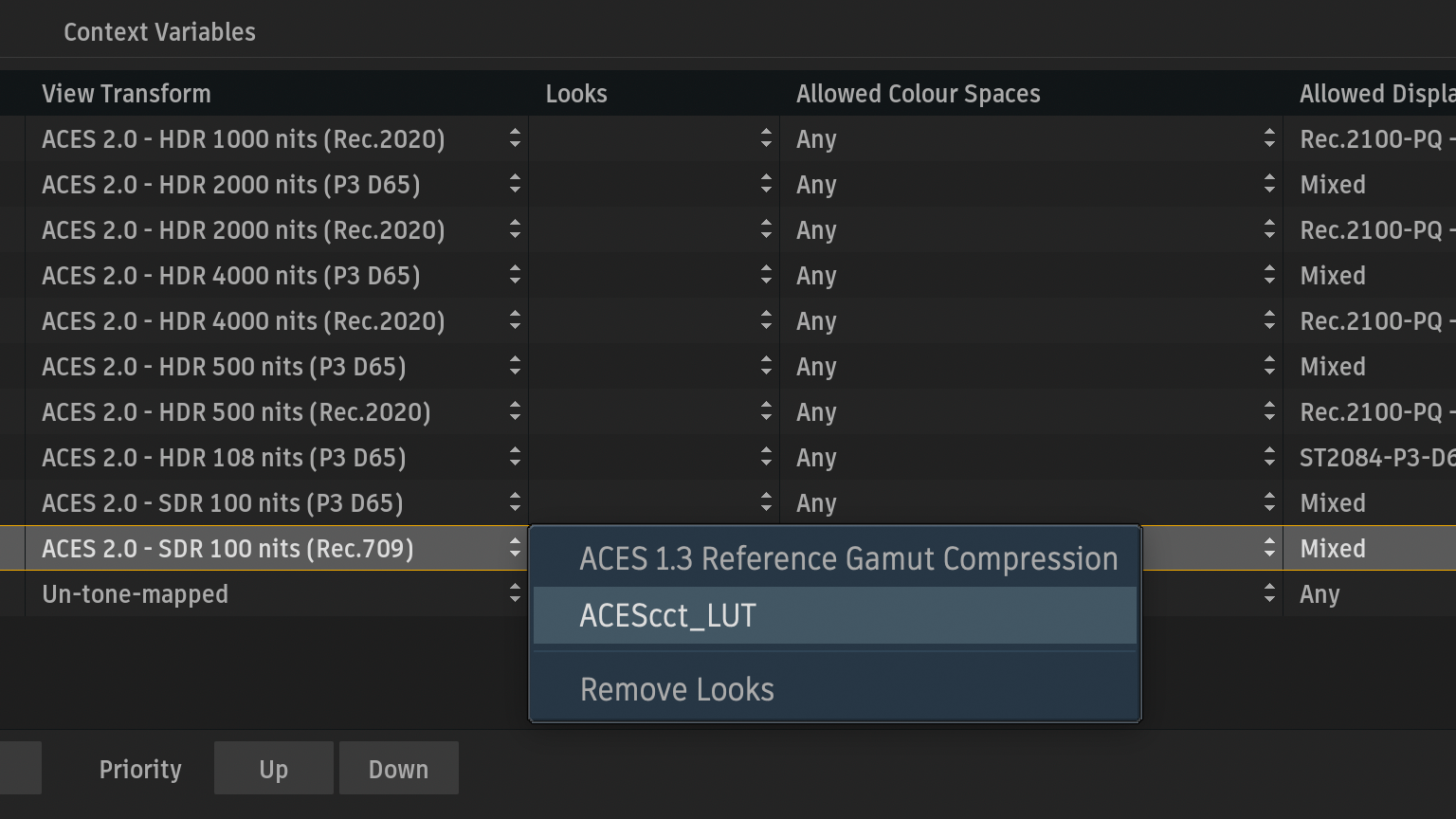
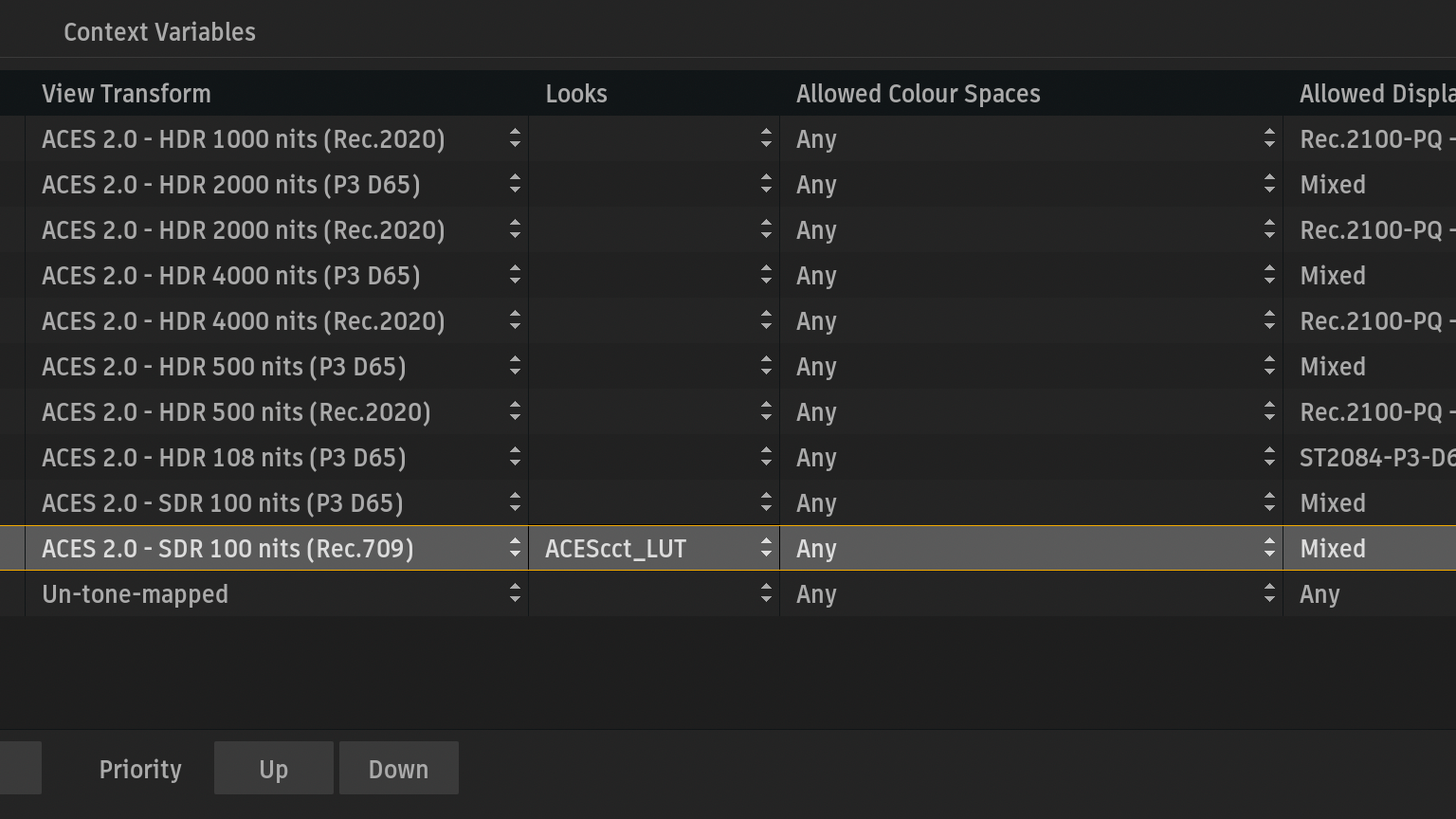
Batchに戻るとViewportにエラーが表示
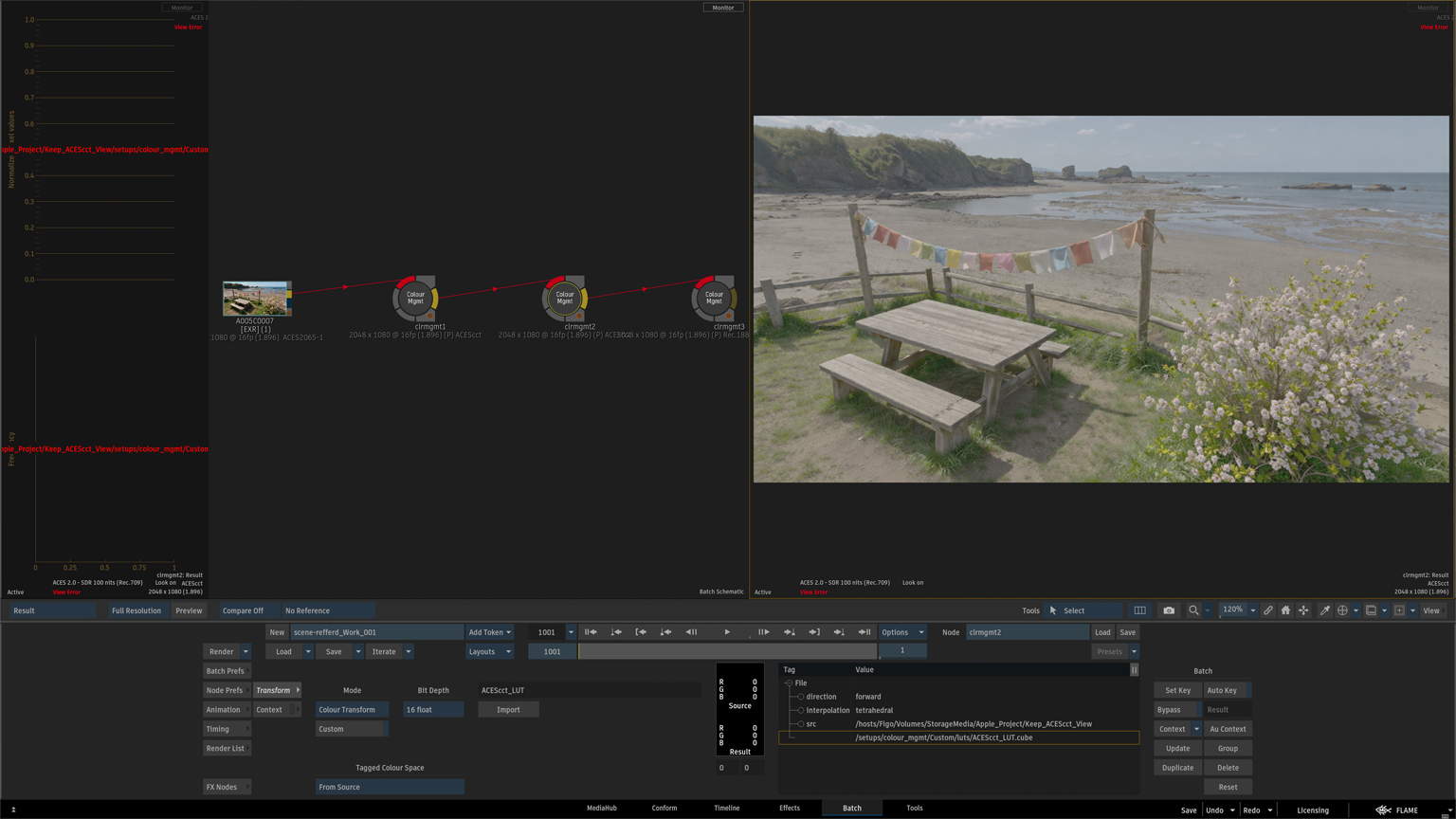
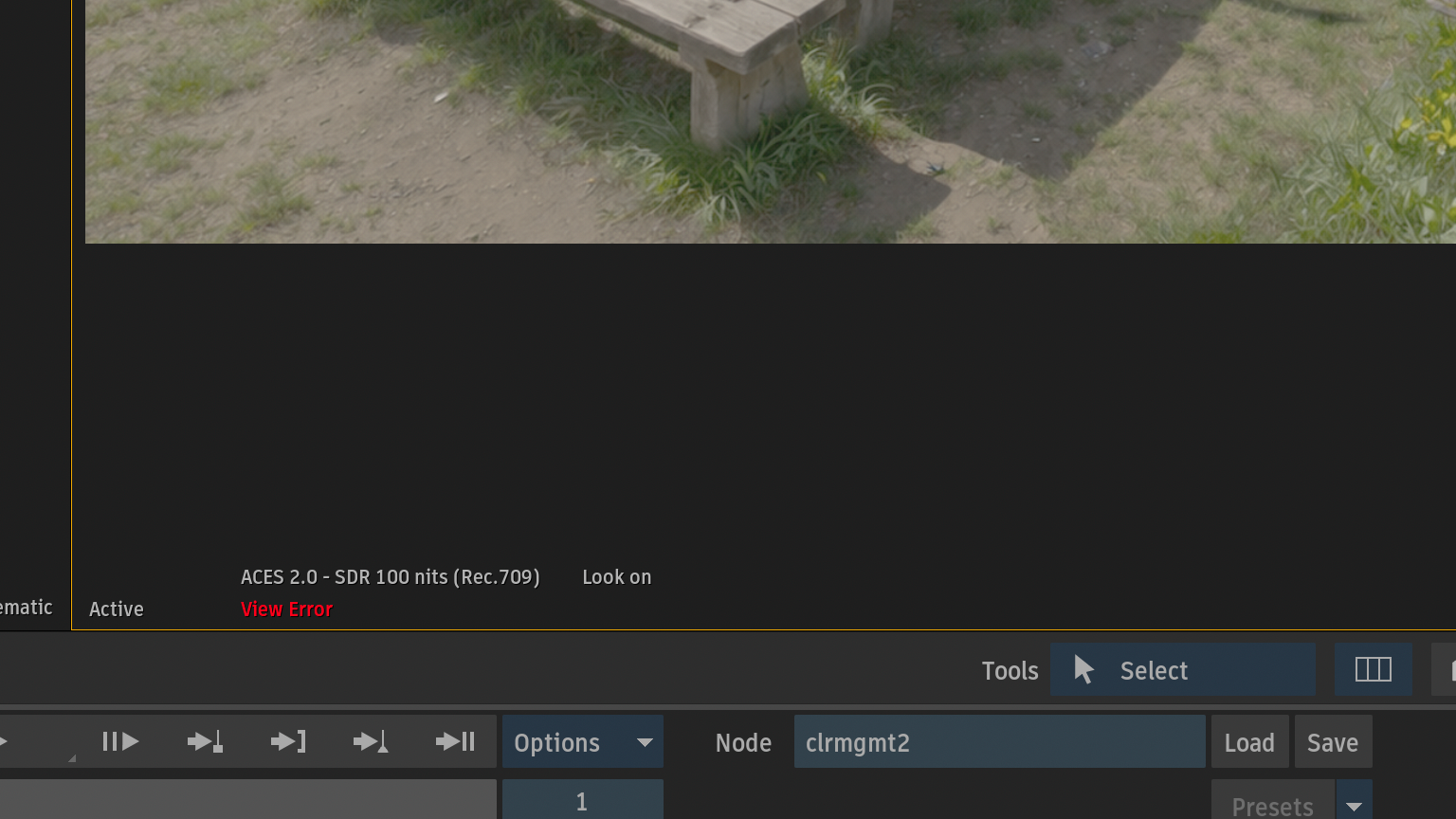
Flameのログから、パスが二重指定になっている > luts/luts/ACEScct_LUT.cube
Mar 31 15:27:39 : Config failed search path validation. The search_path must not be an empty string if there are FileTransforms.
Mar 31 15:27:39 : CLRMGT: ERROR: Config failed search path validation. The search_path must not be an empty string if there are FileTransforms.
Mar 31 15:42:47 : SCOPES: The specified file reference 'luts/ACEScct_LUT.cube' could not be located. The following attempts were made: '/Volumes/StorageMedia/Apple_Project/Keep_ACEScct_View/setups/colour_mgmt/Custom/luts/luts/ACEScct_LUT.cube' : '/Volumes/StorageMedia/Apple_Project/Keep_ACEScct_View/setups/colour_mgmt/luts/ACEScct_LUT.cube'.
transformの行には相対パスを追記
search_path: “luts”は、studio.config.ocioと同じ階層なので、LUT名のみ記載
Figo:~ admin$ cd /Volumes/StorageMedia/Apple_Project/Keep_ACEScct_View/setups/colour_mgmt/Custom/
Figo:Custom admin$ tree .
.
├── luts
│   └── ACEScct_LUT.cube
└── studio-config-v3.0.0_aces-v2.0_ocio-v2.4.ocio

2 directories, 2 files
Figo:Custom admin$
config.ocio > ファイルパス修正 > 90 transform: ! {src: ACEScct_LUT.cube, interpolation: linear}
Figo:Custom admin$ nl -ba studio-config-v3.0.0_aces-v2.0_ocio-v2.4.ocio | less
    72
    73  looks:
    74    - !
    75      name: ACES 1.3 Reference Gamut Compression
    76      process_space: ACES2065-1
    77      description: |
    78        LMT (applied in ACES2065-1) to compress scene-referred values from common cameras into the AP1 gamut
    79
    80        ACEStransformID: urn:ampas:aces:transformId:v2.0:Look.Academy.ReferenceGamutCompress.a2.v1
    81
    82        AMF Components
    83        --------------
    84        ACEStransformID: urn:ampas:aces:transformId:v2.0:InvLook.Academy.ReferenceGamutCompress.a2.v1
    85      transform: ! {style: ACES-LMT - ACES 1.3 Reference Gamut Compression}
    86
    87    - !
    88      name: ACEScct_LUT
    89      process_space: ACEScct
    90      transform: ! {src: ACEScct_LUT.cube, interpolation: linear}
    91
    92  default_view_transform: Un-tone-mapped
Browsボタンから編集したconfig.ocioを再度選択
Modifyボタン > Confirm
Reset Colour PolicyからYesボタンをクリックしてカラースペースを更新
CloseボンタンからManage Projectを終了
Views Look確認
config.ocioを更新しているので、Lookから追加したLUTを再度選択する必要があります。
ViewportにLookが追加
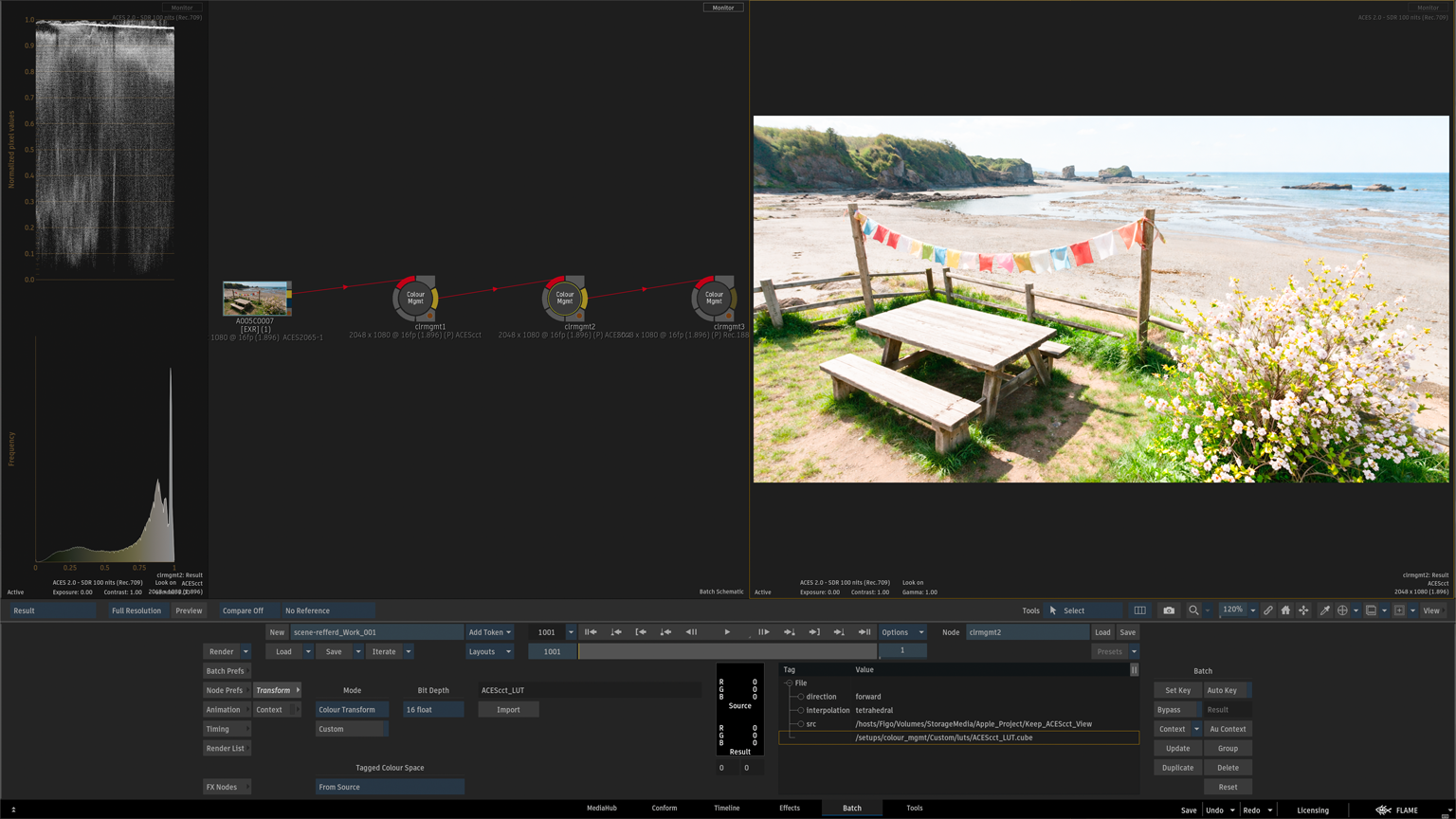
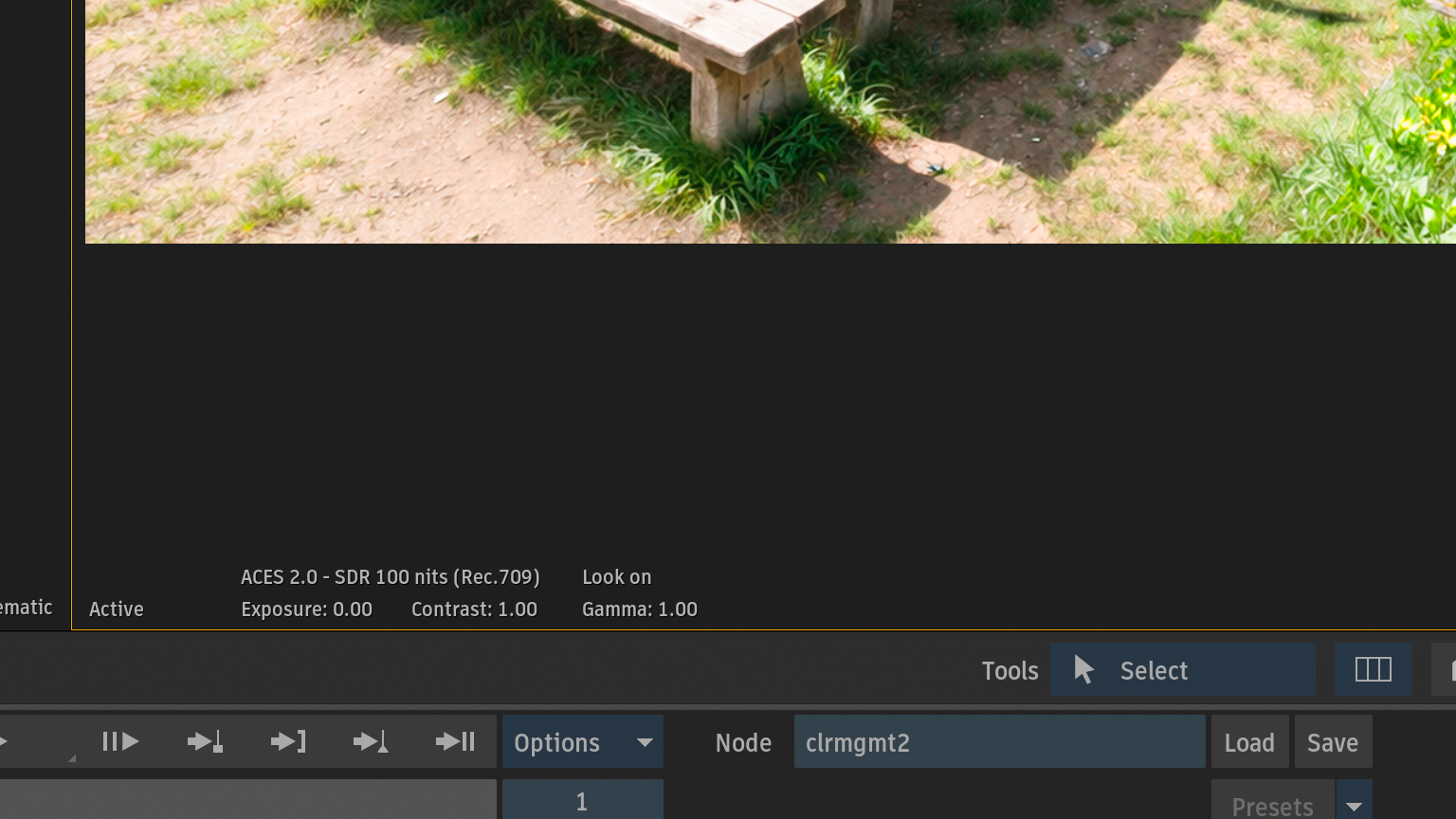
LUTを追加しているColour Managementノードをバイパス
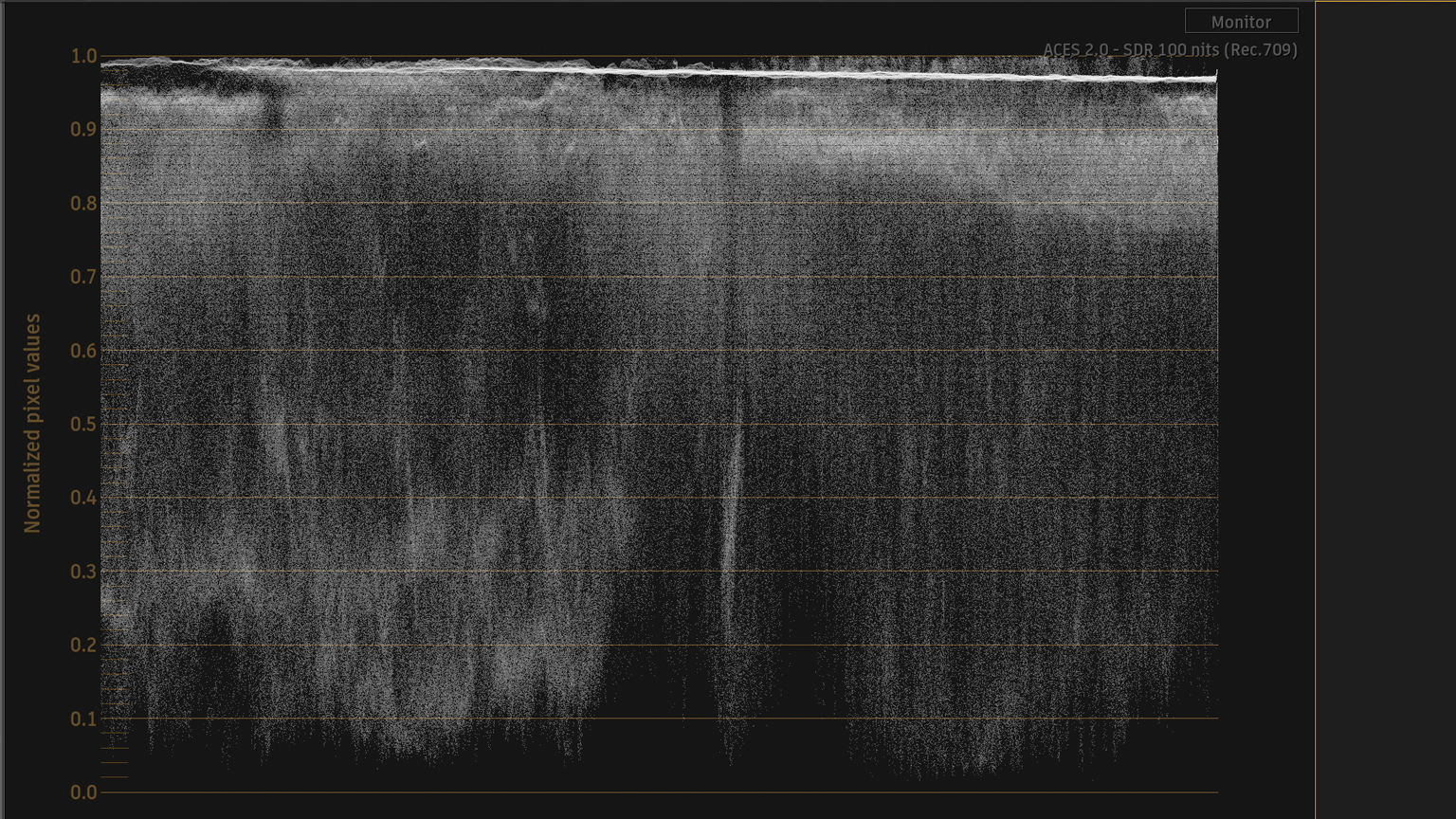
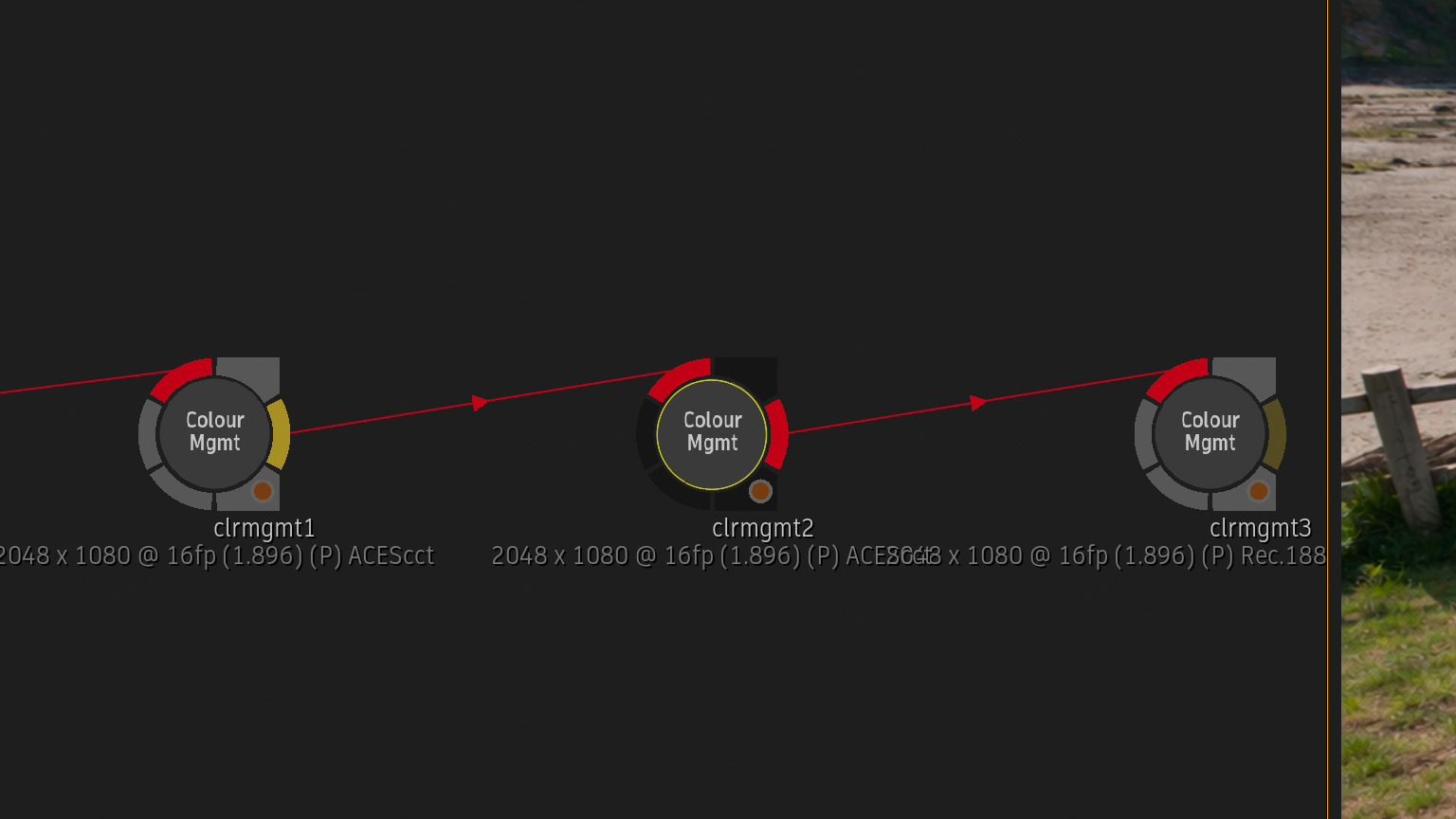
ACEScctにトランスフォームしているColour Managementノードもバイパス
↓
ACES2065-1 > Lookでも同じ結果
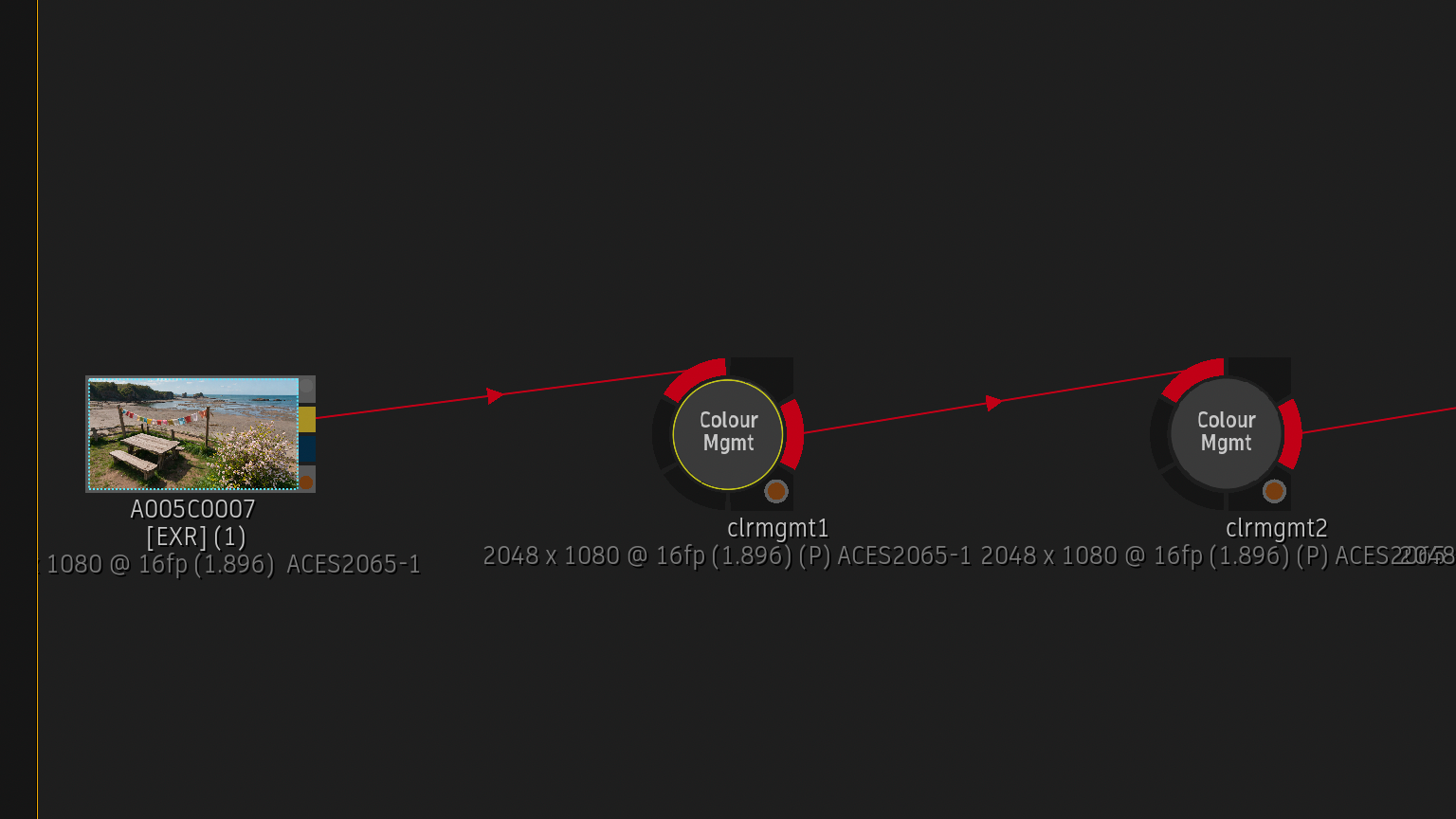
Lookに追加したLUTは、どの色空間で処理するか指定する必要があります。
    87    - !
    88      name: ACEScct_LUT
    89      process_space: ACEScct > ACEScct空間に変換指示
    90      transform: ! {src: ACEScct_LUT.cube, interpolation: linear} > ACEScct色空間にLUTを適用
Lookだけで対応できたこと
ACES2065-1色空間
↓
ACEScctにトランスフォーム
↓
調整用LUTを適用
まとめ
config.ocioにLookを追記することで、scene-referredパイプラインのLUT運用が可能になりました。
ただし、複数のLook(LUT)をショット単位で管理する必要がある場合、
運用方法を検討する必要がありそうですね。